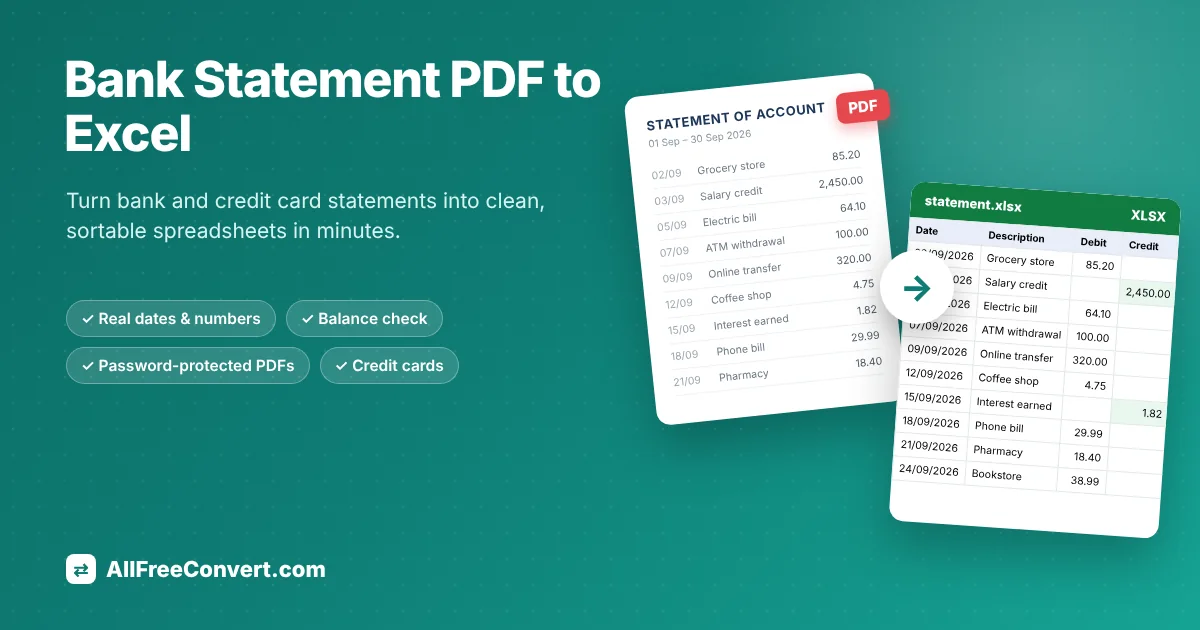
If you have ever tried to copy transactions out of a bank statement PDF and into Excel, you know how it goes. You select a few lines, paste them, and everything lands in one column. Dates turn into text, amounts lose their decimals, and a description that wrapped onto two lines becomes two half-rows. An hour later you are still fixing cells and wondering whether you missed a payment. This guide shows a faster way to turn a bank statement PDF to Excel: clean columns, real dates, real numbers, and a check that tells you the totals came across correctly.
We will cover why people convert statements in the first place, the different ways to do it, a step-by-step walkthrough with our free converter, how to handle password-protected files and credit card statements, and what to do with the spreadsheet once you have it. Whether you are doing your own budget, preparing documents for an accountant, or reconciling a small business account, the steps are the same.
Upload your statement and get a clean Excel file in a few seconds. Free, no sign-up needed.
Why convert a bank statement PDF to Excel?
A PDF is designed to look the same everywhere. That makes it perfect for an official record and terrible for working with numbers. You cannot sort a PDF by amount, filter it by a shop name, or add up every grocery purchase from the last three months. Once the same transactions sit in a spreadsheet, all of that takes seconds. These are the most common reasons people make the switch:
- Budgeting. Seeing a whole month of spending in rows makes it obvious where the money goes. Add a category column and a simple chart, and you have a personal budget without paying for an app.
- Bookkeeping and taxes. Freelancers and small business owners often need to match bank activity against invoices and receipts. Accountants usually ask for transactions in a spreadsheet rather than a stack of PDFs.
- Loan, visa and rental applications. Lenders and landlords sometimes want proof of income or average balances over several months. A spreadsheet lets you calculate those figures in a minute instead of adding them up by hand.
- Reconciliation. Businesses compare the bank's record with their own books every month. Having both in Excel makes differences easy to spot with a lookup or a filter.
- Expense reports and disputes. Pulling out every transaction from one merchant, or every charge made while travelling, is simple once the data is sortable.
In short, a statement in Excel is something you can work with, while a statement in PDF is something you can only read.
Before you start: is your statement a real PDF or a scan?
Not every PDF is the same inside, and this one detail decides how easy the conversion will be. There are two kinds:
- Text-based PDFs. These are the statements you download from online banking or receive by email. The words and numbers are stored as real text. You can tell because you can highlight a line with your mouse, or press
Ctrl + Fand search for an amount. - Scanned PDFs. These are pictures of paper pages, made with a scanner or a phone camera. They look like text, but to a computer they are just pixels. You cannot highlight individual words.
Our converter, like most direct converters, works with text-based statements. If your bank only gave you paper, check whether you can download the same statement from online banking or the mobile app first. Almost every bank offers electronic copies of at least the last year or two, and the downloaded version will convert far more accurately than any scan.
Four ways to get your statement into Excel
There is more than one route from PDF to spreadsheet. Each has its place, so here is an honest comparison before we get to the step-by-step part.
| Method | Good for | Drawbacks |
|---|---|---|
| Copy and paste | A handful of transactions | Columns collapse, dates and amounts paste as text, wrapped descriptions break into extra rows. Slow and easy to get wrong. |
| Your bank's CSV or Excel export | Recent activity, if your bank offers it | Often limited to recent months, missing for older statements, and the layout varies from bank to bank. Not available for statements you only have as PDFs. |
| Excel's "Get Data from PDF" | Users of Excel for Microsoft 365 on Windows | Usually returns one table per page that you must join and clean yourself. Not available in every version of Excel. |
| A bank statement converter | Any statement you can download as a PDF | Needs a text-based PDF. With our tool, all pages come out as one clean list with real dates, numbers and a balance check. |
If your bank lets you export exactly the period you need as a spreadsheet, use that. For everything else, especially older statements, statements from several banks, or files your accountant sent you, a converter built for statements is the quickest reliable option.
How to convert PDF bank statements to Excel, step by step
Here is the whole process with the free Bank Statement PDF to Excel tool. It runs in your browser on a computer or a phone, and you do not need to install anything or create an account.
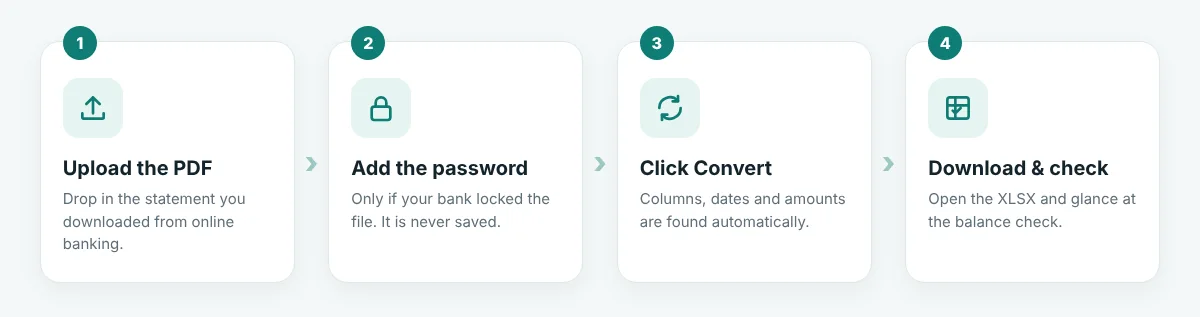
- Download the statement from your bank. Log in to online banking, open your statements or documents section, and save the month you need as a PDF. If you need several months, download each one; you can convert them together.
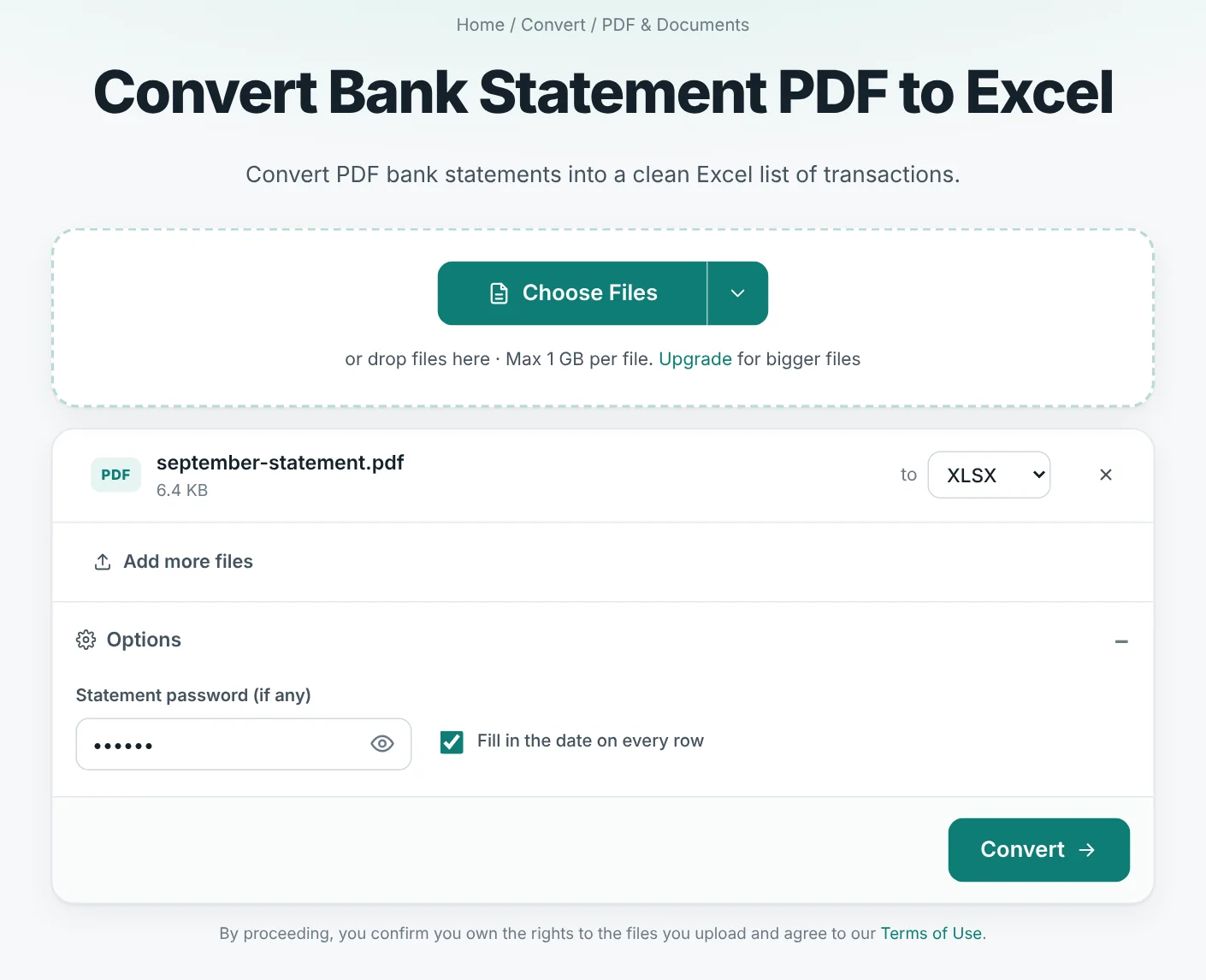
- Open the converter and add your file. Go to the Bank Statement PDF to Excel page and click Choose Files, or drag the PDF onto the box. You can also pick it from Google Drive or Dropbox with the small arrow next to the button.
- Enter the password if the file is locked. Many banks protect statements with a password, often your date of birth or part of your account number. Open Options and type it into Statement password. If your PDF opens without a password, leave this empty.
- Choose XLSX or CSV. XLSX is the normal Excel format and keeps formatting, frozen headers and the summary sheet. Pick CSV if you plan to import the transactions into accounting software.
- Click Convert and download. After a few seconds your file is ready. Open it in Excel, Google Sheets, Numbers or LibreOffice.
That is all there is to it. If you have a whole year of statements, add all twelve PDFs at once. Each one becomes its own Excel file, and you can download them together as a ZIP.
What the Excel file looks like
The goal is a spreadsheet you can use immediately, without a cleanup session. Here is a real example: on the left is a three-page sample statement, and on the right is the file the converter produced.
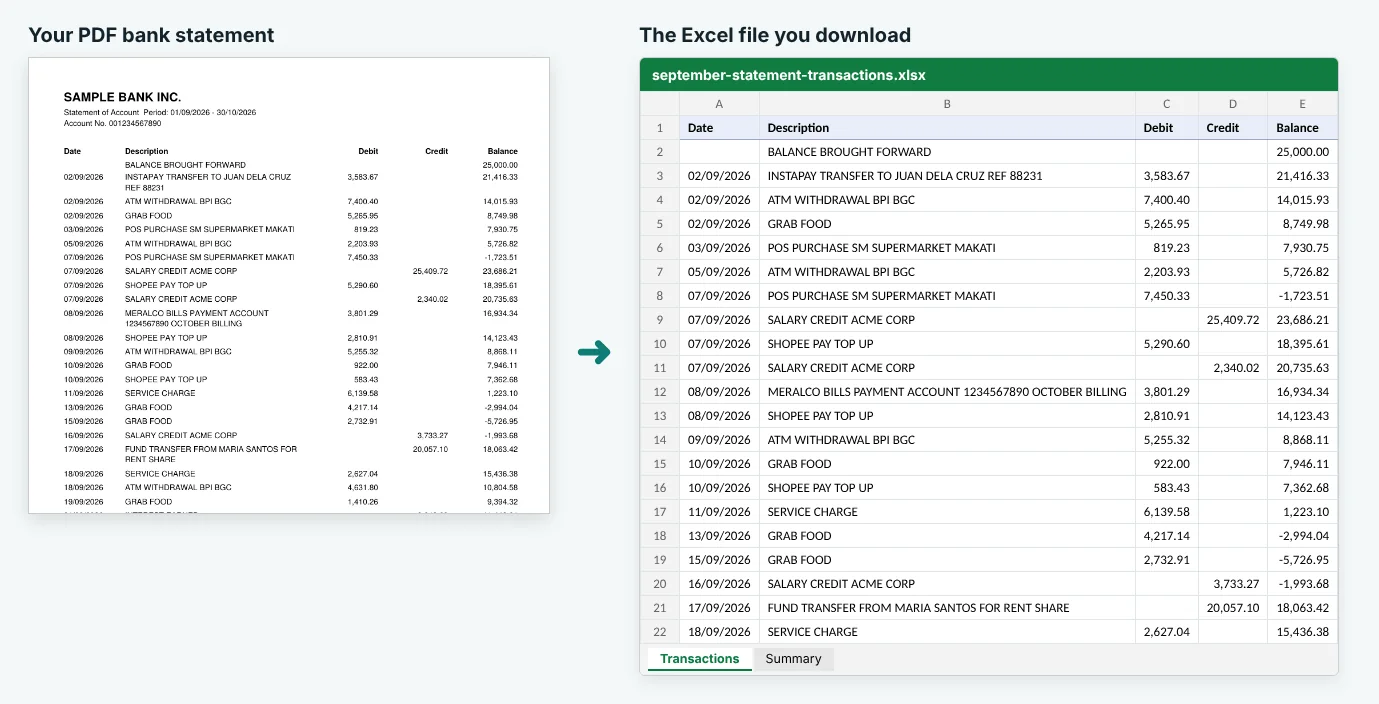
A few things happen behind the scenes to get this result:
- Columns come from your statement. The tool reads the column headings printed on the page, such as Date, Description, Debit, Credit and Balance, or Withdrawal and Deposit, and uses them as the headings in Excel. It does not rely on a fixed list of banks, which is why it copes with layouts it has never seen before.
- Every page becomes one list. Headers that repeat at the top of each page, page numbers and footer notes are left out, so you get one continuous table.
- Wrapped descriptions are joined. When a long description runs onto a second line, both lines are put back together in a single cell instead of creating a half-empty row.
- Dates become real Excel dates. The tool works out whether your bank writes day-first (31/10/2026) or month-first (10/31/2026), understands month names like "03 Oct 2026", and fills in the year when the statement only prints "10/03". That means sorting by date works correctly.
- Amounts become real numbers. Currency symbols, thousands separators, minus signs, brackets and "CR" or "DR" markers are handled, so formulas like SUM work straight away. Statements that write amounts the European way, like 1.234,56, are recognised too.
- The header row stays visible. The first row is frozen and has filter buttons, so you can scroll through hundreds of transactions and still see what each column means.
If you tick Fill in the date on every row, which is on by default, transactions that the bank grouped under one date each get their own date. That small detail matters a lot when you later sort, filter or build a pivot table.
Combining several months into one sheet
Lenders and accountants often ask for three, six or twelve months at once. After converting each statement, open the first Excel file and use it as your master sheet. Then open the next file, select its transactions without the heading row, copy them, and paste them directly under the last row of the master sheet. Repeat for each month. Because every file uses the same columns, the rows line up perfectly.
When all months are in, sort the whole table by the Date column, oldest to newest. Then look for the "opening balance", "balance brought forward" and "closing balance" lines that each statement adds at its start and end, and delete them so they do not appear in the middle of your list. Finally, count the rows in your combined sheet and compare the number with the transaction counts on each file's Summary sheet added together. If the numbers match, nothing was skipped while copying, and your full history is ready for any formula or pivot table you want to build.
The built-in balance check
The most worrying part of any conversion is not knowing whether something went missing. That is why every Excel file includes a second sheet called Summary. It lists the number of transactions, total money in, total money out, and the first and last balance shown on the statement. Most importantly, it runs a balance check.
For each row, the converter takes the previous balance, subtracts the money out, adds the money in, and compares the result with the running balance printed by your bank. If every row adds up, the summary says so. If a row does not, its balance cell is highlighted in red, so you know exactly where to look.
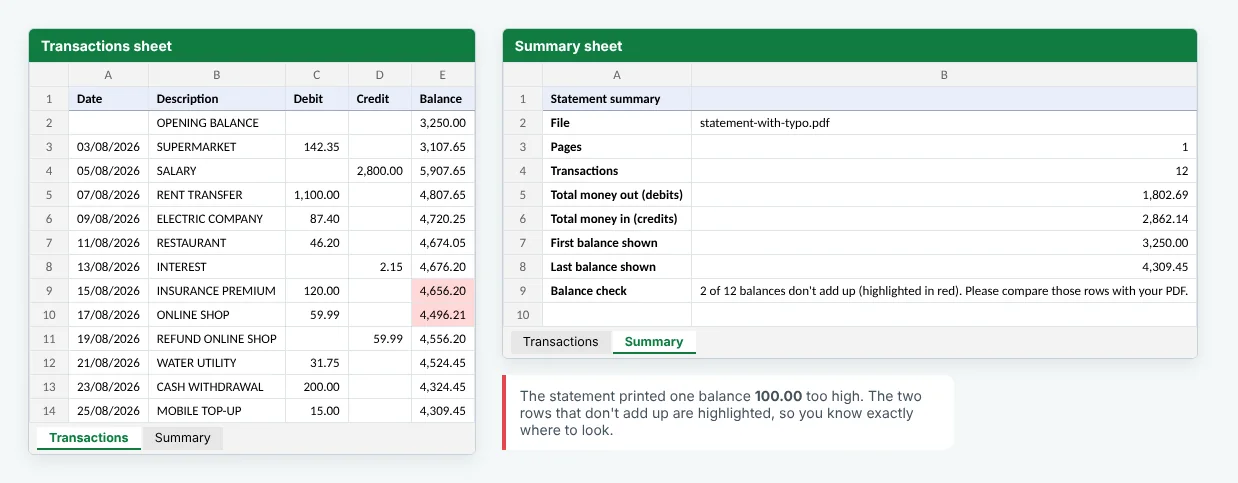
When everything matches, you can be confident that no transaction was skipped and no amount was misread. When something is flagged, compare those few rows with the PDF. Usually it is a line the bank formatted unusually, and it takes seconds to fix by hand. It is far better to know about it than to discover the mistake weeks later in your accounts.
How to convert credit card statement PDF to Excel
Credit card statements look similar to bank statements, but they behave differently. On a credit card, a positive amount is usually a charge, money you spent, while a payment or a refund shows as a negative amount or with a "CR" marker. Many card statements also have no running balance column at all, just a previous balance at the top and a new balance at the bottom.
You can convert credit card statement PDF to Excel with the same tool and the same steps. It recognises card statements from wording such as "card ending", "payment due date" and "new balance", and then:
- lists every charge, payment and refund with its transaction date and, if printed, its posting date, both as real Excel dates;
- adds up total charges and total payments and credits separately, rather than treating them like deposits and withdrawals;
- checks that the previous balance plus charges minus payments equals the new balance printed on the statement.
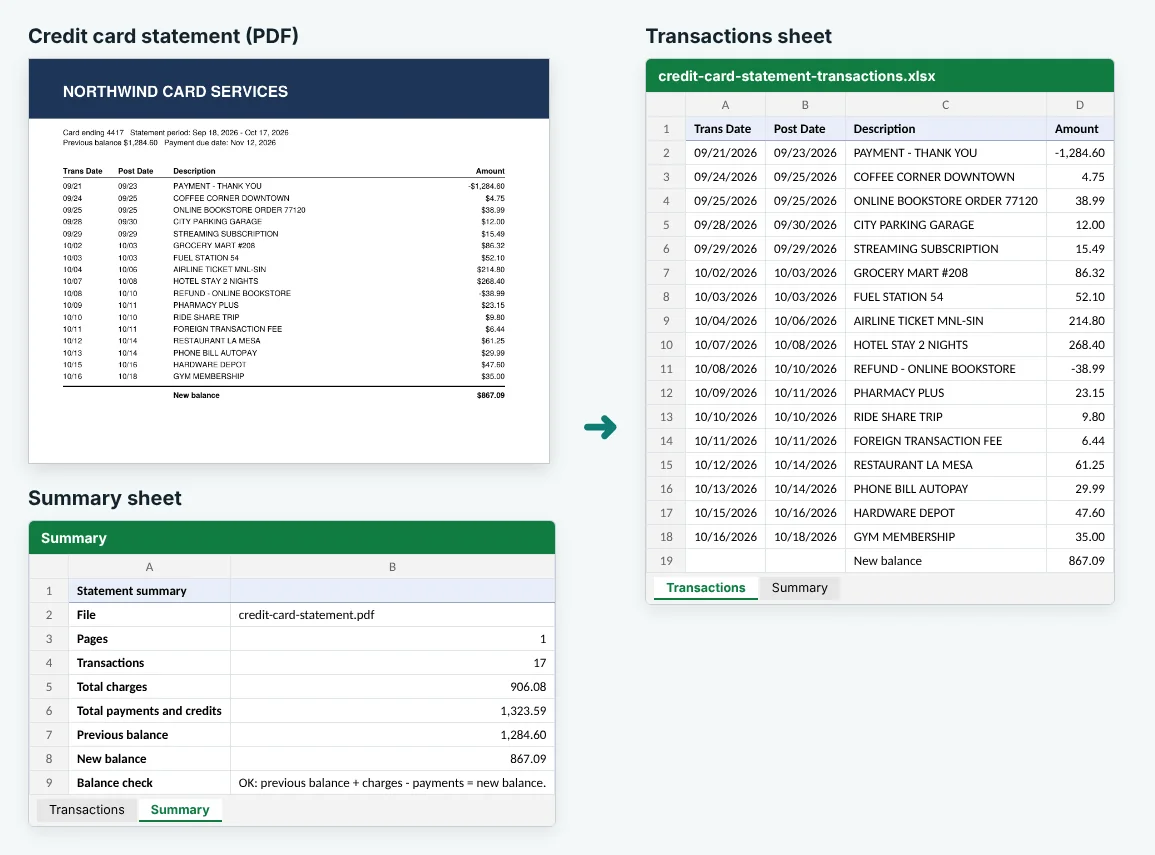
This makes card statements especially handy for expense reports. Filter the Description column for a trip or a client, and you have a list of charges with dates and amounts you can paste straight into a claim form.
Password-protected statements
In many countries banks lock e-statements with a password before emailing them. Common choices are your date of birth in a set format, the last digits of your account or card number, or a combination of both. The exact rule is usually written in the email that came with the statement or on your bank's help page.
You do not need to unlock the PDF first. Type the password into the Statement password box under Options and the converter opens the file for that one conversion. The password is not saved, it is not attached to your account, and it is never written to our logs. If you type the wrong one, you get a clear message asking you to check it, and nothing else happens to your file.
Tips for the cleanest results
Most statements convert perfectly on the first try. When one does not, it is usually for one of these reasons, and the fix is quick:
- Use the original download. A statement that was printed and re-saved as PDF, or passed through an online "PDF editor", can lose its text layer. The file straight from your bank works best.
- Convert one account at a time. Some banks put a current account and a savings account in the same PDF, each with its own table. The converter keeps the rows from both, so add a column to mark which account each row belongs to, or ask your bank for separate statements.
- Look at the Summary first. If the balance check passes, the data is complete. If it flags a row, compare only that row with the PDF instead of checking everything.
- Keep the original PDF. The spreadsheet is a working copy. For official purposes, such as a loan application, your bank's PDF is still the document of record.
- Try CSV for accounting software. Programs such as QuickBooks, Xero and many budgeting apps import CSV files directly, and the CSV keeps the same columns as the Excel file.
Convert a bank or credit card statement PDF to Excel in seconds. It is free and works on any device.
What to do with your statement in Excel
Getting the data into a spreadsheet is only the start. Because the dates and amounts are real values rather than text, you can analyse them straight away. Here are three quick ideas that need nothing more than standard Excel features.
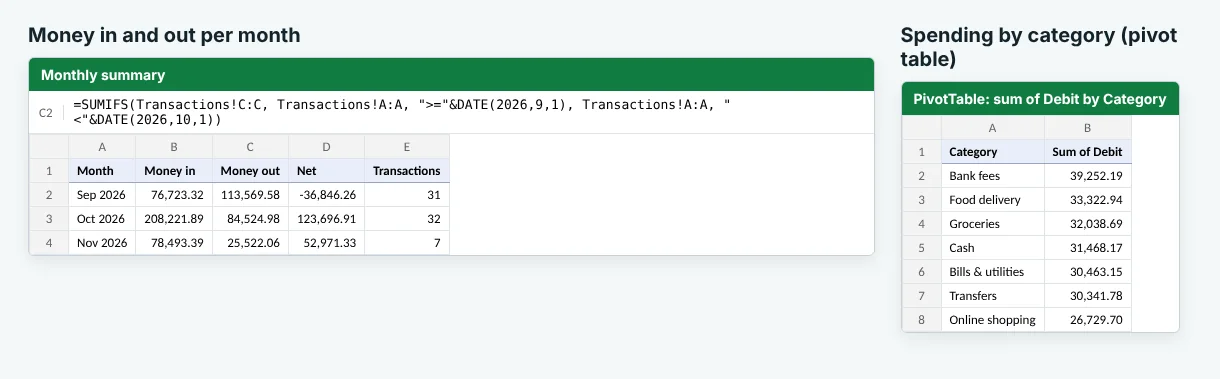
1. Totals per month with SUMIFS
Create a small table with one row per month. In the "Money out" column, use SUMIFS to add up the Debit column for dates within that month. For September 2026, the formula would be =SUMIFS(Transactions!C:C, Transactions!A:A, ">="&DATE(2026,9,1), Transactions!A:A, "<"&DATE(2026,10,1)). Copy it down, change the dates, and you have a monthly overview that updates whenever you add another statement.
2. Spending by category with a pivot table
Add a column called Category next to Description and label each row: groceries, bills, transport, eating out and so on. Then select the table, choose Insert › PivotTable, drag Category into Rows and Debit into Values. In a few clicks you can see exactly how much went where.
3. Find recurring payments
Sort the sheet by Description and scan for names that repeat every month. Streaming services, gym memberships and app subscriptions jump out immediately. Many people find at least one subscription they forgot about the first time they do this.
If you prefer Google Sheets, upload the XLSX file to Google Drive and open it there. The dates, numbers, SUMIFS formulas and pivot tables all work the same way.
Is it safe to convert bank statements online?
It is a fair question. A bank statement contains your name, account details and a record of where you spend your money, so you should know where it goes. Here is how we handle it:
- Encrypted upload. Your file travels to us over an encrypted HTTPS connection.
- Our own server. The conversion runs on our server. Your statement is not sent to any other company or outside service.
- Automatic deletion. The uploaded PDF is deleted as soon as the conversion finishes, and the Excel file is deleted automatically after 8 hours, or a little longer on paid plans so you have time to download it.
- No reading, no selling. Nobody looks at your files, and we never share or sell their contents.
- Passwords stay private. Statement passwords are used once to open the file and are never stored or logged.
You can read more on our security page. As with any online service, it is also good practice to download your Excel file, check it, and keep it somewhere secure on your own device.
The bottom line
Turning a bank statement PDF to Excel should not take an afternoon of copying and pasting. With a text-based statement and the right converter, you get every transaction from every page in one tidy sheet, with real dates, real amounts and a balance check that confirms nothing went missing. The same goes for credit card statements, password-protected files and statements from banks the tool has never seen before.
Download your statement, convert PDF bank statements to Excel in a few seconds, and spend the time you saved on understanding your numbers instead of typing them. If you also have other PDFs with tables, such as invoices, price lists or reports, our general PDF to Excel converter handles those.
Frequently asked questions
Is it free to convert a bank statement PDF to Excel?
Yes. The Bank Statement PDF to Excel tool on AllFreeConvert is free to use without an account for files up to 1 GB. Paid plans only add bigger files, longer storage and a faster queue.
Can I convert a password-protected bank statement?
Yes. Type the statement password in Options before you click Convert. The password is only used to open the file for that one conversion. It is never saved and never written to our logs.
Does it work with scanned statements?
Not yet. The converter reads the real text inside the PDF, so it needs a statement downloaded from online banking or created on a computer. A scan or a phone photo of paper has no text inside it to read.
Can I convert a credit card statement PDF to Excel too?
Yes. The tool recognises credit card statements, lists every charge, payment and refund, and adds up total charges and total payments. When the statement shows a previous and new balance, it also checks that they add up.
Will the dates and amounts work in Excel formulas?
Yes. Dates become real Excel dates and amounts become real numbers, so sorting, filtering, SUMIFS and pivot tables work straight away without any cleanup.
Is it safe to upload my bank statement?
Your file is processed on our own server, is never shared with anyone, and is deleted automatically. The upload is removed right after conversion and the Excel file is deleted automatically after 8 hours.