Compress PDF
Reduce PDF file size.
By proceeding, you confirm you own the rights to the files you upload and agree to our Terms of Use.
How to use PDF Compressor
- 1Add your files
Click “Choose Files”, drop them on the box, or paste a link.
- 2Adjust the options
Open Options to fine-tune the result.
- 3Download
Your file is ready in seconds and deleted from the server after 8 hours.
About PDF Compressor
Make large PDF files smaller so they're easier to email, upload to forms or store. Choose Recommended for a good balance, Strong for the smallest file (best for viewing on screen), or Light to keep print quality. Text stays sharp — most of the savings come from images inside the PDF.
Light, Recommended or Strong: which level to pick
Each level sets how much detail is kept in the pictures inside your PDF. Text, links and drawings are not turned into images, so they stay sharp at every level.
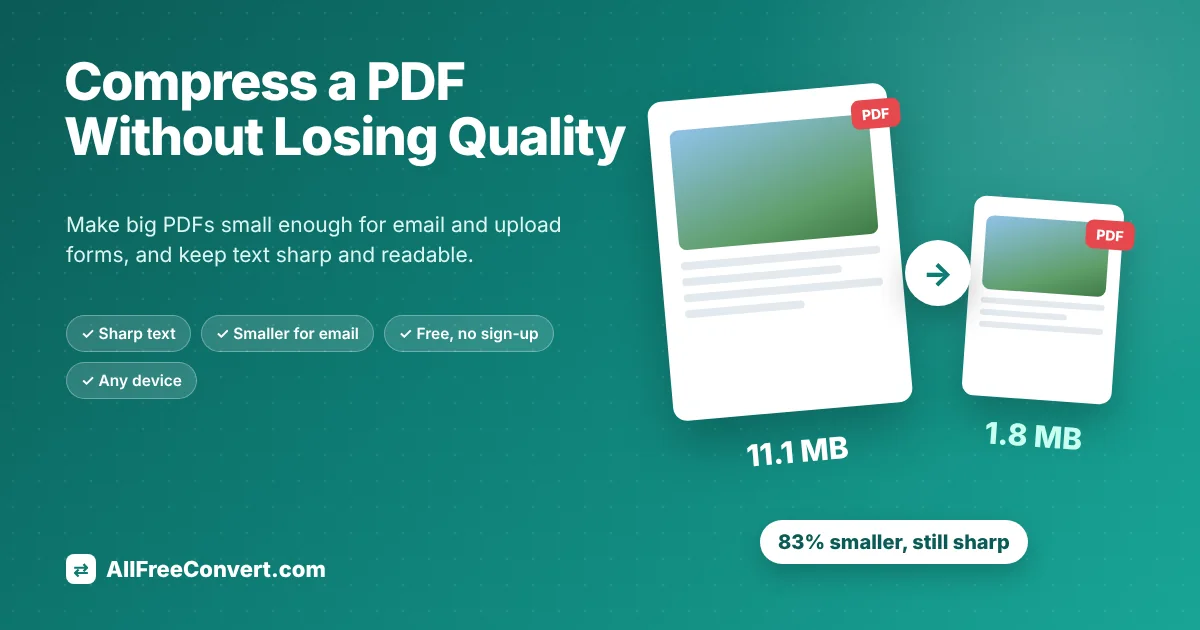
- Recommended keeps images at up to about 150 dpi, which is more than a screen can show. In our own test a six-page colour scan went from 11.1 MB to 1.8 MB and looked the same at normal zoom. Start here for email, job portals, school and government forms.
- Light keeps print quality (about 300 dpi). Choose it for files you will print, contracts with small print, or when the result must look identical even when zoomed in.
- Strong goes down to about 72 dpi for the smallest possible file. Text is still readable on screen, but small print and photos get softer. Use it when a form says "maximum 1 MB" or similar.
How much smaller will my PDF get?
It depends on what is inside the file. Scanned pages and photos make up almost all of the size of a big PDF, and those shrink a lot, often by 70 to 95%. A PDF that is mostly typed text is already small, so there is little left to remove; you may only save a few kilobytes. A file that was compressed before will also shrink less the second time.
If compression would make a file bigger, which can happen with files that are already very optimised, you simply get your original back, so you never end up with a worse result.
Still too big? Try these next
- Remove pages you do not need, such as blank backs of scanned pages, with PDF page remover.
- Turn colour scans into black and white with PDF to Black and White. For text documents this often halves the size again and makes faint text clearer.
- Split the file into parts with PDF Split if the form accepts more than one upload.
- Do not compress the same file over and over. Each pass blurs images a little more while saving less space.
Want the full story, with zoomed-in examples of each level? Read our guide How to Compress a PDF Without Losing Quality.
Frequently asked questions
How much smaller will my PDF get?
It depends on the file. PDFs with lots of photos or scans often shrink a lot, while text-only PDFs are usually small already and change little.
Which compression level should I pick?
Use Recommended for email and uploads, Strong when you need the smallest possible file, and Light if you plan to print the document.
What if my PDF doesn't get smaller?
If compression can't make it smaller, you get your original file back unchanged — we never give you a bigger file.
Will the text in my PDF still be searchable?
Yes. Real text stays text: you can still search, select and copy it. Only pictures and scanned pages are made lighter. A scanned PDF had no searchable text to begin with, and compression does not change that.
How small should a PDF be for email?
Aim for under 10 MB, or under 5 MB for company and government inboxes. Gmail allows 25 MB per message, but attachments grow by about a third when sent, so a smaller file is safer.
 📖 Read the full guideHow to Compress a PDF Without Losing Quality (Free, Step by Step)We compressed a scanned letter, a photo newsletter and a text report at three levels and zoomed in on the results. Here is which setting to use and how to get under any size limit.Read the guide