You finish filling in an application, scan the signed pages, attach the PDF and press Send. A moment later the email bounces: the attachment is too big. Or a government form tells you the upload must be "under 2 MB", and your file is eleven. Most people in that situation search for a way to compress a PDF without losing quality, and most of the advice they find is either too technical or quietly turns their documents into blurry, unreadable copies.
This guide does it differently. We built three typical PDFs ourselves (a scanned letter, a newsletter full of photos and a plain text report), compressed each one at three levels, measured the results and zoomed in on the text to see what really changes. You will learn why some PDFs are huge and others tiny, which setting to pick, how to make a PDF smaller for email or a strict upload limit, and how to check the result before you send it.
Upload your file, keep the Recommended setting and download a lighter PDF in seconds. Free, no sign-up.
Why some PDFs are so big
A PDF is a container. It can hold text, fonts, drawings, photos, scanned pages, form fields and even attachments, and the file size depends almost entirely on what is inside. Before you try to reduce a PDF's file size, it helps to know where the megabytes come from, because that decides how much you can save.
- Scanned pages. A scanner or phone camera does not save words; it saves a picture of each page. One colour page scanned at 300 dots per inch (dpi) is about 8.7 million pixels. Even after the scanner compresses it, that is often 1 to 3 MB per page. A ten-page scanned contract can easily pass 20 MB.
- Photos straight from a camera. Modern phones take photos of 12 megapixels or more. When you drop one into a document and shrink it to a quarter of the page, the PDF usually keeps all of the original pixels. You see a small picture, but the file stores a huge one.
- Embedded fonts. To make sure the document looks the same everywhere, a PDF often includes the fonts it uses. A few fonts add tens or hundreds of kilobytes. That matters for a tiny file but rarely for a big one.
- Hidden extras. Some programs save edit history, thumbnails, colour profiles, layers or duplicate copies of the same image. These add weight that nobody ever sees.
- Plain text. Words themselves are almost weightless. A 12-page report with no pictures can be smaller than a single photo.
In practice, images are where the size is. When we checked our test files, more than 99% of the scanned letter and the photo newsletter was image data. That is good news: images are also the part a compressor can shrink safely, as long as it does it with care.
What "without losing quality" really means
There are two kinds of compression, and the difference explains almost everything about PDF quality.
Lossless compression packs the same information into fewer bytes, a bit like folding clothes neatly so they fit in a smaller suitcase. Nothing is thrown away and the result is identical to the original. It works very well on text, drawings and the internal structure of the file, but it cannot do much with photos and scans, which are already compressed.
Lossy compression removes detail that you are unlikely to notice. For images in a PDF this means two things: lowering the resolution (fewer pixels per inch) and saving the picture again as a JPEG with a slightly lower quality setting. Done gently, the result looks the same on screen and in print. Pushed too far, edges go soft, small text gets fuzzy and colours show blocky patches.
So "compress a PDF without losing quality" really means without losing any quality you can see. The trick is to remove pixels that your screen or printer could never show anyway. A typical laptop screen displays a full A4 or Letter page at roughly 90 to 130 pixels per inch. A home printer rarely benefits from more than 300 dpi. An image stored at 600 dpi wastes most of its pixels in both cases, so bringing it down to 150 or 300 dpi saves a lot of space and costs you nothing.
Here is what that looks like. We zoomed in about four times on the same line of text from page 1 of our scanned letter, after compressing it at each level:
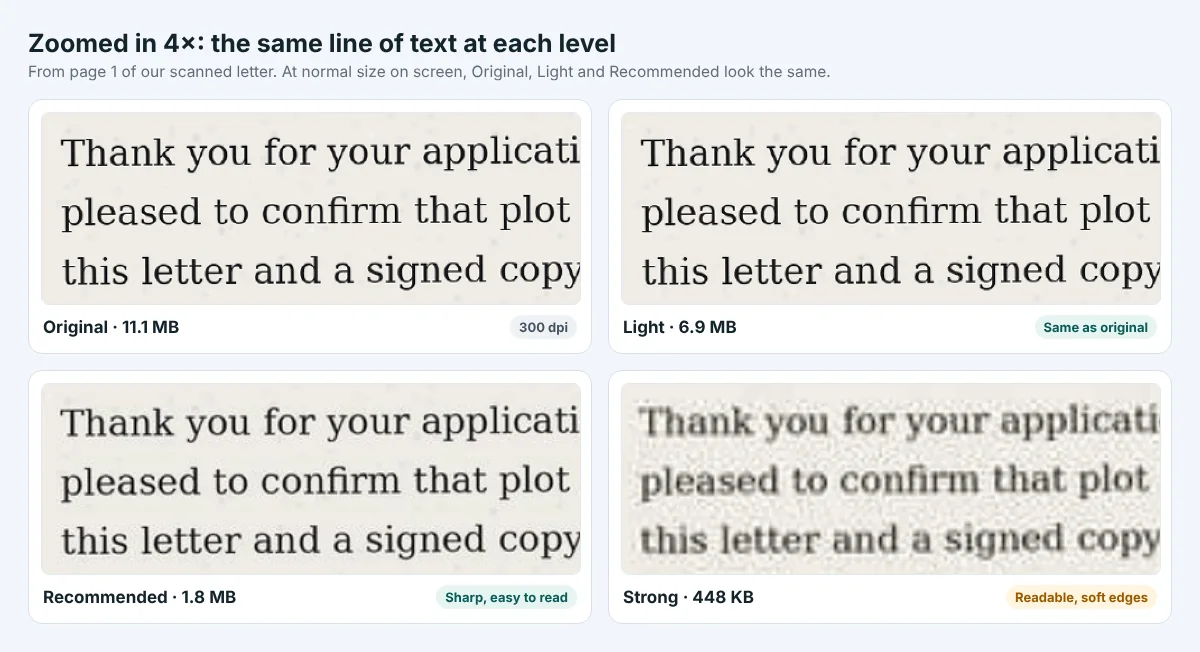
Light and Recommended are impossible to tell apart from the original at normal size, and even zoomed in the letters stay crisp. Strong is still perfectly readable, but you can see softer, slightly blocky edges around each letter. That is the trade-off in one picture: the strongest setting is for when size matters more than detail.
Our test: how much smaller PDFs really get
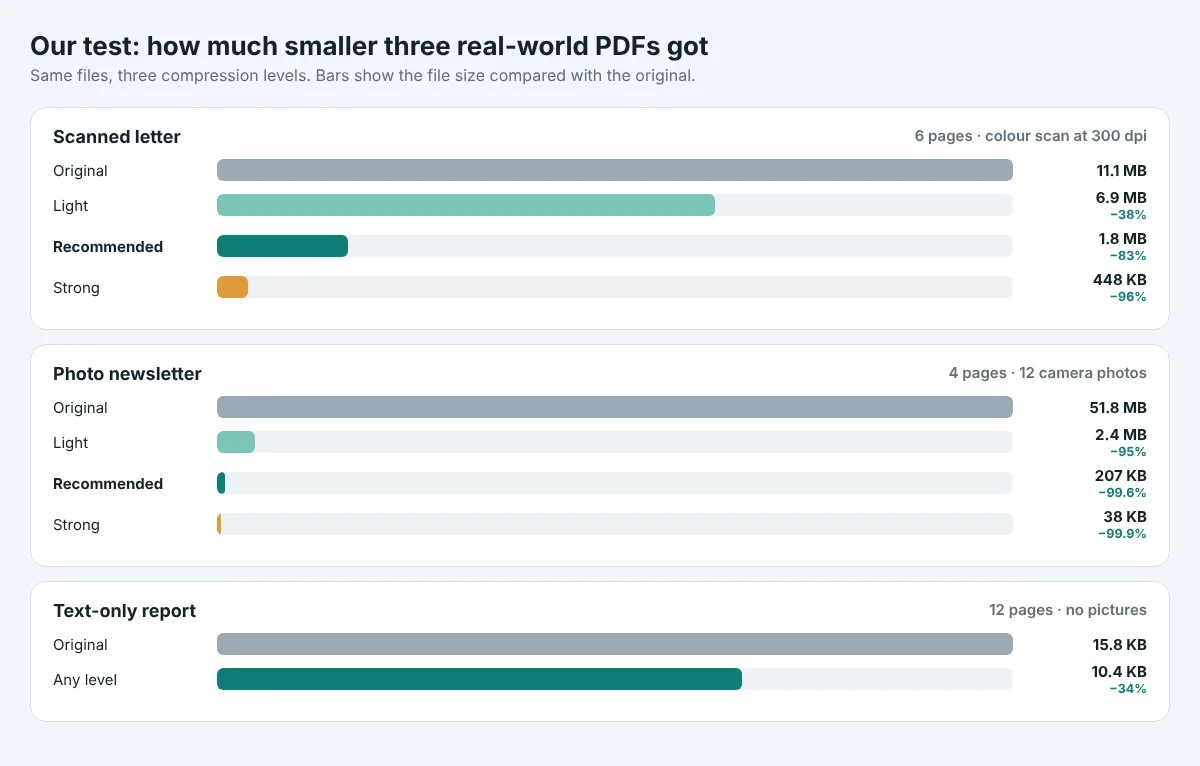
Numbers you read online often come from one perfect example. To give you a realistic idea, we created three common kinds of PDF and compressed each one with the same three settings our PDF Compressor offers.
| Test file | Original | Light | Recommended | Strong |
|---|---|---|---|---|
| Scanned letter (6 pages, colour, 300 dpi) | 11.1 MB | 6.9 MB (−38%) | 1.8 MB (−83%) | 448 KB (−96%) |
| Photo newsletter (4 pages, 12 camera photos) | 49.5 MB | 2.4 MB (−95%) | 207 KB (−99.6%) | 38 KB (−99.9%) |
| Text-only report (12 pages) | 15.8 KB | 10.4 KB (−34%) | 10.4 KB (−34%) | 10.4 KB (−34%) |
Three lessons stand out:
- Scans shrink a lot. The six-page letter went from 11.1 MB to 1.8 MB on the Recommended setting, small enough for any email and most upload forms, and the text stayed sharp.
- Photos placed small on a page shrink the most. The newsletter's photos were stored at 600 to 900 pixels per inch because they came straight from a camera. Even the gentle Light setting removed 95% of the size, because most of those pixels could never be seen.
- Text-only PDFs are already small. If your PDF has no pictures and is still large, the size probably comes from embedded fonts, attachments or hidden extras, and compression will help much less. Our 12-page report only had room for lossless savings.
Your own files will not match these numbers exactly. A PDF that was already compressed once, or one made with a phone scanner app that saves small images, will shrink less. But the pattern holds for almost every file: the more images and scans a PDF contains, the bigger the saving.
Which compression level should you choose?
Most PDF compressors, including ours, offer a few presets rather than dozens of sliders. Each preset sets a maximum resolution for images and a JPEG quality. Images that are already below the limit are left alone, which is why compression never makes a sensible file worse than it needs to be.
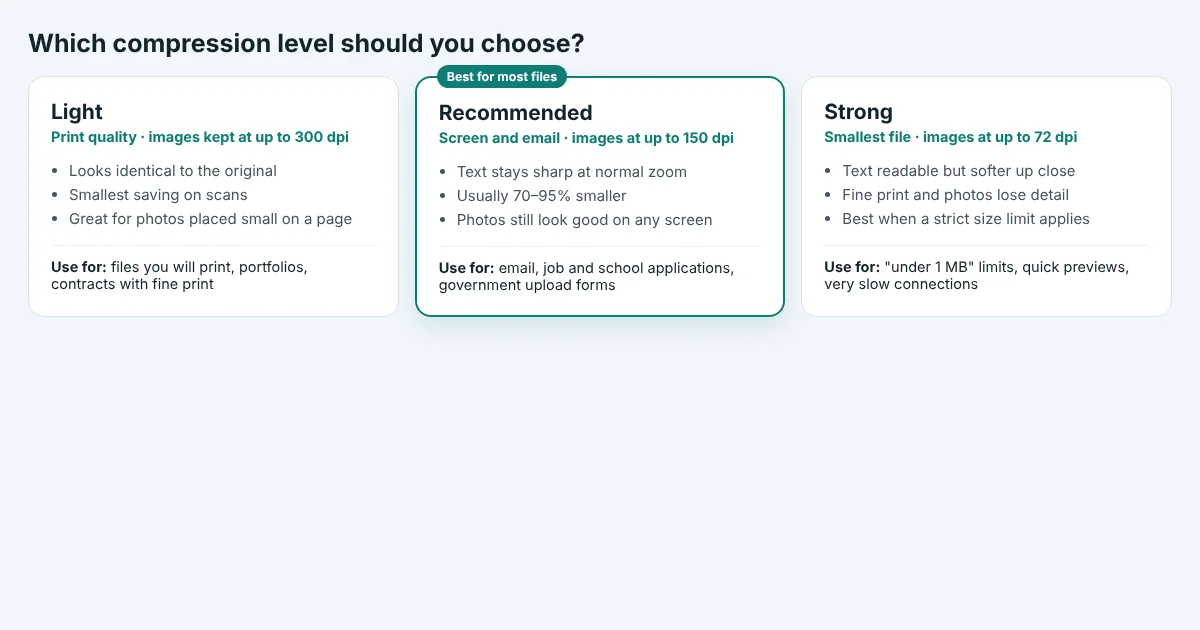
- Light (print quality, about 300 dpi). Choose this when the PDF will be printed, when it contains fine print such as contract terms, or when you want the result to be indistinguishable from the original even when zoomed in. Savings on scans are moderate; savings on oversized photos can still be huge.
- Recommended (screen and email, about 150 dpi). This is the setting to start with. Text stays sharp at normal zoom levels, photos look good on laptops and phones, and files usually become 70 to 95% smaller. It is ideal for job applications, school portals, insurance claims and anything you email.
- Strong (smallest file, about 72 dpi). Use it when you face a strict limit, such as "maximum 1 MB", or when the reader only needs a quick look. Text remains readable on screen, but small print and photos lose detail, and the result prints poorly.
How to compress a PDF for free, step by step
You do not need to install anything. The steps are the same on Windows, Mac, Linux, iPhone, Android and Chromebook, because everything happens in your web browser.
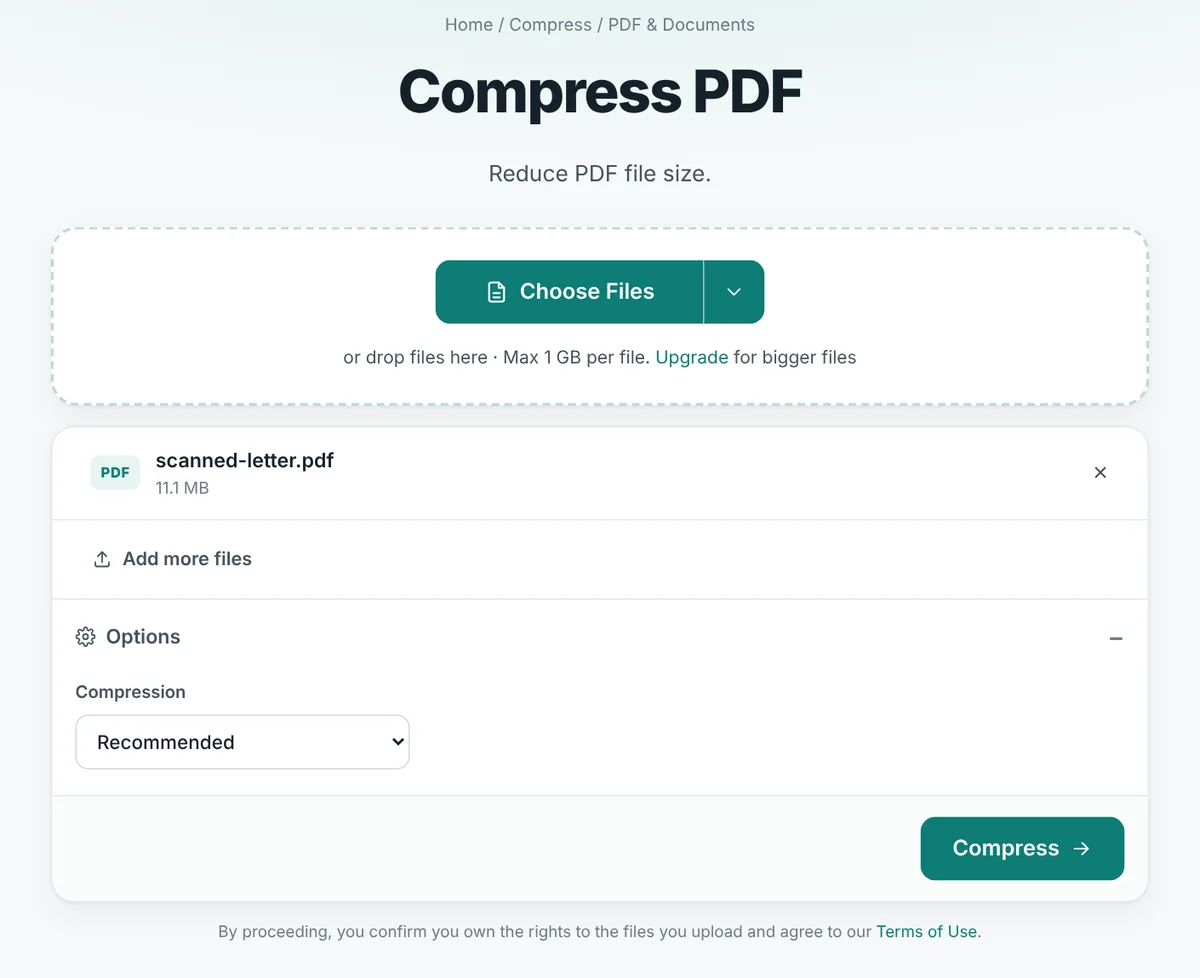
- Open the PDF Compressor. Go to the PDF Compressor page. No account is needed.
- Add your file. Click Choose Files or drag the PDF onto the page. The small arrow next to the button lets you add a file from a link or a cloud drive instead. The file name and its current size appear in the list.
- Pick a level. Open Options and leave Compression on Recommended unless you have a reason to change it (see the guide above).
- Click Compress. Small files finish in a couple of seconds; a large scan may take a little longer. You can add several PDFs at once and they will all be compressed with the same setting.
- Download and check. The download shows the new size. Open the file, zoom to 100% on the page with the smallest text and make sure everything is readable before you send it.
Your original file is never changed. You always get a new, separate PDF, so you can try a different level if the first result is not what you wanted.
How to compress a PDF on iPhone or Android
You do not need an app. Open the PDF Compressor in Safari, Chrome or any other mobile browser and tap Choose Files.
- iPhone and iPad: pick the PDF from the Files app. If the document is in an email, save the attachment to Files first (tap the attachment, then the share button, then Save to Files).
- Android: choose the PDF from Downloads, Google Drive or any folder your file manager shows.
Leave the level on Recommended, tap Compress and then download the result. On iPhone the file appears in your downloads list in Safari, from where you can share it straight to Mail, WhatsApp or a web form. On Android it is saved to the Downloads folder. Because phone screens are small, open the compressed PDF and pinch to zoom on the smallest text before you send it, just as you would on a computer.
How to make a PDF smaller for email
Email providers limit how big an attachment can be. Gmail allows messages up to 25 MB, and Outlook and many work email systems use limits of around 20 MB. Those limits apply to the whole message, and attachments grow by roughly a third when they are encoded for email, so a 20 MB PDF can fail even when the limit says 25 MB. Many company mail servers are stricter still, often 10 MB.
To be safe, aim for under 10 MB for anything you email, and under 5 MB if the recipient is a company or government office. With the Recommended setting, most scanned documents of up to about 20 pages land well below that. A few more tips:
- Send one PDF, not ten photos. If you photographed pages with your phone, combine them into one PDF with JPG to PDF, then compress that single file. It is tidier for the reader and usually smaller in total.
- Check the size of everything you attach. Three 8 MB files are still 24 MB together.
- Use a link for truly large files. A 200-page catalogue with high-quality photos may be better shared as a cloud link, with a compressed version attached as a preview.
How to compress a PDF to 1 MB (or any size limit)
Upload forms for visas, university applications, tax offices and job portals often say things like "PDF only, maximum 1 MB" or "under 500 KB". If the Recommended and Strong settings are not enough, work through these steps in order. Each one keeps more quality than simply compressing harder.
- Try Strong once. In our test, Strong took a six-page colour scan down to 448 KB. For most short documents that is enough.
- Remove pages you do not need. Blank backs of pages, cover sheets and duplicate copies add size for no reason. Delete them with PDF Page Remover, then compress again.
- Turn colour scans into black and white. If the document is just text and a signature, colour is wasted space. Converting it with PDF to Black and White often halves the size again and makes faint text easier to read.
- Split the file. If the form accepts several uploads, use Split PDF to send, for example, your ID pages and your certificates as separate files under the limit.
- Scan again at a sensible setting. If you control the scan, choose 150 or 200 dpi and greyscale for text documents. It is the single most effective way to create small, clean PDFs, and much better than scanning at 600 dpi in colour and compressing afterwards.
Other ways to reduce PDF file size
An online compressor is the quickest option for most people, but it is not the only one. Here is how the common alternatives compare.
| Method | Good for | Watch out for |
|---|---|---|
| Online PDF Compressor (like ours) | Any device, no installation, clear quality levels, several files at once | Needs an internet connection; very large files take longer to upload |
| Adobe Acrobat (paid) | Fine control over every setting, batch processing, office workflows | Paid subscription; many settings to understand |
| Preview on Mac (File → Export → Quartz Filter → Reduce File Size) | Built in and free on every Mac | The built-in filter is very aggressive and can make scans blurry; there are no quality levels to choose from |
| Microsoft Word (Save As → PDF → Minimum size) | Documents you created in Word yourself | Only works when you still have the original Word file; does nothing for scans |
| Phone scanner apps | Creating small PDFs from the start | Settings vary by app; some save large, high-resolution images by default |
If you made the PDF yourself from Word, Google Docs or a design program, the best place to keep it small is at export time: choose a "smallest size" or "web" option and the program will not embed full-size images in the first place. For everything else, such as scans, files sent to you or forms you downloaded, an online compressor does the job in one step.
Common mistakes that ruin quality
- Using the strongest setting for everything. It is tempting to always pick the smallest file, but documents that will be printed, or that contain small print, deserve Light or Recommended.
- Compressing a file you need to edit later. Keep the original. If you need to change the content, edit the original and compress again at the end. You can turn a PDF into an editable document with our guide to converting PDF to Word.
- Forgetting the signature page. Signatures and stamps are thin lines. Always zoom in on them after compressing; if they look broken, use a lighter setting.
- Scanning in colour at 600 dpi "just in case". You create a giant file and then have to throw most of it away. Scan text documents at 150 to 300 dpi in greyscale.
- Re-compressing a file that was already compressed. If someone sent you a PDF that is already small, compressing it again saves very little and only reduces quality.
What compression changes, and what it never touches
People often worry that compression will damage their document. A good compressor only changes how pictures are stored. Here is what stays exactly the same:
- Real text in a text-based PDF stays as text, so you can still search it, select it and copy it. It is not turned into an image.
- Page count, page size and layout stay the same.
- Links and bookmarks keep working.
- Vector graphics such as logos, charts and lines drawn by a program stay perfectly sharp at any zoom, because they are not made of pixels.
What does change is the resolution and quality of images: photos, scanned pages and screenshots. That is why a scanned PDF shows the difference between levels while a text-only PDF looks identical at every setting.
One exception is worth knowing: if a PDF is password-protected against changes, it has to be unlocked first. If you have the right to open it, you can remove the restriction with Unlock PDF, compress it, and protect it again with Protect PDF if needed.
Is it safe to compress a PDF online?
The PDFs people compress most often are personal: scanned IDs, bank letters, medical forms and contracts. It is reasonable to ask where your file goes.
On AllFreeConvert, files are uploaded over an encrypted connection and processed on our own server; they are not sent to other companies to be compressed. The upload is deleted right after processing, and the compressed PDF is deleted automatically after 8 hours. Nobody looks at your documents, and we do not use them for anything else. You can read the details on our Security and Privacy pages.
Whatever service you use, a few habits keep you safe: use well-known sites with a clear privacy policy, avoid uploading documents you are not allowed to share, and delete downloaded copies you no longer need from shared computers.
Five quick checks before you send a compressed PDF
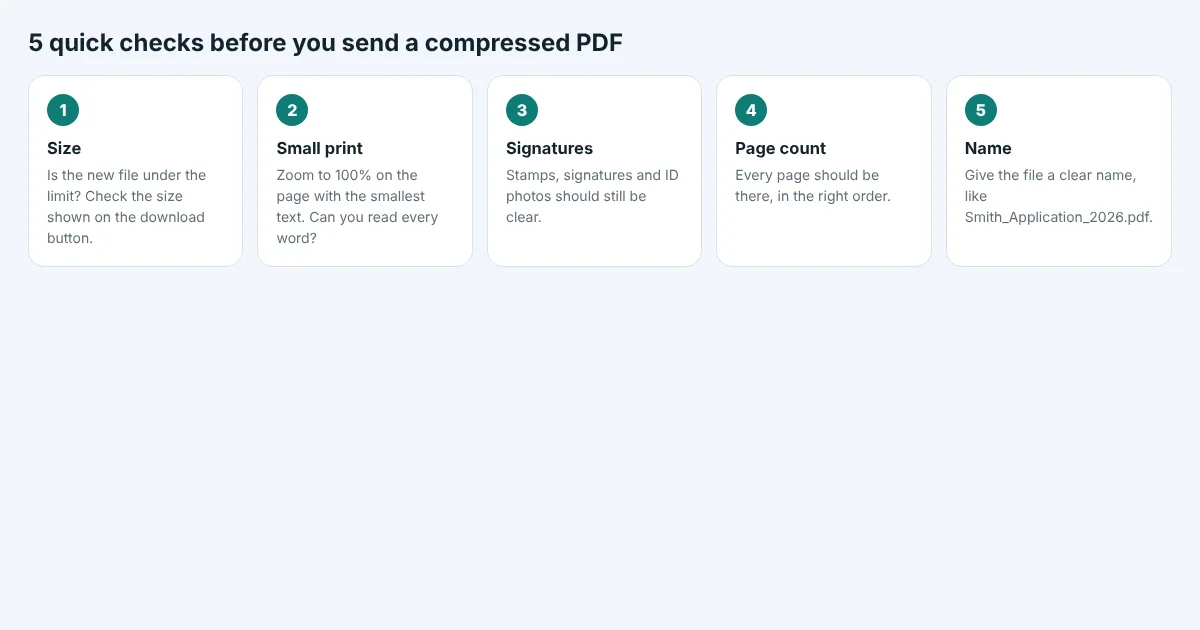
- Size. Is the new file under the limit of the email or form?
- Small print. Zoom to 100% on the page with the smallest text and read a line or two.
- Signatures and photos. Stamps, signatures and ID photos should still be clear.
- Page count. Every page should be there, in the right order.
- File name. A clear name such as Garcia_Application_2026.pdf looks professional and helps the reader find it later.
The bottom line
Large PDFs are almost always large because of images: scanned pages and photos stored at far more detail than anyone can see. Compressing those images to a sensible resolution is how you compress a PDF without losing quality. In our test, a six-page scanned letter dropped from 11.1 MB to 1.8 MB with no visible change, and a photo newsletter shrank by more than 99%.
Start with the Recommended setting, check the result, and only move to Strong when a strict size limit demands it. If that is still not enough, remove unneeded pages, switch to black and white or split the file, rather than compressing again and again.
Free PDF compression with three quality levels. Works on any phone or computer, no sign-up.
Frequently asked questions
Can you compress a PDF without losing quality?
Yes, as long as the compressor only removes detail you cannot see. Most of a large PDF is usually images stored at far higher resolution than a screen or printer can show. Bringing them down to about 150 dpi (Recommended) or 300 dpi (Light) makes the file much smaller while text and pictures look the same at normal size.
Which compression level should I use?
Start with Recommended. It keeps text sharp, makes most files 70 to 95% smaller and is ideal for email and upload forms. Use Light for documents you will print or that contain fine print, and Strong only when you must meet a strict limit such as 1 MB.
How do I make a PDF smaller for email?
Compress it with the Recommended setting and aim for under 10 MB, or under 5 MB for company and government inboxes. Gmail allows up to 25 MB per message, but attachments grow by about a third when sent, so smaller is safer.
How do I compress a PDF to 1 MB?
Try the Strong setting first. If the file is still too big, remove pages you do not need, convert a colour scan to black and white, or split the PDF into parts. These keep more quality than compressing the same file several times.
Why is my PDF still large after compressing?
Either it has no large images to shrink (text-only PDFs are already small), it was compressed before, or it contains attachments or many embedded fonts. Removing pages, splitting the file or exporting it again from the original program with a smaller-size option usually helps.
Is it safe to compress PDF files online?
On AllFreeConvert, files are uploaded over an encrypted connection and processed on our own server. The upload is deleted right after compression and the compressed PDF is deleted automatically after 8 hours. Nobody views your documents.