Convert PDF to Word
Turn PDF files into editable Word documents.
By proceeding, you confirm you own the rights to the files you upload and agree to our Terms of Use.
How to use PDF to Word
- 1Add your files
Click “Choose Files”, drop them on the box, or paste a link.
- 2Pick the output format
Open Options to fine-tune the result.
- 3Download
Your file is ready in seconds and deleted from the server after 8 hours.
About PDF to Word
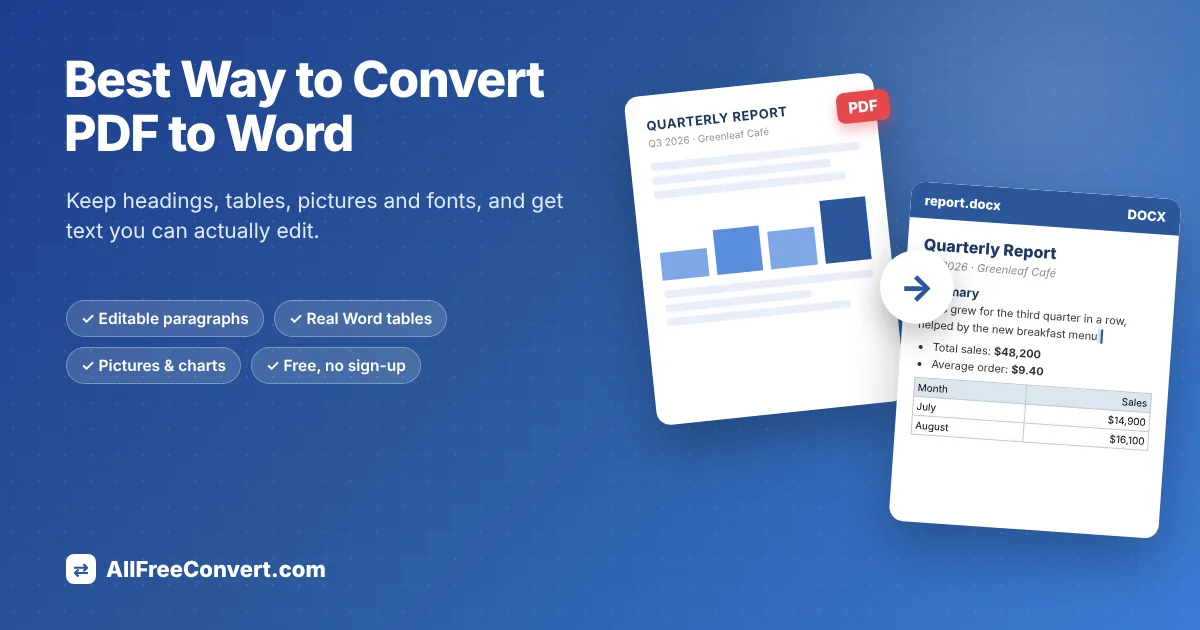
Need to change the text in a PDF? Convert it to a Word document you can really edit. Headings, paragraphs, bold and italic text, colours, bullet and numbered lists, tables, photos and charts all come across as normal Word content, so text flows naturally when you type and tables work like Word tables. Open the result in Microsoft Word, Google Docs or LibreOffice, or choose DOC, ODT or RTF instead of DOCX.
Editable text or Exact look: which result should you choose?
Under Options you can pick how the Word file is built. Both results open in Microsoft Word, Google Docs, LibreOffice and Pages, but they behave differently once you start typing.
- Editable text (recommended) rebuilds the page the way you would type it yourself: real paragraphs, headings, bullet lists and Word tables. Text flows from line to line when you add or delete words, and tables grow when you add rows. Use it for reports, letters, contracts, CVs, school work and anything you plan to rewrite.
- Exact look places every piece of text in a fixed box at the same spot as in the PDF. The page looks almost identical, but each box keeps its size, so long edits can spill over. Use it for certificates, posters, flyers and forms where the position of each element matters more than editing.
What converts well, and what to expect
The best results come from PDFs that were created by a program, such as a document exported from Word, a report downloaded from a website or an invoice from online banking. You can tell because you can select and copy the words in your PDF reader. These files keep their fonts, sizes, colours, bold and italic text, lists, tables, photos and charts.
A few things can look slightly different, and that is normal for any converter. Fonts that are not installed on your computer are replaced with similar ones, so a line may end one word earlier. Pages with two columns are kept in reading order. Very complex designs with overlapping shapes may be simplified so the text stays editable.
Scanned PDFs are different. A scan or a phone photo of a page contains a picture, not words. The Word file will show each page as an image you can see but not edit. If you only need the pictures from a scan, PDF to JPG may be the quicker choice.
Tips for a better Word document
- Locked PDF? If the PDF asks for a password or blocks copying, remove the restriction first with Unlock PDF (only for files you are allowed to edit), then convert.
- Only need a few pages? Take them out with Extract pages from PDF first. A smaller file converts faster and is easier to check.
- Check three things afterwards: open Word's Navigation Pane to see that headings were recognised, click inside a table to make sure it is a real table, and type a sentence in a paragraph to see the text flow.
- Need another format? Next to the Convert button you can choose DOCX (best for Word and Google Docs), DOC for very old versions of Word, ODT for LibreOffice, or RTF for simple editors.
- Going the other way? When your edits are done, turn the document back into a PDF with Word to PDF.
Frequently asked questions
Will the formatting be kept?
Yes. With the default "Editable text" result, headings, fonts, sizes, colours, lists, tables and pictures are rebuilt as real Word formatting. If you need a copy that looks exactly like the PDF instead, for example a form or a designed flyer, choose "Exact look" under Options. That version keeps every element in place using text boxes.
Which result should I choose?
Choose Editable text for reports, letters, contracts, CVs and anything you want to rewrite. Choose Exact look for designs where position matters more than editing, such as posters, certificates and forms.
Can it convert scanned PDFs?
A scanned PDF is a picture of a page, so there are no words inside it to rebuild. The Word file will show each page as an image. To edit scanned text you need OCR (text recognition), which this tool does not do.
Is it safe to upload my document?
Your file is used only for the conversion. The upload is deleted right after processing and the Word file is deleted after 8 hours.
Can I convert PDF to Word on my phone?
Yes. Open this page in Safari, Chrome or any mobile browser, choose the PDF from your Files app, Downloads or Google Drive, and tap Convert. Open the result in the Word, Google Docs or Pages app. Nothing needs to be installed.
Why does my Word file look slightly different from the PDF?
An editable document lets text move, so lines and pages can end in slightly different places. Fonts that are not on your computer are swapped for similar ones. Both are normal and easy to adjust. If the exact position of everything matters more than editing, choose Exact look under Options.
 📖 Read the full guideBest Way to Convert PDF to Word Without Losing FormattingWord, Google Docs, Acrobat or an online converter? We compare them side by side and show the easiest way to get a Word file you can really edit.Read the guide