Converting a PDF to Word sounds simple until you open the result. The heading is in the wrong font, the table has turned into a jumble of tabs, the photo is missing, and when you type a new sentence it vanishes behind the next line. If you are looking for the best way to convert PDF to Word, the real question is not just "which button do I press?" but "which method gives me a document I can actually edit, that still looks like the original?"
This guide answers that question in plain language. We compare the five common methods side by side, explain what "without losing formatting" really means, show real before-and-after examples, and walk through the quickest way to get a clean, editable Word file on any computer or phone. By the end you will know which approach suits your document and how to check the result in under a minute.
Convert your PDF to an editable Word document in seconds. Free, no sign-up, works on any device.
What "without losing formatting" really means
Most people asking for the best way to convert PDF to Word without losing formatting want two things at the same time: the document should look like the PDF, and it should behave like a normal Word file when they edit it. Those two goals pull in different directions, and different converters choose different sides.
A PDF does not store paragraphs the way Word does. It stores instructions such as "draw these words at this exact spot on the page". A converter has to work backwards from those positions and guess where each paragraph starts and ends, which lines belong to a table, and which text is a heading. There are two broad ways to do that:
- Text-box conversion. Every line, or every block of text, is placed in its own fixed box at the same position as in the PDF. The page looks almost identical, but each box has a fixed size. Add a few words and the extra text spills out of sight or overlaps the line below.
- Editable conversion. The converter rebuilds real paragraphs, headings, lists and tables, the way you would type them in Word yourself. Text flows from line to line, tables grow when you add rows, and headings show up in Word's navigation pane. The layout is very close to the PDF, but because the text can move, line endings may fall in slightly different places.
Here is the difference in practice. We converted the same PDF both ways, then typed one extra sentence at the end of the first paragraph:
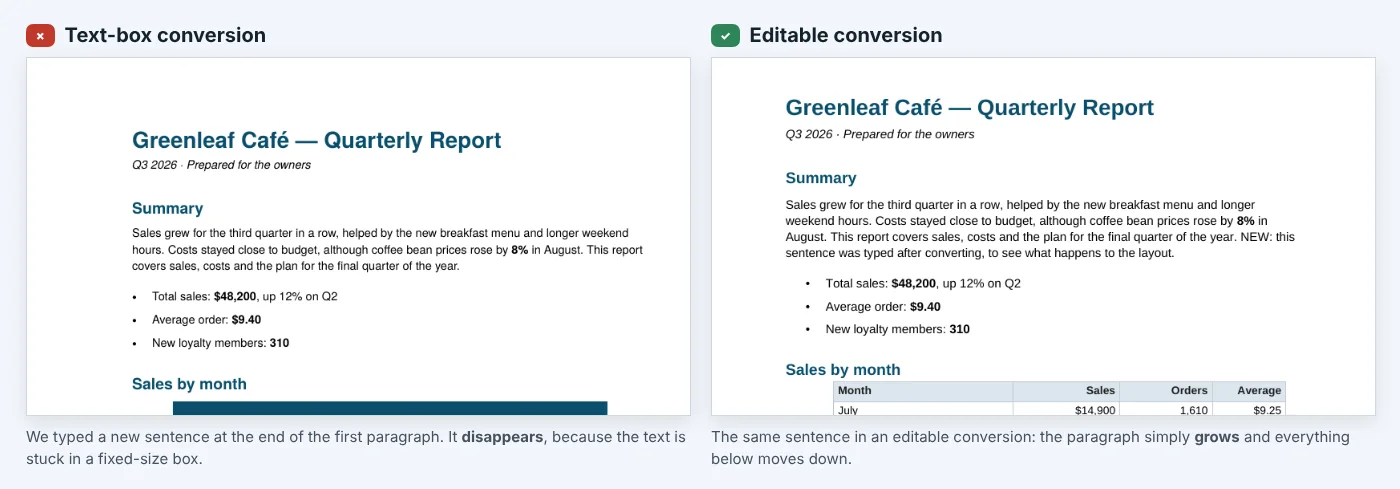
For almost everything people convert, such as reports, letters, contracts, CVs, manuals and school work, the editable result is what you want. A text-box result only makes sense when position matters more than editing, for example a certificate or a designed poster where you will change one word and nothing else.
Check first: is your PDF text-based or scanned?
Before choosing a method, take ten seconds to find out what kind of PDF you have, because it decides what is possible.
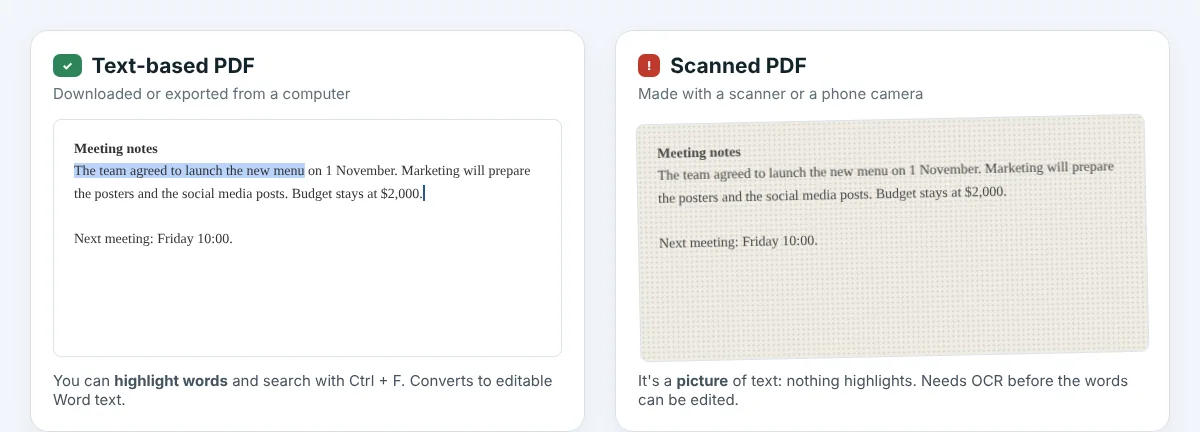
Open the PDF and try to highlight a few words with your mouse, or press Ctrl + F (Cmd + F on a Mac) and search for a word you can see. If the words highlight or the search finds them, the PDF is text-based. Files exported from Word, Google Docs, accounting software or a website are almost always text-based, and they convert very well.
If nothing highlights, the PDF is scanned: a photo of paper saved as a PDF. There are no words inside it, only pixels shaped like letters. To edit a scan you need OCR (optical character recognition), which reads the letters from the picture. We cover your options for scans later in this guide.
5 ways to convert PDF to Word, compared
There is no single tool that is perfect for everyone, so here is an honest comparison of the methods most people use. The right choice depends on what software you have, how often you convert files, and how complex your document is.
| Method | Cost | Keeps formatting? | Good to know |
|---|---|---|---|
| AllFreeConvert PDF to Word | Free | Yes: headings, fonts, lists, tables, pictures and charts | Works in any browser, including phones. No account needed. Choose editable text or an exact-look copy. |
| Microsoft Word (open the PDF) | Needs Word | Often good for simple, text-heavy files | Microsoft notes that line and page breaks may land in different places and that mostly-text PDFs work best. |
| Google Docs (Open with) | Free with a Google account | Keeps the words, usually loses much of the layout | Handy for grabbing plain text, and it can read many scanned PDFs, but expect to redo the formatting. |
| Adobe Acrobat | Paid for regular use | Very good | The free online version is limited, around one PDF to Word conversion a day for signed-in users. Regular use needs a subscription. |
| Copy and paste | Free | No | Fine for a sentence or two. For anything longer you lose tables, headings and line breaks. |
Microsoft Word
Recent desktop versions of Word, and Word for the web, can open a PDF directly and turn it into an editable document. It is a good option if you already have Word and the PDF is mostly text. Microsoft itself points out that the converted file may not look exactly like the original: line and page breaks can move, and files with lots of graphics or complex layouts convert less reliably.
Google Docs
In Google Drive, right-click a PDF and choose Open with › Google Docs. Google extracts the text, and it can even recognise text in many scans. The trade-off is formatting: columns, tables, fonts and pictures are often simplified or dropped, so this works best when you only need the words.
Adobe Acrobat
Adobe makes the PDF format, and Acrobat's export is high quality. The catch is cost. Adobe's free online tools allow only a small number of conversions, roughly one PDF to Word conversion every 24 hours when signed in, and unlimited use requires a paid plan. If you convert documents every day at work, that can be worth it. For occasional use it is hard to justify.
Online converters
A good online converter gives you Acrobat-style results without installing anything, which is why it is the easiest way to convert PDF to Word for most people. Quality varies a lot between sites, though, and many still produce the text-box style result shown above. That is the reason we rebuilt our converter to produce real, editable paragraphs and tables.
The best way to convert PDF to Word without losing formatting
For a text-based PDF, this is the quickest route to a clean, editable document. It takes about a minute and works the same on Windows, Mac, Chromebook, iPhone and Android.
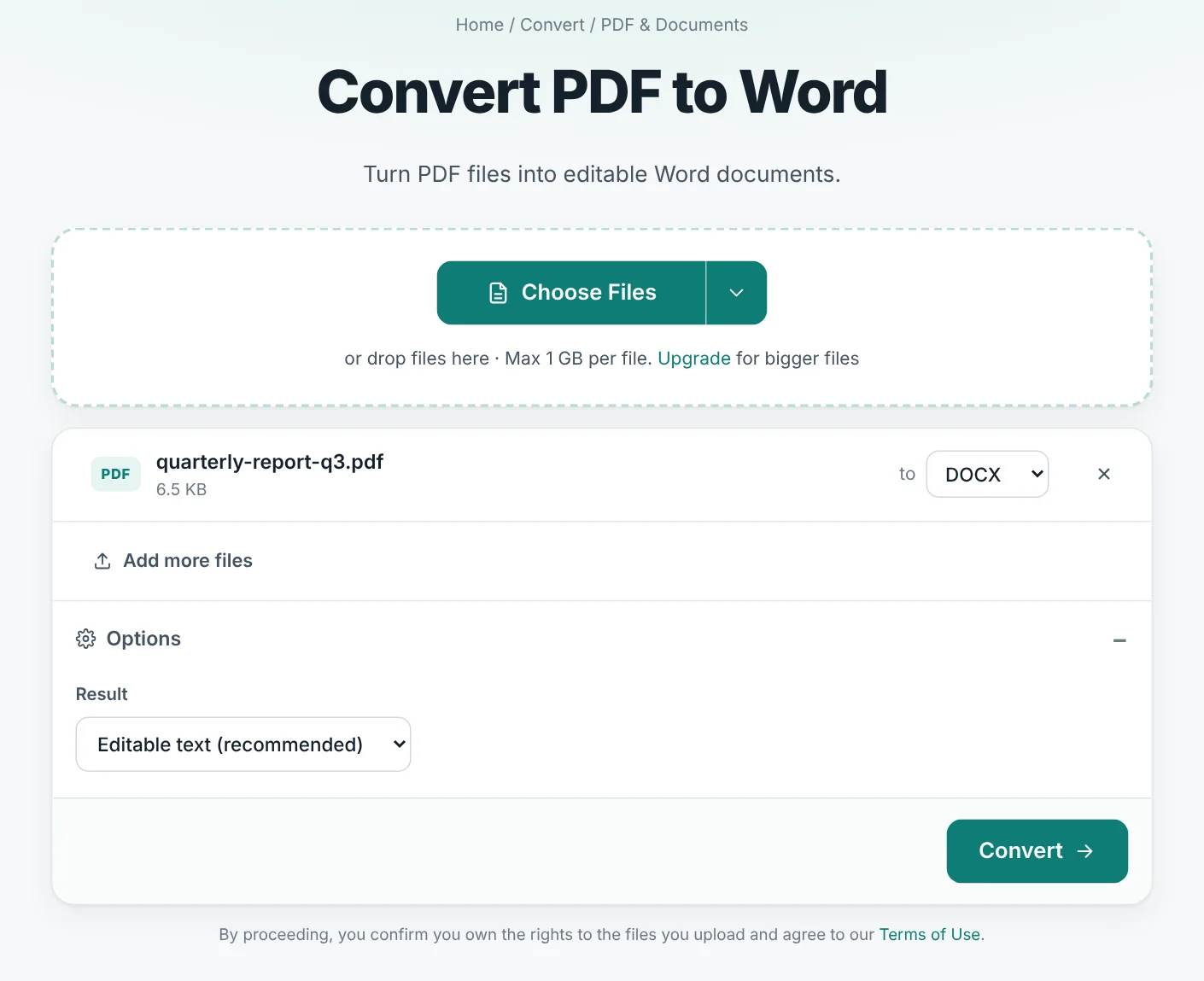
- Open the converter. Go to the free PDF to Word tool. There is nothing to install and no account to create.
- Add your PDF. Click Choose Files, drag the PDF onto the box, or use the arrow next to the button to pick it from Google Drive or Dropbox. You can add several PDFs at once.
- Pick the format. DOCX is the normal Word format and the best choice for most people. You can also choose DOC for very old versions of Word, ODT for LibreOffice, or RTF.
- Keep "Editable text" selected. Under Options, the Result setting is already on Editable text (recommended). Switch it to Exact look only for designs such as posters or certificates.
- Click Convert and download. Your Word file is ready in a few seconds. If you converted several files, you can download them together as a ZIP.
If your PDF is password-protected, remove the password first with our Unlock PDF tool, then convert the unlocked copy. You will need to know the password, of course: the tool only removes protection from files you can already open.
What stays the same, and what can change
Here is a real example. On the left is a two-page employee handbook exported to PDF. On the right is the Word document our converter produced from it, with nothing fixed by hand.
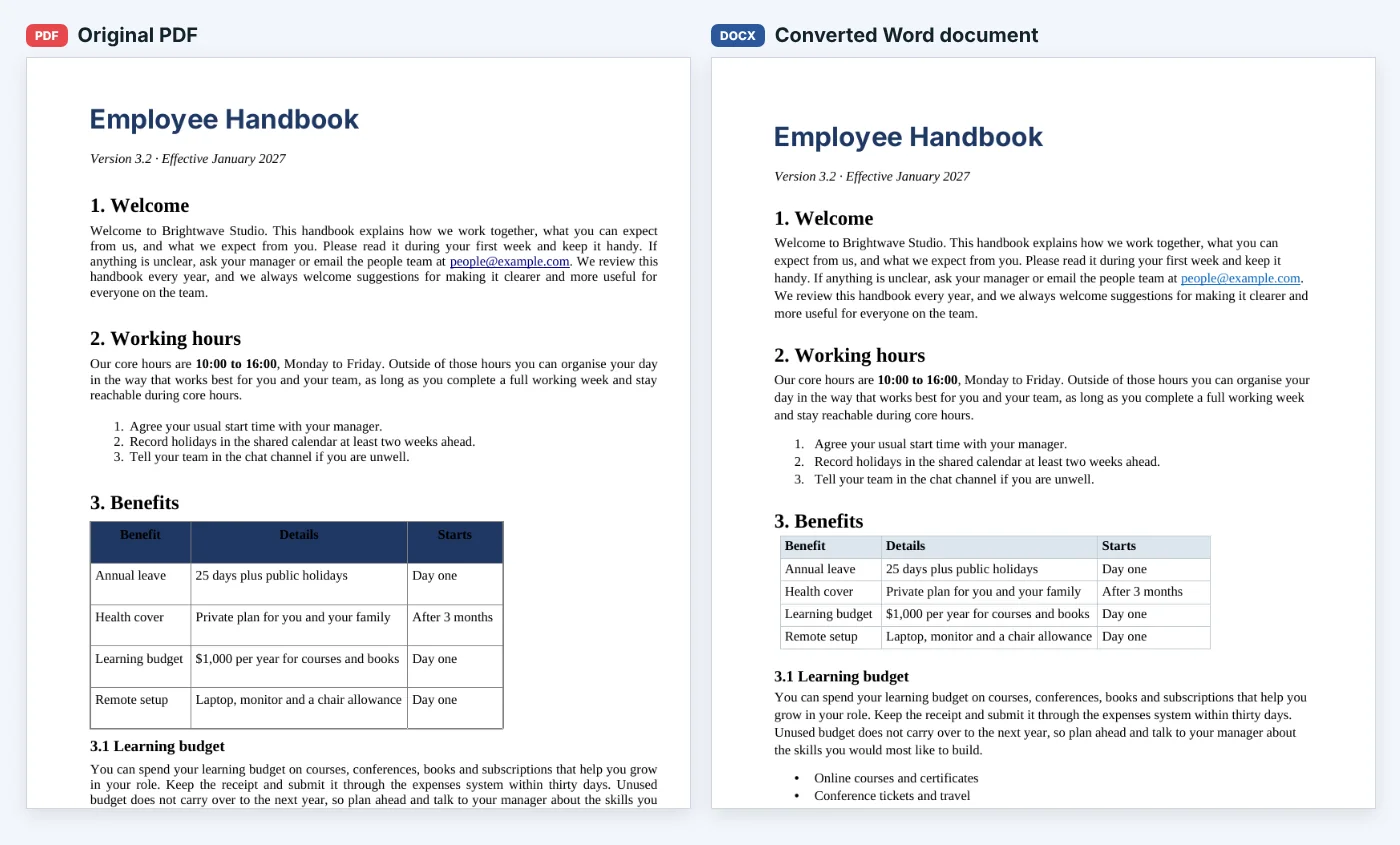
These parts of your document are rebuilt as proper Word formatting:
- Headings. Larger titles become Word headings (Heading 1, 2 and 3), so they appear in the navigation pane and can be used to build a table of contents.
- Text styling. Fonts, sizes, bold, italic and text colours are kept.
- Paragraphs. Lines are joined back into paragraphs, and words split with a hyphen at the end of a line are put back together.
- Lists. Bullet points and numbered steps become real Word lists, so pressing Enter adds the next bullet or number automatically.
- Tables. Rows and columns become real Word tables, including cells whose text wraps onto two lines. Columns that hold numbers stay right-aligned.
- Pictures and charts. Photos are kept, and charts, diagrams and shapes drawn inside the PDF are saved as pictures with their labels.
- Two-column pages. Newsletters and brochures are read column by column, so the text stays in the right order.
- Links. Web and email links in the PDF usually stay clickable.
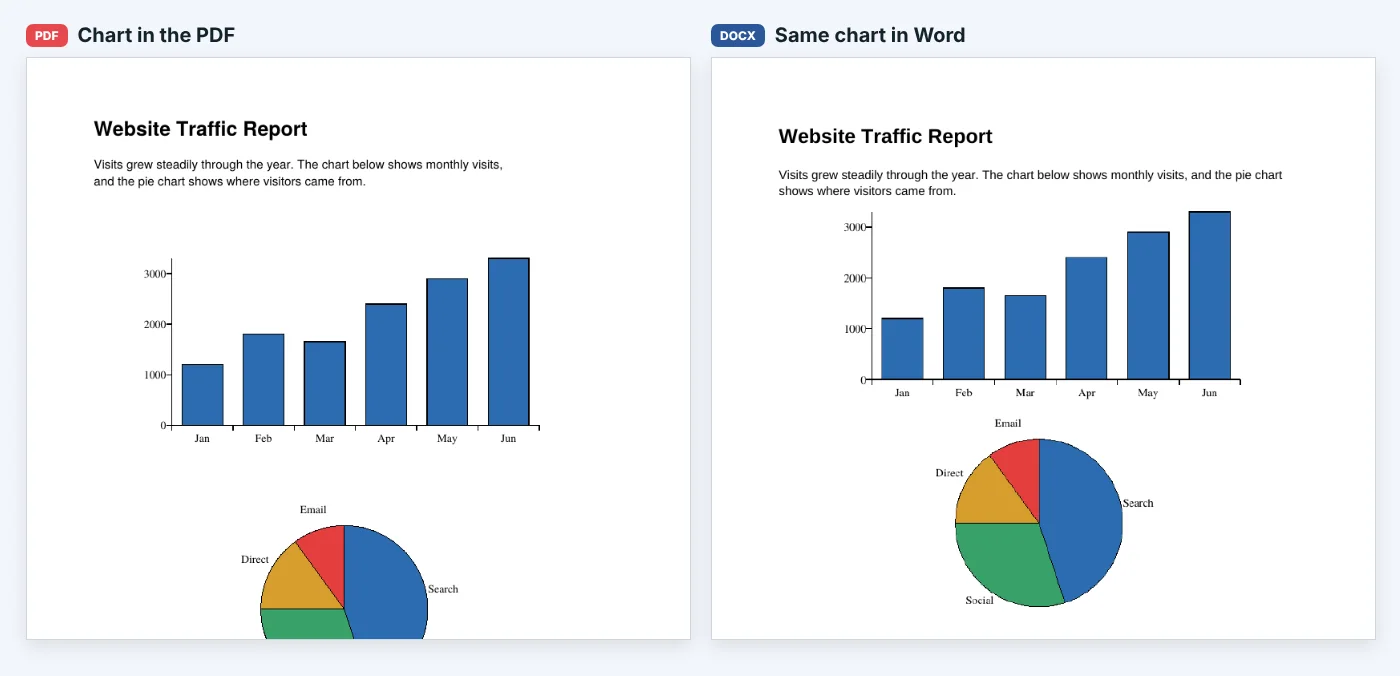
A few things can look a little different, and it helps to know why:
- Line and page endings. Because the text can now flow, a line or page may end a word or two earlier or later than in the PDF. That is a sign the document is editable, not a mistake.
- Fonts you do not have. If the PDF used a font that is not installed on your computer, Word shows a similar font instead. Install the font, or select all text and choose a font you like.
- Charts become pictures. A chart keeps its appearance, but you cannot change its numbers in Word. If you need an editable chart, rebuild it from the data in Excel.
- Repeating page headers and page numbers are left out of the body text, so they do not appear in the middle of your document. Add them back with Word's own header and footer tools.
- Table colours are replaced with a clean, simple style with light borders and a shaded header row that is easy to restyle in Word's Table Design tab.
The easiest way to convert PDF to Word on any device
Not everyone is sitting at a computer with Microsoft Office installed. The easiest way to convert PDF to Word is the one that needs nothing extra, and an online converter fits that description because it runs entirely in the browser.
On a phone or tablet
Open the PDF to Word page in Safari or Chrome, tap Choose Files and pick the PDF from your Files app, downloads or Google Drive. Tap Convert, then open the Word file in the Microsoft Word app, Google Docs or Pages to edit it. This is especially useful for forms and documents that arrive by email when you are away from your desk.
On a Mac
Mac users often do not have Word installed, and Preview cannot export to Word. Convert online, then open the DOCX in Pages, LibreOffice, Word or Google Docs. All of them read DOCX files.
On a Chromebook or a shared computer
Because nothing is installed, the converter works on school and library computers, and on Chromebooks. Download the result, upload it to Google Drive and open it with Google Docs to keep working.
Editable text or exact look: which should you choose?
Our converter gives you both options, so here is a simple way to decide:
| Your document | Best choice | Why |
|---|---|---|
| Report, letter, contract, CV, essay, manual | Editable text | You will rewrite parts of it, so text needs to flow and tables need to grow. |
| Document with tables and numbers | Editable text | Real Word tables let you add rows, sort and copy data into Excel. |
| Newsletter or brochure you want to reuse | Editable text | Columns are read in the right order, so you get the text in a usable sequence. |
| Certificate, poster, flyer or designed form | Exact look | Everything stays in its exact position, which matters more than flowing text here. |
| Scanned document | Either | Both show the page as a picture. You need OCR to edit the words (see below). |
Tips for common types of documents
The steps are the same for every PDF, but a few small habits make a big difference depending on what you are converting.
CVs and resumes
CVs are often designed with two columns, icons and a coloured sidebar. Convert with Editable text so your experience and skills come out as normal paragraphs you can update. Then decide whether to keep the original design or move everything into a simple one-column layout, which many online job applications read more reliably. Always check your name, phone number and email address after converting, since they are the details that matter most.
Contracts and agreements
For legal documents, accuracy matters more than looks. After converting, use Word's Review › Compare feature, or read the numbered clauses side by side with the PDF, to make sure no line was skipped. Turn on Track Changes before you edit, so the other party can see exactly what you changed.
School work and study notes
Lecture slides and handouts converted to Word make excellent study notes. Because headings become real Word headings, you can collapse sections, add your own notes underneath, and build a table of contents for revision. If the PDF is a scanned handout, use the OCR route described below.
Forms
If you only need to fill in a form, converting it may not be necessary at all: many PDF forms can be filled directly in a browser or with our Edit PDF tool. Convert to Word when you want to change the form itself, for example to update questions or reuse the layout. For forms where every box must stay in its exact place, the Exact look option is the better choice.
Fixing common problems after converting
Even the best conversion is worth a quick check, especially for documents you will send to someone else. These five checks take less than a minute:
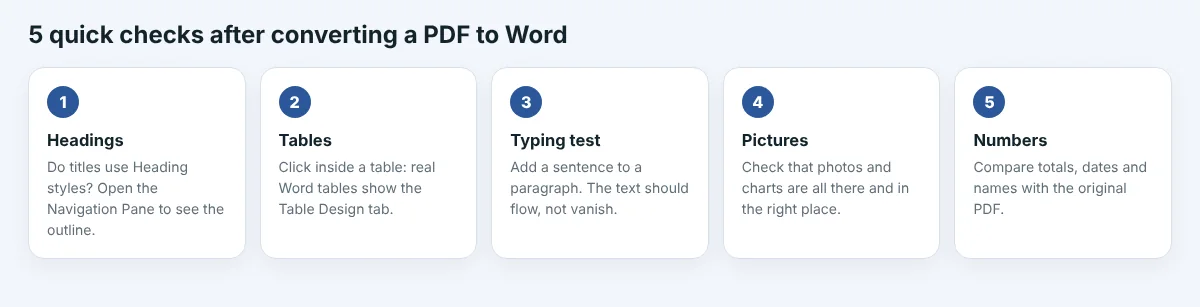
If something does need attention, these fixes cover nearly every case:
- Spacing looks uneven. Select all (
Ctrl + A), open Paragraph settings and set the same spacing before and after. Turning on Show/Hide ¶ helps you see stray empty lines and extra spaces. - A table is slightly too wide. Click inside it, then choose Layout › AutoFit › AutoFit Window and Word fits it to the page.
- The font changed. Select the text and pick the font you want, or update the Normal style so the change applies everywhere at once.
- You need a table of contents. Because headings are real Word headings, References › Table of Contents builds one automatically.
- Page numbers are missing. Use Insert › Page Number to add them in the header or footer.
What about scanned PDFs?
A scanned PDF has no text inside it, so no converter can rebuild paragraphs from it directly. Our converter detects scans automatically and gives you a Word file with each page as an image, so you still have a document you can annotate or add text around. To edit the words themselves you need OCR. Two simple routes:
- Google Drive. Upload the scan, right-click it and choose Open with › Google Docs. Google reads the text from many clear scans. Formatting will be basic, but the words become editable.
- Get a digital copy. If the document came from a bank, school, employer or government office, ask whether they can send the original file or a text-based PDF. It is often the fastest fix of all.
For the best OCR results, scan pages flat at 300 DPI or higher, in good light and without shadows. A crooked phone photo of a crumpled page will defeat even the best software.
Is it safe to convert PDFs online?
Documents often contain personal or business information, so it is reasonable to ask where your file goes. On AllFreeConvert, your PDF is uploaded over an encrypted HTTPS connection and processed on our own server. It is never sent to another company. The upload is deleted as soon as the conversion is finished, and the Word file is deleted automatically after 8 hours (longer on paid plans so you have time to download it). Nobody looks at your files, and we never share or sell their contents. You can read the details on our security page.
Get an editable Word document with headings, tables and pictures in place. It is free and works on any device.
The bottom line
So what is the best way to convert PDF to Word? If you already pay for Adobe Acrobat and convert files all day, Acrobat is excellent. If your PDF is short and simple and Word is open on your desk, opening the PDF in Word is a reasonable first try. For everyone else, which is most people most of the time, a free online converter that rebuilds real paragraphs, headings, lists and tables is the best way to convert PDF to Word without losing formatting, and it is also the easiest way to convert PDF to Word on a phone, a Mac or a shared computer.
Check whether your PDF is text-based, convert it with the PDF to Word converter, run the one-minute checklist, and you are ready to edit. And if your PDF is mostly tables, such as a price list or a bank statement, try PDF to Excel or our guide on converting a bank statement PDF to Excel instead.
Frequently asked questions
What is the best way to convert PDF to Word for free?
For a text-based PDF, a free online converter that rebuilds real paragraphs and tables gives the best result without paying for software. Upload the PDF to the PDF to Word tool, keep "Editable text" selected, and download a DOCX file in a few seconds.
How do I convert PDF to Word without losing formatting?
Use a converter that rebuilds headings, lists, tables and pictures as real Word formatting rather than placing text in fixed boxes. Then do a quick check: click inside a table, look at the headings in the navigation pane, and type a sentence to make sure the text flows.
What is the easiest way to convert PDF to Word on a phone?
Open an online PDF to Word converter in your phone's browser, choose the PDF from your files or Google Drive, tap Convert and open the result in the Word, Google Docs or Pages app. Nothing needs to be installed.
Why does my converted Word document look slightly different?
An editable document lets text flow, so lines and pages can end in slightly different places than in the PDF. Fonts that are not installed on your computer are also replaced with similar ones. Both are normal and easy to adjust.
Can I convert a scanned PDF to an editable Word document?
Only with OCR (text recognition), because a scan is a picture of a page with no real text inside. Google Docs can recognise text in many clear scans. Without OCR, the Word file shows each page as an image.
Is it safe to convert PDF to Word online?
On AllFreeConvert, files are uploaded over an encrypted connection, processed on our own server and never shared. The upload is deleted right after conversion and the Word file is deleted automatically after 8 hours.