You copy a few photos from your iPhone to a laptop, double-click one and get an error: "This file format is not supported." Or you try to attach a picture to a job application, a visa form or an online shop listing, and the website refuses it. You look closer and every file ends in .HEIC. If that sounds familiar, you are not alone. Millions of people every month search for how to convert HEIC to JPG, usually in a hurry and usually with a deadline.
The good news is that a HEIC photo is not broken and nothing is wrong with your phone. HEIC is simply a newer, more efficient photo format that many computers, apps and websites still do not understand. Converting it to JPG takes a few seconds once you know where to click. This guide explains what HEIC is, why it causes trouble, and every practical way to convert HEIC to JPG on Windows, Mac, iPhone and Android, for one photo or for hundreds. You will also learn which quality setting to choose, what happens to the date and location of your photos, and how to stop your iPhone from creating HEIC files in the first place.
Drop your HEIC photos here and download JPGs that open everywhere. Free, no sign-up, works on any phone or computer.
What is a HEIC file?
HEIC stands for High Efficiency Image Container. It is Apple's name for photos saved in the HEIF format (High Efficiency Image File Format), a standard created by the Moving Picture Experts Group, the same group behind MP3 and MP4. Inside a HEIC file, the picture is compressed with HEVC, also known as H.265, the video technology used for 4K streaming. Applied to a single still image, that technology can keep the same visible quality as a JPG in roughly half the space.
Apple made HEIC the default for iPhone and iPad photos in 2017, starting with iOS 11. Since then, unless you change a setting, every photo taken with the built-in Camera app is saved as HEIC. Many Android phones, including several Samsung Galaxy models, offer the same format as an option, often called "High efficiency pictures" in the camera settings, so you may meet HEIC files even if nobody in your family owns an iPhone.
Apple did not pick the format by accident. A phone that stores photos at half the size can hold twice as many pictures, back up to the cloud faster and use less mobile data when sharing. HEIC can also do things JPG cannot: it can store several images in one file (used for bursts and Live Photos), keep depth information for Portrait mode, hold transparency, and record more colour detail than JPG's 8 bits per channel. For a phone, it is a smart choice. The problem only appears when the photo leaves the Apple world.
HEIC vs JPG: what is the difference?
JPG (also written JPEG) has been the standard photo format since the early 1990s. Every computer, phone, browser, printer, photo kiosk and website understands it. HEIC is newer and more efficient, but far less widely supported. Here is how the two compare in everyday use.
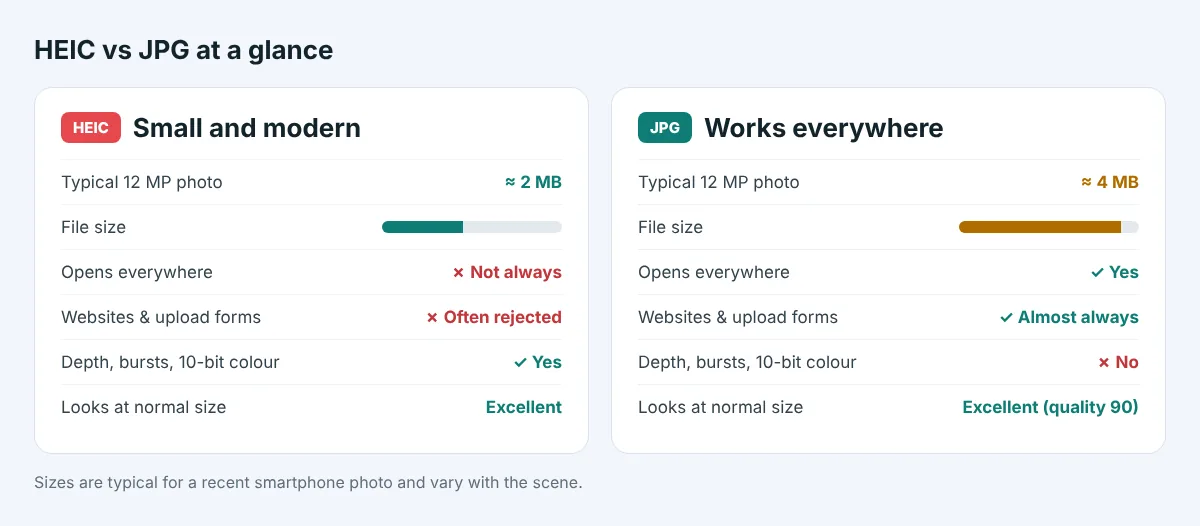
| HEIC | JPG | |
|---|---|---|
| Typical size of a 12-megapixel phone photo | About 1.5 to 2.5 MB | About 3 to 5 MB |
| Opens on Windows without extra software | Not always | Yes |
| Accepted by websites and upload forms | Often rejected | Almost always accepted |
| Photo printing shops and kiosks | Some | All |
| Colour depth | Up to 10 bits and more | 8 bits |
| Transparency, depth maps, several images in one file | Yes | No |
| Visible quality at normal viewing size | The same when JPG is saved at high quality | |
The last row is the important one. When you convert HEIC to JPG at a high quality setting, the photo looks the same on a phone, laptop or printed page. What you give up is mostly invisible: some file size efficiency and a few advanced extras. What you gain is a file that opens everywhere, which is usually exactly what you need when you are sending a picture to someone else.
Why HEIC files won't open (and where they cause trouble)
HEIC is an open standard, but the HEVC compression inside it is covered by patents, and companies have to pay licence fees to support it. That is the main reason support is patchy. Apple pays and builds HEIC into its devices. Others have been slower, or ask you to install extra pieces yourself.
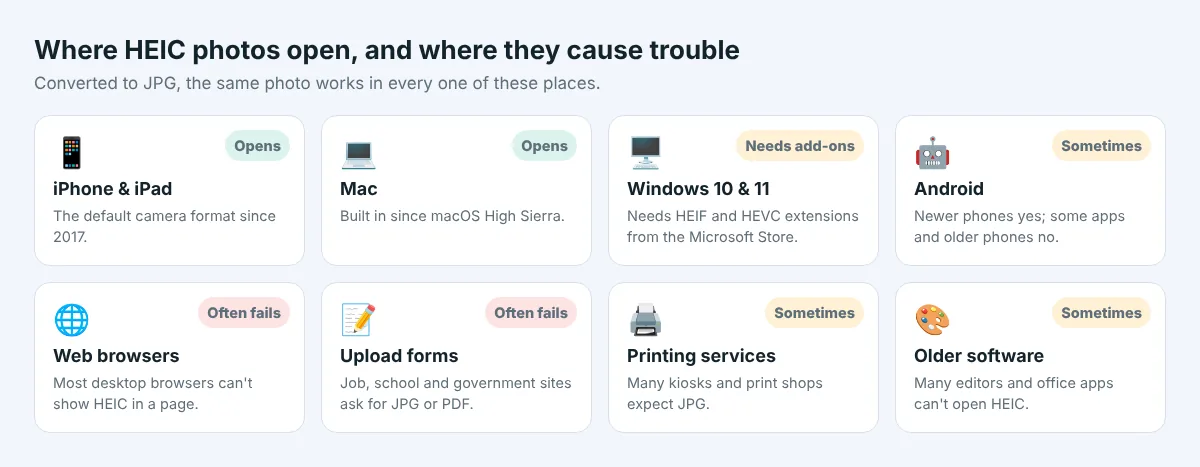
These are the situations where people most often run into problems:
- Windows PCs. Windows 10 and many Windows 11 computers need two add-ons from the Microsoft Store before the Photos app can show HEIC files. Without them you see an error or a blank thumbnail. Older programs, such as some versions of Photoshop Elements or office software, may not open HEIC at all.
- Websites and upload forms. Government portals, job sites, school systems, insurance claims and many online shops only accept JPG, PNG or PDF. A HEIC upload is either refused with a message or, worse, accepted and shown as a broken image to the person reviewing it.
- Web browsers. Most desktop browsers still cannot display a HEIC image inside a web page, so a HEIC on your own website will simply not appear for many visitors.
- Older Android phones and apps. Android has supported HEIF since version 9, but some apps and older phones still fail to show HEIC pictures that arrive by email or chat.
- Printing services. Many photo kiosks, print shops and photo book websites still expect JPG and may reject HEIC or print it with wrong colours.
- Photo editors and older software. Plenty of free editors, slideshow makers and design tools have no HEIC support, so the files do not even show up in the open dialog.
Some services hide the problem by converting for you. For example, when you attach a photo in the iPhone Mail app or upload it through Safari to many websites, iOS often sends a JPG automatically. That is why the same photo sometimes works and sometimes does not, depending on how you share it. When you copy the original files to a computer, a USB stick or a cloud drive, you usually get the real HEIC.
How to convert HEIC to JPG online (works on any device)
The quickest way, and the only one that works the same on Windows, Mac, Chromebook, iPhone and Android, is an online converter. There is nothing to install, and you can convert many photos at once. Here is how to do it with our free HEIC to JPG converter.
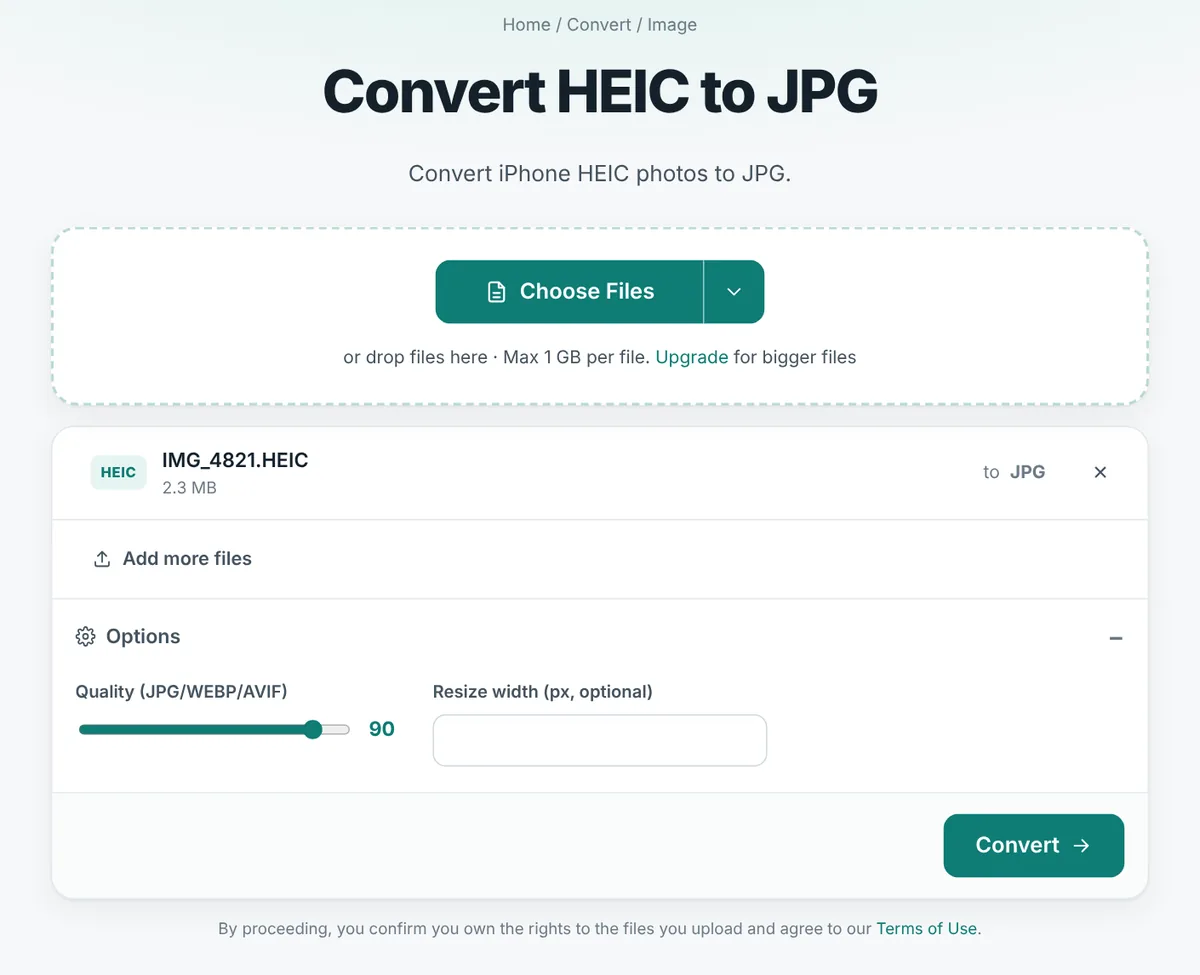
- Open the converter. Go to the HEIC to JPG page in any browser.
- Add your photos. Drag your .HEIC or .HEIF files onto the page, or click Choose Files. You can add up to 20 photos at a time for free.
- Check the options (optional). Quality is set to 90, which keeps the photo looking the same as the original. If you want smaller files for email or a website, enter a width such as 1600 or 1200 pixels. More on that below.
- Click Convert. Each photo is converted on our server, turned the right way up and saved as a standard JPG.
- Download. Save the JPGs one by one, or download them all together as a ZIP file.
Prefer a different format? HEIC to PNG gives you a lossless file that keeps every pixel exactly, which is useful for screenshots and graphics, though PNG photos are much bigger. If you need to send several photos as one document, for example pages of a form you photographed, HEIC to PDF puts them into a single PDF in the order you choose.
How to convert HEIC to JPG on Windows 10 and 11
Windows can open and convert HEIC photos by itself once it has the right extensions installed. This is handy if you convert photos often and prefer to work offline.
Step 1: Make Windows able to open HEIC
- Open the Microsoft Store and search for HEIF Image Extensions. It is free. Install it.
- Search for HEVC Video Extensions. Microsoft charges a small fee for it in many countries, and some PCs already have a free version from the device manufacturer installed. You need it because the picture inside a HEIC file is compressed with HEVC.
- Restart the Photos app. HEIC thumbnails should now appear in File Explorer and the photos should open normally.
Step 2: Save the photo as JPG
- With Paint: right-click the HEIC file, choose Open with → Paint, then select File → Save as → JPEG picture. This is the most reliable built-in method, but it handles one photo at a time.
- With the Photos app: open the photo, click the three dots (…) or the edit menu and choose Save as or Save a copy, then pick JPG as the file type. The exact wording depends on your version of Windows.
The built-in route works, but it is slow for more than a handful of photos and it depends on your Windows version and Store access. On a work computer where you cannot install anything, or when you have a whole holiday album to convert, an online converter is usually faster.
How to convert HEIC to JPG on a Mac
Macs have opened HEIC files since macOS High Sierra in 2017, so you already have everything you need. There are three easy ways.
- Finder Quick Action (fastest for many photos). On macOS Monterey and later, select one or more HEIC files in Finder, right-click, choose Quick Actions → Convert Image, set the format to JPEG, choose an image size and click Convert to JPEG. New JPG copies appear next to the originals.
- Preview. Open the photo in Preview, choose File → Export, set Format to JPEG, move the Quality slider and click Save. To convert several, open them all in Preview, select them in the sidebar and export them together.
- The Photos app. Select the photos in your library, choose File → Export → Export Photos (not Export Unmodified Original, which keeps HEIC), set Photo Kind to JPEG and click Export.
Any of these keeps your photos on your own computer. The Quick Action is the one most people forget exists, and it is excellent for converting a folder of pictures before copying them to a USB stick or sending them to a Windows user.
How to convert HEIC to JPG on iPhone and iPad
On an iPhone you have two goals that are easy to mix up: converting photos you already have, and making the camera save JPG in the future.
Convert photos you already have
- Online, in Safari. Open our HEIC to JPG page, tap Choose Files, then Photo Library or Choose File, select your pictures and tap Convert. The JPGs are saved to your Downloads folder in the Files app, and you can share or save them from there. Note that iOS sometimes converts photos to JPG by itself while uploading; if the list already shows JPG files, they are ready to use as they are.
- Copy and paste into Files. In the Photos app, select the pictures, tap the share button and choose Copy Photos. Open the Files app, go to a folder On My iPhone, press and hold an empty area and tap Paste. On most iOS versions the pasted copies are saved as JPG.
- The Shortcuts app. If you convert photos regularly, you can build a small shortcut with the Convert Image action set to JPEG and run it from the share sheet.
Stop your iPhone from making HEIC files
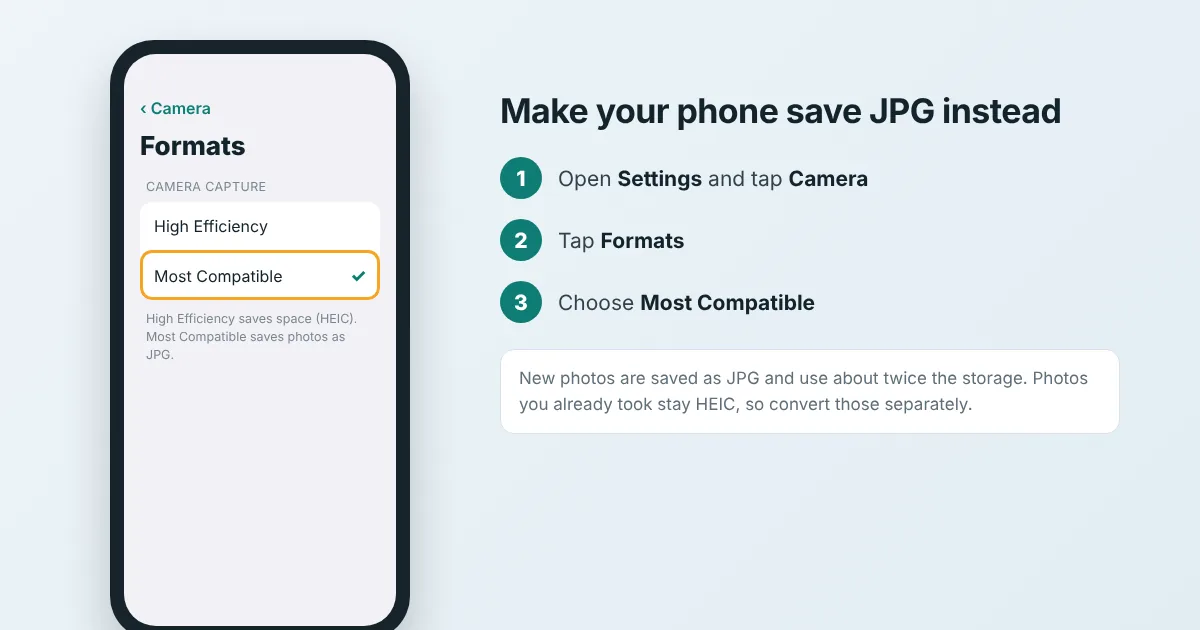
- Open Settings and tap Camera.
- Tap Formats.
- Choose Most Compatible.
From now on, new photos are saved as JPG and new videos as H.264 MP4, which play everywhere. The trade-off is that each photo takes up about twice the storage space, so if your phone is nearly full, you may prefer to keep High Efficiency and convert only the photos you share.
There is a second, related setting worth knowing. Under Settings → Photos, near the bottom, Transfer to Mac or PC can be set to Automatic. With that choice, the iPhone converts photos to JPG when you copy them to a computer with a cable. Keep Originals copies the real HEIC files instead. If your Windows PC always receives HEIC files, check this setting first.
How to convert HEIC to JPG on Android
Android users usually meet HEIC files in two ways: photos sent by an iPhone-owning friend, or pictures from their own phone if it has a high-efficiency camera mode switched on.
- Use the online converter in Chrome. Open the HEIC to JPG page, tap Choose Files, pick the photos from Files or your gallery and tap Convert. The JPGs land in your Downloads folder.
- Turn off high-efficiency pictures. On Samsung phones, open the Camera app, tap the settings gear, then look for Advanced picture options or Picture formats and switch High efficiency pictures off. Other brands use similar wording. New photos will then be saved as JPG.
- Ask the sender for JPG. If photos arrive from an iPhone by email or a cloud link, the sender can set Most Compatible as described above, or share through an app that converts automatically.
Google Photos and Google Drive can usually display HEIC pictures, so you may be able to view a photo but still be unable to upload it somewhere else. Converting it to JPG solves both problems at once.
How to convert many HEIC photos at once
Holidays, weddings and school events tend to produce hundreds of photos, and converting them one by one is nobody's idea of fun. These are the fastest batch methods:
- Online: add up to 20 HEIC files at a time to the converter for free, then click Download all to get a single ZIP file. Paid plans raise the limits for larger albums and remove ads. For a big library, simply repeat with the next group of photos.
- Mac: select an entire folder of HEIC files in Finder and use Quick Actions → Convert Image. It converts all of them in one go.
- iPhone to PC with a cable: set Transfer to Mac or PC to Automatic and import the photos with the Windows Photos app. They arrive as JPG.
One small habit makes batch work much easier: keep the originals in their own folder and save the converted JPGs to a new one. That way you never mix up versions, and you always have the high-efficiency originals if you need them again.
Which quality and size should you choose?
When you convert HEIC to JPG, the JPG is compressed again. The quality setting decides how much detail is kept and how big the file becomes. Our converter starts at 90, and for most people that is the right answer. Here is a practical guide.
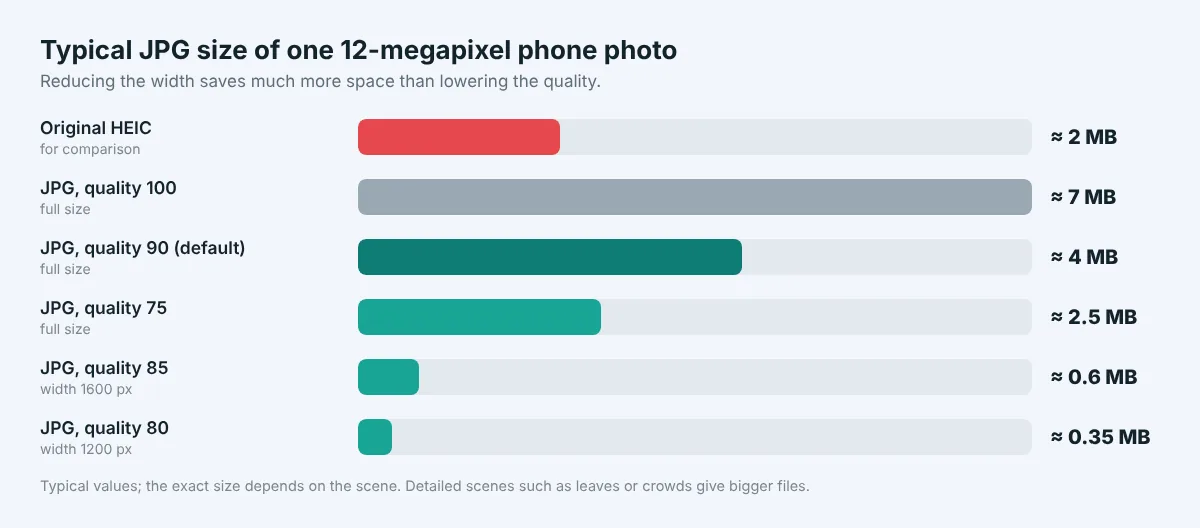
| Goal | Quality | Width | Typical size per photo |
|---|---|---|---|
| Keep a perfect copy, printing, photo books | 90 to 100 | Leave empty (full size) | 3 to 8 MB |
| Sharing with family, everyday use | 90 (default) | Leave empty | 3 to 5 MB |
| Email and upload forms | 80 to 85 | 1600 to 2048 px | 0.4 to 1 MB |
| Websites, blogs and online shops | 75 to 85 | 1200 to 1600 px | 0.2 to 0.6 MB |
These are typical figures for a photo from a recent smartphone, which is usually 4,032 by 3,024 pixels. Busy scenes such as leaves, crowds and grass produce bigger files; plain skies and indoor shots produce smaller ones.
Two things surprise many people:
- The JPG is bigger than the HEIC. That is normal. JPG is an older and less efficient method, so the same photo at the same visible quality needs more space. A 2 MB HEIC often becomes a 3 to 4 MB JPG. If size matters, reduce the width rather than the quality.
- Quality 100 is rarely worth it. Going from 90 to 100 can nearly double the file size, and you would need to zoom far in to notice any difference. Quality 90 is already above what most cameras use by default.
If an upload form has a strict limit, for example "maximum 500 KB", convert first with a width of 1600 pixels, then check the size. Still too big? Run the JPG through our Image Compressor or set an exact size with Resize Image. Avoid saving the same JPG again and again at lower qualities; each round adds a little blur.
HEIC to JPG, PNG or PDF: which should you use?
JPG is the right choice for almost every photo, but not for every situation. A quick guide:
- Choose JPG for normal photos you want to share, upload, print or post. It is small enough, looks great and opens everywhere.
- Choose PNG for screenshots, pictures with text, logos and anything that must keep every pixel exactly or needs a transparent background. PNG photos are often five to ten times bigger than JPG, so it is a poor choice for ordinary pictures.
- Choose PDF when several photos belong together as one document: a signed form you photographed page by page, receipts for an expense claim, or homework. One PDF is easier for the reader than ten separate pictures.
- Choose WEBP for images on your own website. It is smaller than JPG and works in all modern browsers. You can make it with our Image Converter.
What happens to the date, location and Live Photos?
A photo is more than its pixels. HEIC files from a phone carry extra information, and it helps to know what survives the conversion.
- Orientation. Phones often store photos sideways and add a note saying which way is up. Our converter applies that note, so the JPG is the right way round in every app, including ones that ignore such notes.
- Date, time and camera details. These usually come along in the JPG, so your photos still sort correctly by date in albums and backups.
- Location. If your phone recorded GPS coordinates, they can come along too. That is useful for your own albums but not always something you want to share with strangers. Before posting photos publicly or sending them to someone you do not know, run them through our Image Compressor, which removes this hidden information.
- Live Photos. A Live Photo is a still HEIC picture plus a separate short video. Converting gives you the still picture only. To keep the motion, export the video part from the Photos app and convert it with our Video Converter if needed.
- Portrait depth and HDR. The depth information that lets you change the blur of a Portrait photo later is stored in the HEIC and cannot go into a JPG. Some recent iPhone photos also contain extra brightness information for HDR screens. A JPG shows the normal version, which looks right on standard screens but may look a little less bright on HDR displays.
For nearly everyone, none of this matters for the photos they need to send. It does matter for your archive, which is one more reason to keep the original HEIC files and convert copies.
Common problems and how to fix them
| Problem | Likely cause | Fix |
|---|---|---|
| "File type not supported" on a website | The site only accepts JPG, PNG or PDF | Convert to JPG, then upload the new file, not the original |
| HEIC opens on Mac but not on Windows | Windows is missing the HEIF and HEVC extensions | Install them from the Microsoft Store, or convert online |
| The JPG is bigger than the HEIC | JPG is less efficient | Normal. Enter a smaller width if you need a lighter file |
| Photo is sideways after converting elsewhere | The orientation note was ignored | Convert with a tool that auto-rotates, or fix it with Rotate Image |
| File ends in .HEIC but will not convert | The download was incomplete, or the file is really a video | Copy it again from the phone; a Live Photo's motion part is a .MOV video |
| Colours look a little different | The viewer handles wide colour differently | Compare in the same app; at quality 90 the JPG keeps the photo's colour profile |
Is it safe to convert HEIC photos online?
Photos can be personal: your children, your home, your ID card or a medical document you photographed. It is sensible to ask where they go.
On AllFreeConvert, photos are uploaded over an encrypted connection and converted on our own server; they are not passed to other companies. The upload is deleted as soon as the conversion is finished, and the JPGs are deleted automatically after 8 hours. Nobody looks at your pictures, and we do not use them for anything else. You can read the details on our Security and Privacy pages.
Whatever service you use, follow a few simple habits: prefer converters with a clear privacy policy, remove location data before posting photos publicly, and if a picture is extremely sensitive, use the offline methods for Windows or Mac described above.
Five quick checks before you send converted photos
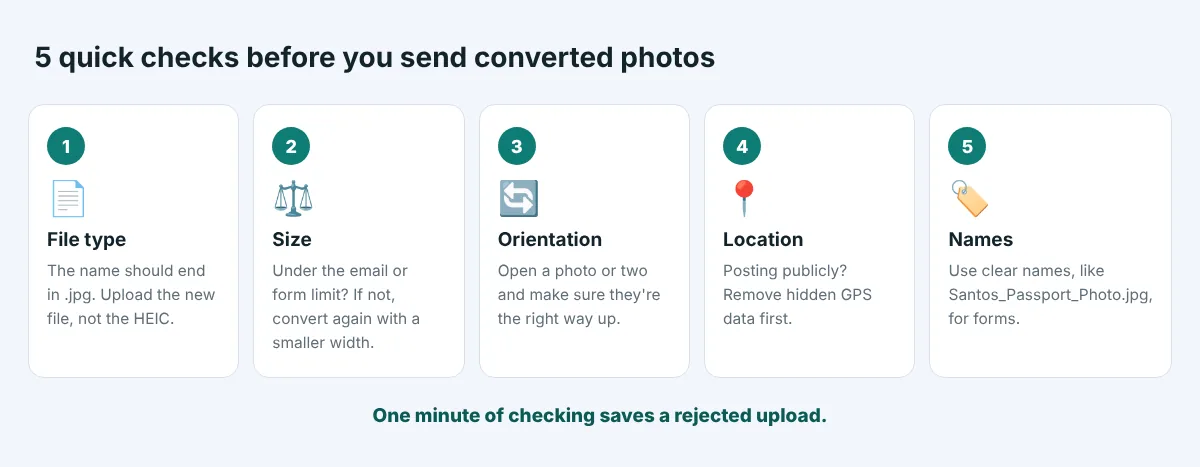
- File type. Does the file name end in .jpg? Upload the new file, not the original HEIC.
- Size. Is each photo under the limit of the email or form? If not, convert again with a smaller width.
- Orientation. Open one or two photos and check they are the right way up.
- Location. Sending to strangers or posting publicly? Remove hidden location data first.
- Names. For forms and applications, give the file a clear name such as Santos_Passport_Photo.jpg.
The bottom line
HEIC is a clever, space-saving photo format, and there is no reason to stop using it on your phone if storage matters to you. It simply does not travel well. Whenever a photo needs to leave the Apple world, whether for a Windows PC, an upload form, a print shop or a friend's Android phone, converting HEIC to JPG makes it open everywhere with no visible loss in quality.
For a few photos on any device, an online converter is the quickest option: add the files, keep quality at 90, and download your JPGs. On a Mac, Finder's Convert Image action is excellent for whole folders. On Windows, install the HEIF and HEVC extensions if you prefer to work offline. And if you would rather never see a HEIC again, switch your iPhone camera to Most Compatible, keeping in mind that each new photo will take more space.
Free HEIC to JPG conversion for up to 20 photos at a time. Works on iPhone, Android, Windows and Mac, no sign-up.
Frequently asked questions
How do I convert HEIC to JPG for free?
Open the free HEIC to JPG converter in any browser, drag in your HEIC photos (up to 20 at a time), keep the quality at 90 and click Convert. Download the JPGs one by one or as a ZIP file. It works on Windows, Mac, iPhone, Android and Chromebook with nothing to install.
Does converting HEIC to JPG lose quality?
Very little. JPG uses an older kind of compression, so the photo is compressed again, but at quality 90 you will not see a difference on screen or in normal prints. Keep the original HEIC files if you want a perfect archive copy.
Why is the JPG bigger than the HEIC file?
HEIC stores photos about twice as efficiently as JPG, so the same picture at the same visible quality needs more space as a JPG. To get a smaller file, enter a width such as 1600 pixels when converting instead of lowering the quality.
How do I stop my iPhone from saving photos as HEIC?
Go to Settings, Camera, Formats and choose Most Compatible. New photos are then saved as JPG and new videos as MP4. Photos you already took stay HEIC, and each new photo will use about twice as much storage.
How do I open HEIC files on Windows?
Install HEIF Image Extensions (free) and HEVC Video Extensions from the Microsoft Store, then restart the Photos app. If you cannot install apps on your computer, convert the photos to JPG online instead.
Can I just rename a .heic file to .jpg?
No. Renaming only changes the name; the data inside is still HEIC, so websites and apps will reject it or show a broken image. You need a real conversion, which rebuilds the picture as a JPG.