Sometimes the sound is the only part of a video you need. A recorded lecture you want to listen to on the bus. An interview you have to transcribe. A song you played at a family party and filmed on your phone. A sermon, a webinar, a voice message someone sent as a video. Keeping the whole video wastes space and battery, and most music players and car stereos cannot play video files at all. The answer is to convert MP4 to MP3: take the audio out of the video and save it as a small, universal sound file.
It is one of the easiest conversions there is, but a few choices make a real difference to the result. Pick the wrong bitrate and a one-hour lecture becomes an enormous file, or your favourite song sounds thin and watery. This guide explains, in plain words, how MP4 and MP3 differ, how to convert on any computer or phone, which quality settings to pick for music and for speech, and how to avoid the most common mistakes. We also measured how big MP3 files get at every bitrate, so you can predict the size before you click Convert.
Drop your MP4 video here and download the sound as an MP3 that plays on any phone, computer or car stereo. Free, no sign-up.
MP4 vs MP3: what is the difference?
The names look almost the same, which confuses many people, but the two files do very different jobs.
MP4 is a container. Think of it as a box that can hold several things at once: a video track, one or more audio tracks, subtitles, chapter markers and information such as the title or the date it was recorded. Phones, cameras, screen recorders and video websites almost always produce MP4. Inside the box, the picture is usually compressed with H.264 or H.265, and the sound is usually compressed with AAC.
MP3 is an audio-only format. It holds one thing: sound. It has been the standard for music since the late 1990s, and today it plays on practically every device ever made that can play audio, from old MP3 players and car radios to smart speakers, phones, laptops, smart TVs and web browsers.
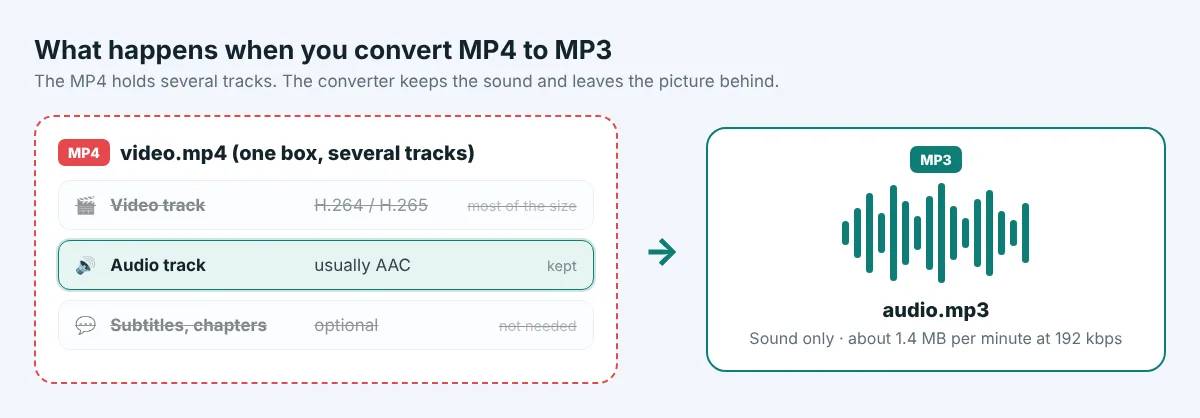
When you convert MP4 to MP3, the converter opens the box, takes the audio track, throws away the video and saves the sound as MP3. Because video takes up far more space than sound, the result is dramatically smaller. A one-minute 1080p phone video is often somewhere around 60 to 130 MB; the sound from that same minute as a good-quality MP3 is about 1.4 MB.
Why convert MP4 to MP3?
People convert video to audio for all kinds of practical reasons. These are the most common:
- Listening on the go. Lectures, online courses, webinars, sermons and talks are often just as useful as audio, and you can listen while walking, driving or doing chores, with the screen off.
- Saving storage. Keeping a 2 GB video when you only want the sound wastes space on your phone or in the cloud. The MP3 might be 40 MB.
- Transcription and notes. Transcription services and apps usually accept MP3, and a small audio file uploads much faster than a big video.
- Music you recorded yourself. Band rehearsals, a child's piano recital or a performance you filmed can become an MP3 for your music library or to send to family.
- Car stereos and old players. Many car systems and small speakers play MP3 from a USB stick but cannot play video at all.
- Editing and podcasts. If you recorded a podcast or a voice-over as a video call, you can pull out the audio and edit it in an audio program.
- Sharing with people on slow connections. Sending a small MP3 by email or chat is far easier than a big video, especially on mobile data.
How to convert MP4 to MP3 online, step by step
An online converter is the fastest method on any device, with nothing to install. Here is how to do it with our free MP4 to MP3 converter.
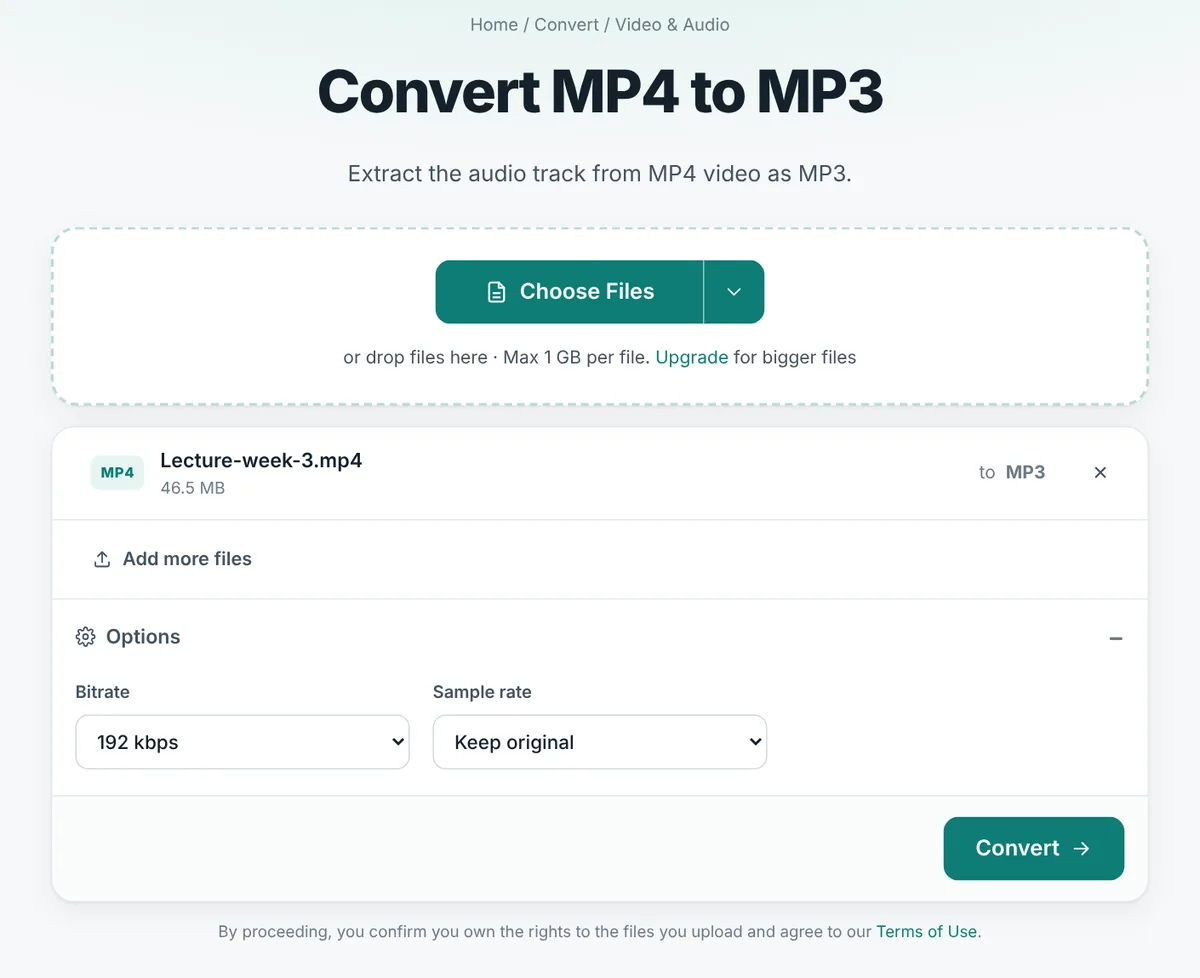
- Open the converter. Go to the MP4 to MP3 page in any browser.
- Add your video. Drag the MP4 file onto the page, or click Choose Files. Free conversions accept files up to 1 GB each and up to 20 videos at a time.
- Choose the quality (optional). Open Options. The bitrate is set to 192 kbps, which suits almost everything. Choose 128 or 96 kbps for speech, or 256 or 320 kbps for music. Leave the sample rate on Keep original.
- Click Convert. The video is uploaded, the sound is extracted and saved as MP3. Short videos take a few seconds; long ones take a little longer, mostly for the upload.
- Download your MP3. Save it, or download all your files together as one ZIP.
Is your video not an MP4? Use Video to MP3, which accepts MOV, MKV, AVI, WEBM, WMV and many other formats. Need a format other than MP3? The Audio Converter can produce WAV, M4A, OGG, FLAC and more.
Which bitrate should you choose?
The bitrate is the most important setting. It is measured in kilobits per second (kbps) and decides how much information is used to describe each second of sound. More bits mean more detail and a bigger file; fewer bits mean a smaller file and, eventually, audible loss. Our converter offers six choices, from 64 to 320 kbps.
To give you exact numbers rather than guesses, we converted the same 10-minute stereo recording at every bitrate the tool offers and measured the results. Because MP3s made this way use a constant bitrate, the size depends only on the length and the bitrate, not on what the sound is, so these figures apply to any recording.
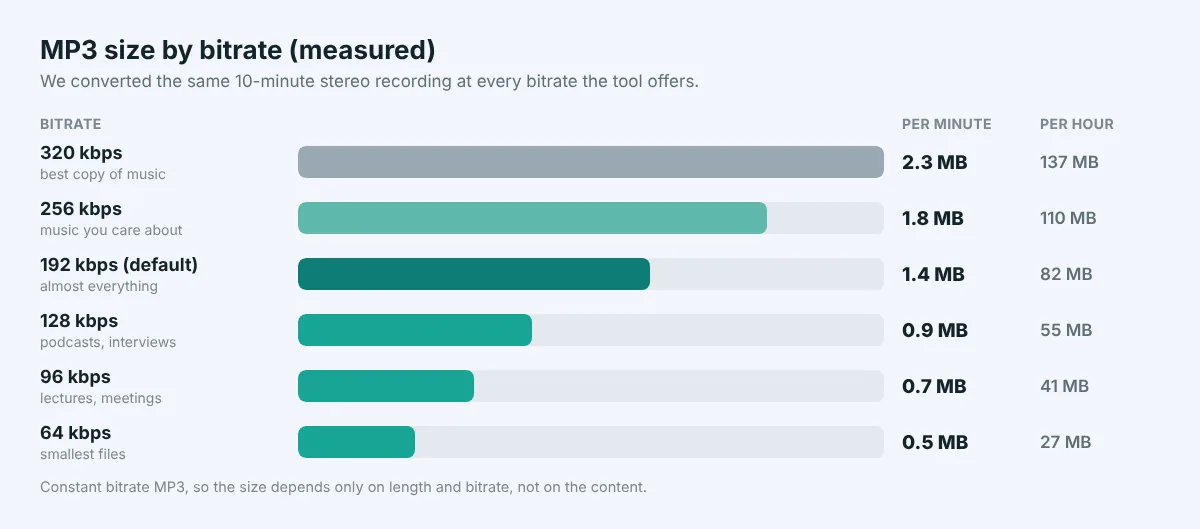
| Bitrate | Size per minute | Size per hour | Best for |
|---|---|---|---|
| 320 kbps | 2.3 MB | 137 MB | Music with excellent original sound; keeping the best possible copy |
| 256 kbps | 1.8 MB | 110 MB | Music you care about; a good balance for collectors |
| 192 kbps (default) | 1.4 MB | 82 MB | Almost everything: music on phones, in the car, on headphones |
| 128 kbps | 0.9 MB | 55 MB | Podcasts, interviews, background music |
| 96 kbps | 0.7 MB | 41 MB | Lectures, meetings, sermons, audiobooks |
| 64 kbps | 0.5 MB | 27 MB | Very long speech recordings, the smallest files |
A simple way to decide
- Is it mostly talking? Choose 96 or 128 kbps. A human voice does not need many bits, and a three-hour training session stays easy to store and share. Go down to 64 kbps only if size really matters.
- Is it music? Keep the default 192 kbps. In listening tests, most people cannot tell 192 kbps from the original on everyday headphones, phone speakers or in a car.
- Is it music with great sound that you want to keep forever? Choose 256 or 320 kbps, or consider a lossless format (see below).
- Not sure? Use 192 kbps. It is the safe middle and the reason it is the default.
Will the MP3 sound as good as the video?
With sensible settings, yes, it will sound the same to almost everyone. But it helps to understand one important rule: a higher bitrate cannot add quality that was not there in the first place.
The sound inside most MP4 files is already compressed, usually as AAC at somewhere between 96 and 256 kbps. Phone recordings of a concert, a webinar recorded from a laptop microphone or a video that was sent through a messaging app may have quite modest sound to begin with. Converting that to a 320 kbps MP3 does not make it richer; it simply describes the same sound with more bits and gives you a bigger file. If the original audio is low quality, choose 128 or 192 kbps and save the space.
There is also a small technical cost to every conversion between compressed formats. When AAC audio becomes MP3, the sound is decoded and compressed again, and each round of compression can remove a tiny bit of detail. At 192 kbps and above this is not something you will hear, but it is a good reason not to convert the same file back and forth many times. Keep the original video if the recording matters to you, and make new MP3s from the original rather than from an earlier MP3.
What about the sample rate?
The sample rate is how many times per second the sound wave is measured. Videos almost always use 48 kHz, music from CDs uses 44.1 kHz, and both are more than enough for the full range of human hearing. The converter's default, Keep original, leaves it untouched, and that is the right choice nearly every time. The 22.05 kHz option exists for one situation only: voice recordings where you want the absolute smallest file and do not mind a slightly muffled sound.
MP3, M4A, WAV, FLAC or OGG: which audio format?
MP3 is the best choice when you want a file that plays everywhere. Sometimes, though, another format suits the job better.
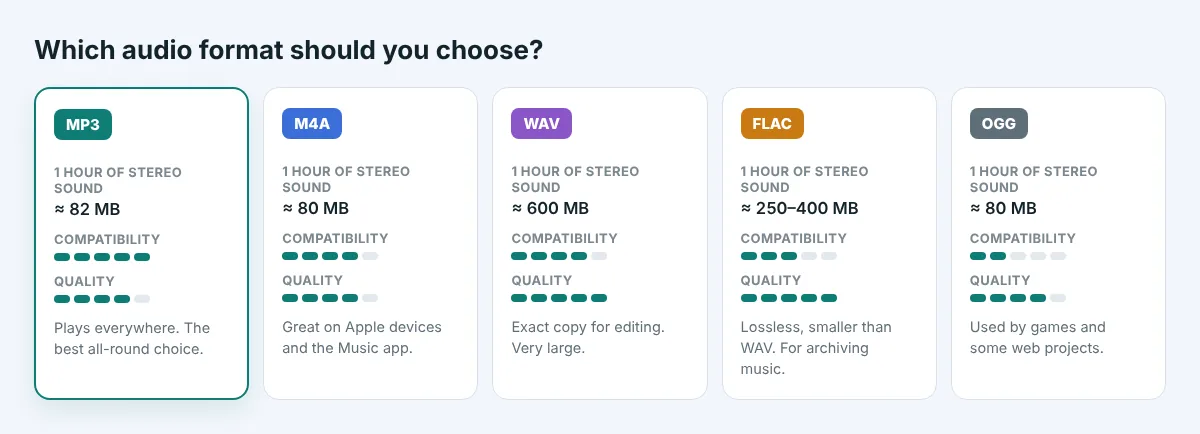
| Format | Quality | Size for 1 hour | Choose it when |
|---|---|---|---|
| MP3 | Lossy, excellent at 192 kbps+ | About 82 MB at 192 kbps | You want maximum compatibility: phones, cars, players, websites |
| M4A (AAC) | Lossy, slightly better than MP3 at the same bitrate | Similar to MP3 | You mainly use Apple devices, iTunes or the Music app |
| WAV | Uncompressed, no loss | About 600 MB | You will edit the sound in an audio program or need an exact copy |
| FLAC | Lossless, compressed | Roughly 250 to 400 MB for music | You archive music and want perfect quality in less space than WAV |
| OGG | Lossy, efficient | Similar to MP3 | Games, some web projects and Linux software ask for it |
To make any of these, open the Audio Converter and choose the format you need. The same tool can also turn an MP3 into WAV, which is useful when an audio editing program refuses MP3 files or you need an uncompressed copy for a video project. And if a WAV recording is too big to email, the WAV Compressor shrinks it.
How to convert MP4 to MP3 on Windows without a website
If you prefer to work offline, the free media player VLC can convert video to MP3 on Windows. It takes a few more clicks than an online tool, but it works without an internet connection once installed. Download VLC only from its official website, videolan.org.
- Open VLC and choose Media → Convert / Save.
- Click Add, select your MP4 file, then click Convert / Save at the bottom.
- Under Profile, pick Audio - MP3. Click the wrench icon next to it if you want to change the bitrate under Audio codec.
- Click Browse, choose where to save the file and give it a name that ends in .mp3.
- Click Start. The progress bar in VLC shows the conversion; when it reaches the end, your MP3 is ready.
A common mistake is forgetting to type the .mp3 ending in step 4. The file is then saved without a proper extension and Windows does not know how to open it. If that happens, simply rename it to add .mp3 at the end.
How to convert MP4 to MP3 on a Mac
Macs include tools that get you most of the way there:
- QuickTime Player: open the video, choose File → Export As → Audio Only. This saves the sound as an M4A file, which plays perfectly on Apple devices and most modern players, but it is not MP3.
- The Music app: to turn that M4A into MP3, open Music → Settings → Files → Import Settings, set Import Using to MP3 Encoder, then add the M4A to your library, select it and choose File → Convert → Create MP3 Version.
- VLC for Mac: works much like the Windows steps above, using File → Convert / Stream.
For a single file, an online converter is usually quicker than the two-app route. For many files you want to keep in your Music library anyway, the Music app is convenient.
How to convert MP4 to MP3 on iPhone and Android
Phones are where most videos are recorded, so it makes sense to convert right there.
- iPhone and iPad: open the MP4 to MP3 page in Safari, tap Choose Files, then Photo Library to pick a video you recorded, or Choose File for one saved in the Files app. Tap Convert, then download. The MP3 is saved to Downloads in the Files app, where you can play it, share it or move it to another app.
- Android: open the page in Chrome, tap Choose Files, pick the video from your gallery or file manager and tap Convert. The MP3 appears in your Downloads folder and in most music apps.
Phone videos are often large, so if you are on mobile data, connect to Wi-Fi before uploading long recordings. If you only need a short part of a long video, cut it first with Trim Video; the upload and the conversion will both be faster.
For advanced users: the FFmpeg command
If you are comfortable with the command line, the free program FFmpeg converts MP4 to MP3 with one line, and it is what many converters, including ours, use behind the scenes:
ffmpeg -i video.mp4 -vn -c:a libmp3lame -b:a 192k audio.mp3Here -vn means "no video", -c:a libmp3lame chooses the MP3 encoder and -b:a 192k sets the bitrate. Change 192k to 128k for speech or 320k for the highest quality. FFmpeg is powerful but unforgiving: a typo gives you an error message rather than an MP3, so for occasional use an online tool is simpler.
Converting many videos at once
Have a whole course, a folder of interviews or a season of recorded talks? You do not need to convert them one by one:
- Open the MP4 to MP3 page and add up to 20 videos at once.
- Choose the bitrate once; it applies to every file in the batch.
- Click Convert. Each video becomes its own MP3 with the same name.
- Click Download all to get every MP3 in one ZIP file.
Paid plans raise the limit to as many as 50 files per job and larger file sizes, which helps with long recordings such as full-day conferences. For very large collections, simply repeat the batch with the next group of videos.
Common problems and how to fix them
| Problem | Likely cause | Fix |
|---|---|---|
| The conversion fails or the MP3 is silent | The video has no sound track, for example a screen recording made with the microphone off | Play the video first to check it has sound; record again with audio enabled |
| The MP3 is much bigger than expected | A high bitrate on a long recording | Use 96 or 128 kbps for speech; see the size table above |
| The music sounds thin or "underwater" | A very low bitrate such as 64 kbps | Convert again from the original video at 192 kbps or higher |
| The sound is very quiet | The original recording was quiet | Raise the volume in your player, or use an audio editor to boost it |
| The file was not accepted | The video is not really an MP4 (for example MOV or MKV) | Use Video to MP3, which accepts almost any video |
| Only part of the video is needed | Converting the whole thing wastes time | Cut it first with Trim Video, then convert |
Adding a title, artist and album
Music apps sort songs using small labels stored inside the MP3, called ID3 tags: title, artist, album, track number and so on. Videos rarely carry this kind of information, so a new MP3 usually shows only its file name. If you are building a music library, it is worth adding the tags yourself:
- Windows: right-click the MP3 in File Explorer, choose Properties → Details and type the title, artist and album.
- Mac: add the MP3 to the Music app, right-click it, choose Get Info and fill in the details, including artwork.
- Phone: many music player apps let you edit tags directly; look for an Edit or Info option on the song.
Is it safe to convert videos online?
Videos are often personal: family events, private meetings, recordings of your own classes. On AllFreeConvert, files are uploaded over an encrypted connection and converted on our own server; they are not handed to other companies. Your video is deleted as soon as the MP3 is ready, and the MP3 itself is deleted automatically after 8 hours. Nobody listens to or watches your files. You can read more on our Security and Privacy pages.
Whatever tool you use, a few habits help: prefer converters that explain what happens to your files, avoid sites that ask you to install unknown browser extensions or "download managers", and for very sensitive recordings use an offline method such as VLC.
Quick checklist before you convert
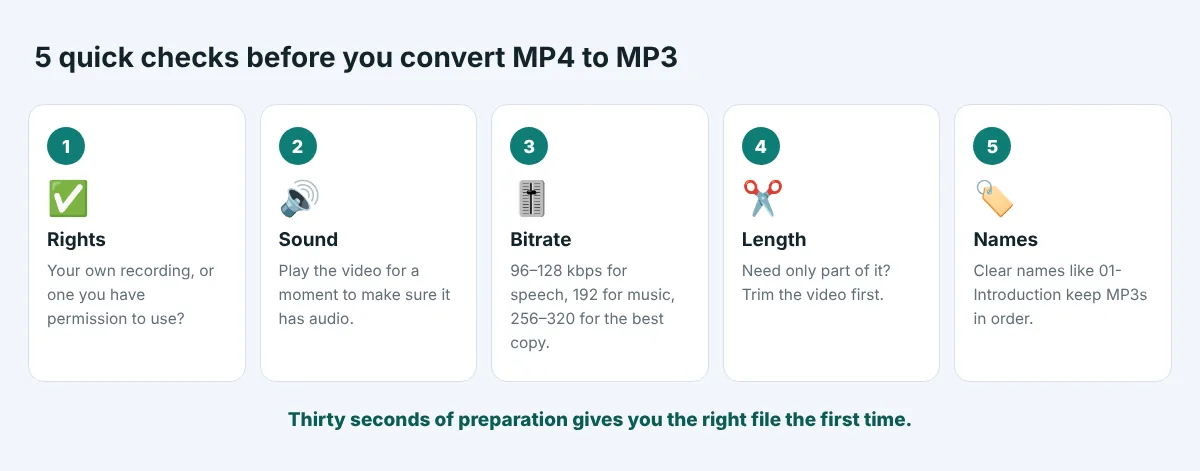
- Rights. Is it your own recording, or do you have permission to use it?
- Sound. Play the video for a moment to make sure it has audio.
- Bitrate. 96 to 128 kbps for speech, 192 kbps for music, 256 to 320 kbps for the best copy.
- Length. Need only part of it? Trim the video first.
- Names. Rename files clearly so the MP3s are easy to find and play in order.
The bottom line
Converting MP4 to MP3 keeps the part of a video you actually need, the sound, in a file that is a tiny fraction of the size and plays on every device. For most people, the whole process comes down to three decisions: use a converter you trust, keep the bitrate at 192 kbps for music or drop it to 96 to 128 kbps for speech, and keep the original video if the recording matters.
On any phone or computer, an online converter is the quickest route. On Windows or Mac, VLC is a good free offline option, and FFmpeg is there for anyone who likes the command line. Whatever you choose, remember that a higher bitrate cannot improve a poor recording, and that converting your own videos, or ones you have permission to use, keeps you on the right side of the law.
Free MP4 to MP3 conversion for up to 20 videos at a time. Choose your quality, download as MP3 or ZIP, no sign-up.
Frequently asked questions
How do I convert MP4 to MP3 for free?
Open the free MP4 to MP3 converter in any browser, add your video (up to 1 GB, or up to 20 videos at once), keep the bitrate at 192 kbps and click Convert. Download the MP3 or all files as a ZIP. It works on Windows, Mac, iPhone and Android with nothing to install.
What is the best bitrate for MP3?
For music, 192 kbps sounds the same as the original to most listeners and is the best balance. Choose 256 or 320 kbps for music you want to keep in the highest quality, and 96 or 128 kbps for speech such as lectures, meetings and podcasts.
Does converting MP4 to MP3 lose quality?
Very little at 192 kbps or higher. The sound in most MP4 files is already compressed, so it is compressed once more as MP3, but the difference is not audible to most people. A higher bitrate cannot make the sound better than the original video.
How big is an MP3 file?
In our test, MP3 files measured about 1.4 MB per minute at 192 kbps, 0.7 MB per minute at 96 kbps and 2.3 MB per minute at 320 kbps. One hour at 192 kbps is about 82 MB.
Can I convert MP4 to MP3 on my iPhone?
Yes. Open the MP4 to MP3 page in Safari, tap Choose Files, pick the video from your Photo Library or the Files app, tap Convert and download. The MP3 is saved in the Downloads folder of the Files app.
Is it legal to convert MP4 to MP3?
Converting your own recordings, or videos you have permission to use, is fine. Converting music or videos made by others without permission can break copyright law and the rules of the site you got them from.