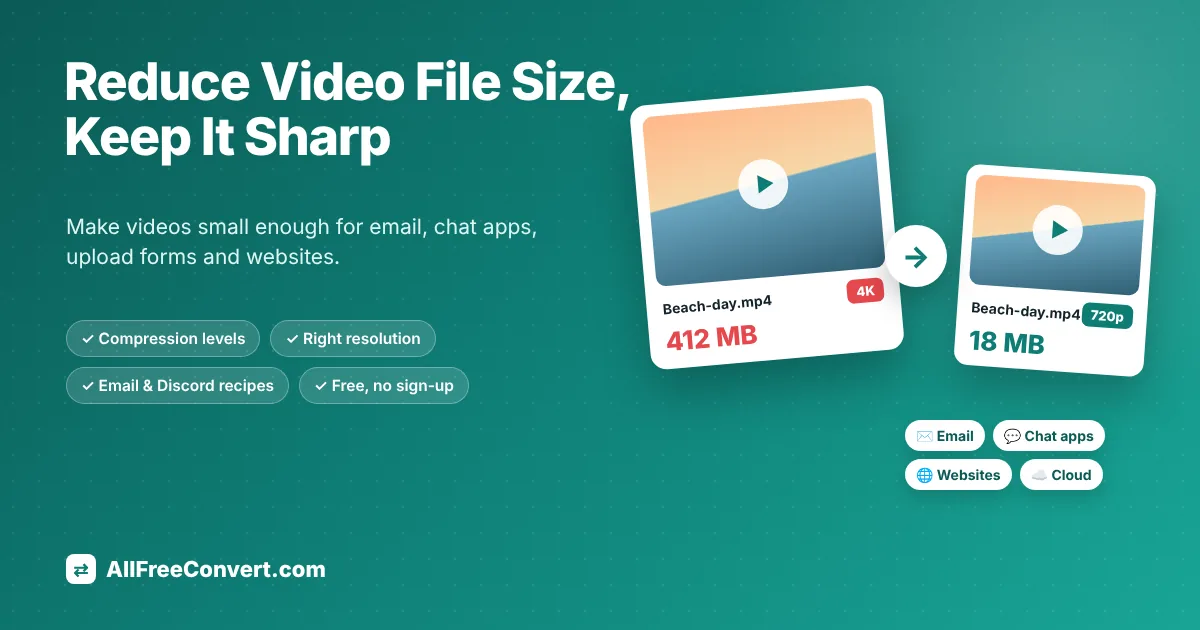
You recorded a two-minute video on your phone, tried to email it, and got the message that the file is too big. Or a website upload stopped at 99%. Or your phone says storage is full, and the culprit is a folder of holiday clips. Modern phones record beautiful video, but they also produce enormous files: a few minutes of 4K footage can easily be larger than a whole album of photos. Learning how to reduce video file size solves all of these problems at once.
The good news is that most videos can be made several times smaller without anyone noticing a difference on a phone or laptop screen. The trick is knowing which settings actually matter. This guide explains, in plain words, what makes a video big, how to compress a video online for free, which compression level and resolution to choose for email, WhatsApp, Discord or a website, and how to do it offline on Windows and Mac. You will also learn a simple formula to predict the size of a video before you start, and the mistakes that waste time or ruin quality.
Drop your video here and download a much smaller copy that still looks sharp. Free, no sign-up, works on any phone or computer.
Why are video files so big?
A video is a fast series of pictures, usually 24 to 60 every second, plus a sound track. Even with clever compression, describing that much moving detail takes a lot of data. Four things decide how big a video file becomes:
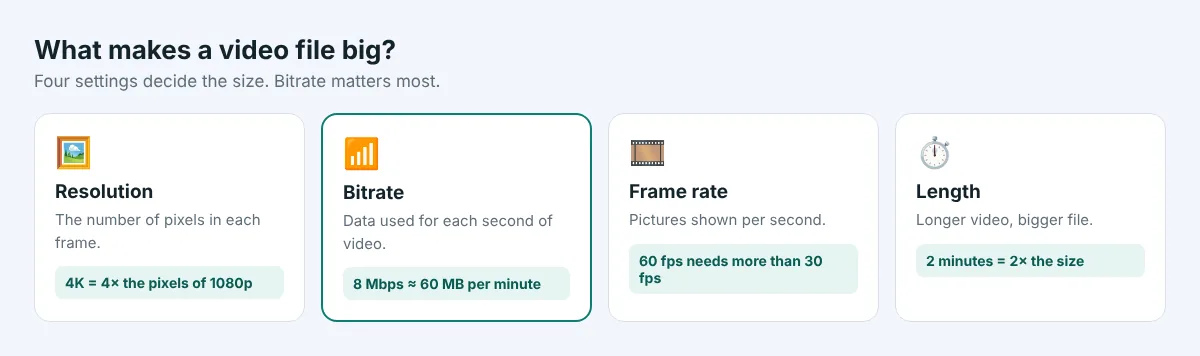
- Resolution is the size of the picture, in pixels. 4K (3840 × 2160) has four times as many pixels as 1080p (1920 × 1080), and nine times as many as 720p (1280 × 720). More pixels need more data.
- Bitrate is how much data is used for each second of video, measured in megabits per second (Mbps). It is the single most important number for file size. A higher bitrate keeps more detail, but makes the file bigger.
- Frame rate is how many pictures are shown per second. A 60 fps video has twice as many frames as a 30 fps video and usually needs noticeably more data, although not quite twice as much.
- Length is the simplest one: a two-minute clip is twice the size of a one-minute clip at the same settings.
Phones choose high settings by default because they want your memories to look their best on any screen. As a rough guide, Apple lists a minute of 1080p video at 30 fps as about 60 MB in its efficient format, and a minute of 4K at 60 fps as about 400 MB. Android phones are similar. Those settings are great for watching on a TV, but far more than a chat window, an email or a small website player can ever show.
A simple formula to predict the size
You do not need special software to estimate how big a video will be. Multiply the bitrate in megabits per second by the length in seconds, then divide by 8 to turn bits into bytes:
Example: a 3-minute video (180 seconds) at 5 Mbps is about 5 × 180 ÷ 8 = 112 MB.
That gives you these typical figures for one minute of video, including a normal sound track:
| Typical video | Common bitrate | Size per minute |
|---|---|---|
| 4K at 60 fps from a phone | 40 to 60 Mbps | 300 to 450 MB |
| 4K at 30 fps | 20 to 35 Mbps | 150 to 260 MB |
| 1080p at 30 fps | 8 to 16 Mbps | 60 to 120 MB |
| 1080p, well compressed | 3 to 5 Mbps | 22 to 38 MB |
| 720p, well compressed | 1.5 to 2.5 Mbps | 11 to 19 MB |
| 480p, well compressed | 0.8 to 1.2 Mbps | 6 to 9 MB |
The figures are rounded, and real videos vary: calm scenes such as a person talking need far less data than a football match, confetti or a camera shaking while you walk. But the table shows the key lesson. The same minute can be 400 MB or 10 MB depending on the settings, which is why compressing a video is so effective.
How video compression works, in plain words
Video compressors use the fact that most of a video does not change much from one frame to the next. In a clip of someone speaking, the background stays still, so instead of storing every frame completely, the encoder stores one full picture and then only the parts that move. It also simplifies fine detail the human eye barely notices, such as tiny variations in a blue sky.
When you compress a video, the compressor decodes the original and encodes it again with more efficient settings, usually the H.264 codec inside an MP4 file, which plays on practically every device. You choose how hard it should squeeze: gently, keeping almost all detail, or strongly, accepting some softness for a much smaller file. You can also scale the picture down to a lower resolution, which removes data the viewer would never see on a small screen anyway.
Video compression is lossy, which means some information is thrown away for good. That is perfectly fine for sharing, but it is the reason you should always keep the original if the video matters to you, and make new smaller copies from the original instead of compressing an already compressed copy again.
How to reduce video file size online, step by step
The easiest way, on any device, is an online compressor. There is nothing to install and the steps are the same on a computer and on a phone. Here is how to do it with our free Video Compressor.
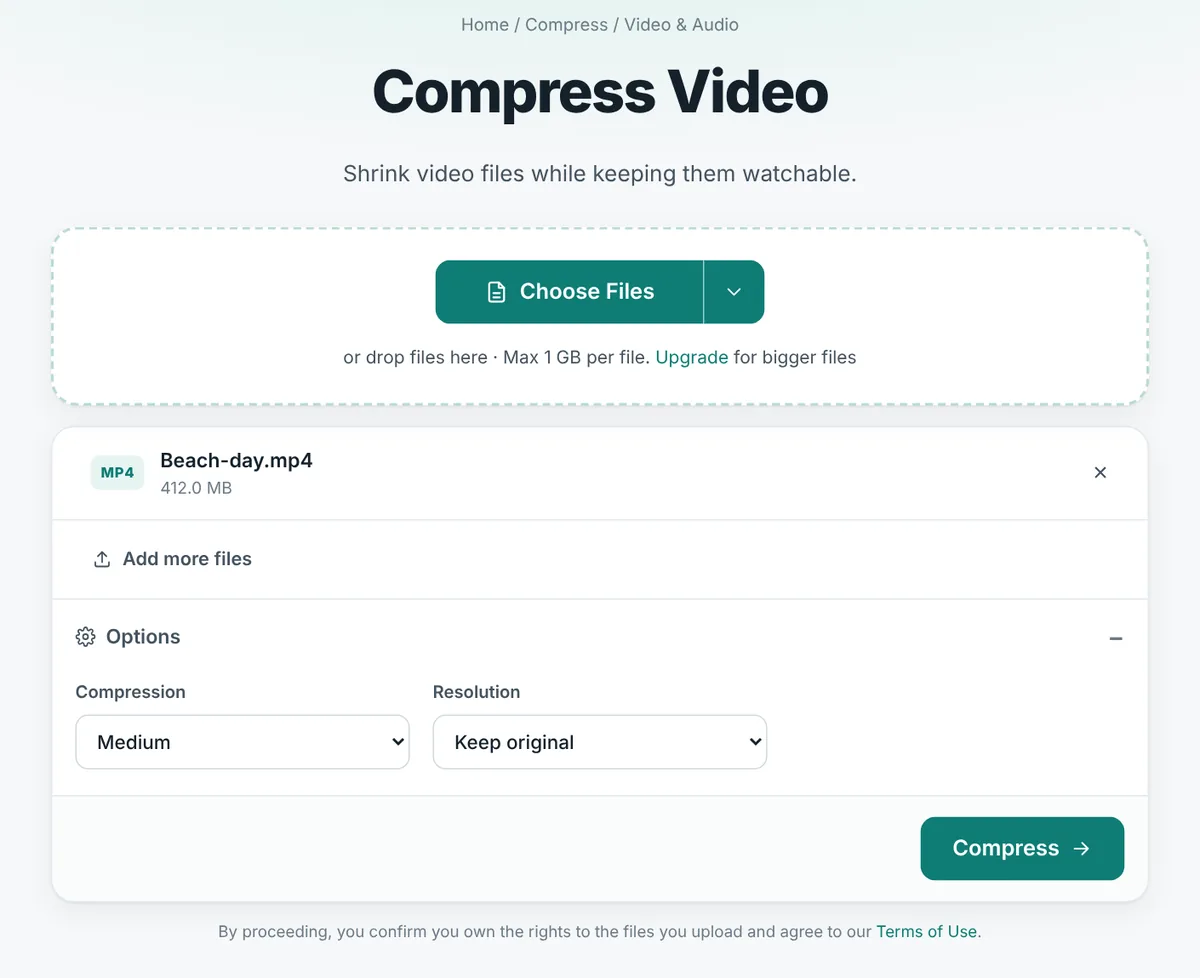
- Open the compressor. Go to the Video Compressor page in any browser.
- Add your video. Drag the file onto the page or click Choose Files. MP4, MOV, MKV, AVI, WEBM and most other formats work. Free use covers files up to 1 GB each and up to 20 videos at a time.
- Choose a compression level. Open Options. Medium is the default and suits most videos. The next section explains each level.
- Choose a resolution (optional, but powerful). Leave Keep original for the best picture, or pick 1080p, 720p or 480p for a much smaller file.
- Click Compress. The video is compressed on our server. Short clips take seconds; long 4K videos can take a few minutes, mostly for the upload.
- Download the smaller video. The file keeps its name with -compressed added, so you can tell it apart from the original.
MP4, MOV, MKV and WEBM videos keep their format. Older formats such as AVI, WMV and FLV are saved as MP4, because it plays everywhere and compresses far better. If you want a particular format, use the Video Converter, which also lets you pick quality and resolution.
Which compression level should you choose?
The compressor offers four levels. Behind the scenes each level sets a quality target rather than a fixed size: the encoder spends more data on complicated scenes and less on simple ones, so every part of the video looks equally good. That is why two videos of the same length can end up very different in size at the same level.
| Level | What you will see | Best for |
|---|---|---|
| Light (best quality) | Looks the same as the original, even on a large screen | Videos you will edit, show on a TV or keep as a smaller archive copy |
| Medium (default) | Sharp on phones, tablets and laptops; differences only visible if you compare frame by frame | Almost everything: sharing with family, cloud storage, most websites |
| Strong | Slightly softer detail, mainly in fast movement and dark areas | Email, messaging apps, upload forms with size limits |
| Maximum (smallest) | Visible softness and some blockiness, but faces and text stay recognisable | Very strict limits, slow connections, previews and drafts |
A useful rule: start with Medium. If the result is still too big, do not jump straight to Maximum. Lower the resolution first, because that usually saves more space with less visible damage than squeezing harder at full resolution.
Choosing the right resolution
Lowering the resolution is the most powerful single change you can make. A 4K video shown in a chat window or on a laptop is scaled down by the player anyway, so the extra pixels are carried around for nothing.
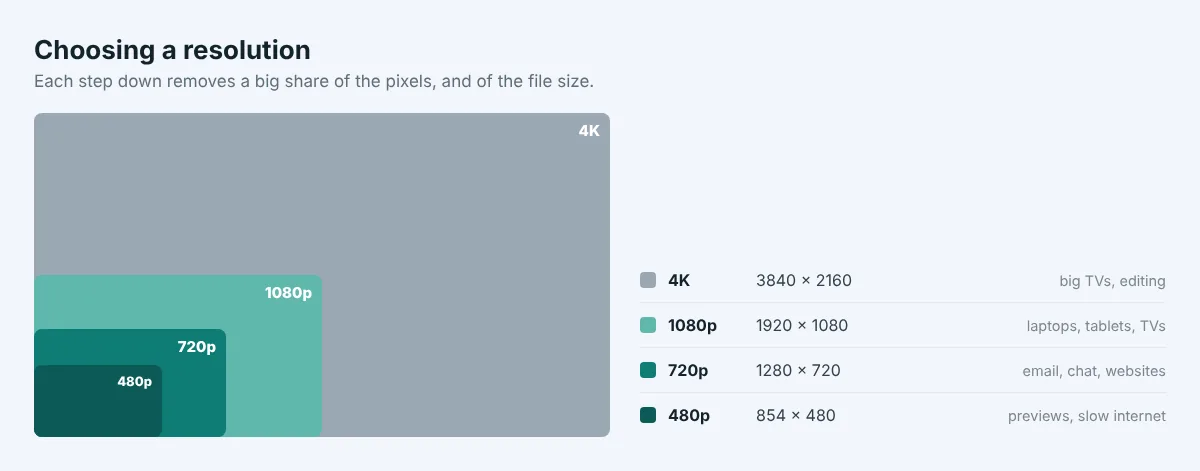
- Keep original: for videos you will watch on a big TV, edit later, or simply want to keep at full detail.
- 1080p (Full HD): the sweet spot for laptops, tablets and most TVs. Converting a 4K phone video to 1080p often makes it several times smaller while still looking crisp.
- 720p (HD): ideal for email, WhatsApp, Discord, presentations and most websites. Faces and text stay clear on phones and laptops.
- 480p: for small previews, slow internet connections or very strict size limits. It looks soft on a big screen, but fine on a phone.
- 360p: the smallest option, for drafts or when only the content matters, not the picture.
The compressor scales the picture evenly, so a portrait phone video stays portrait and nothing looks stretched. One thing it cannot do is improve a video: choosing a higher resolution than the original adds no detail, so always choose the same size or smaller.
Recipes for email, WhatsApp, Discord and websites
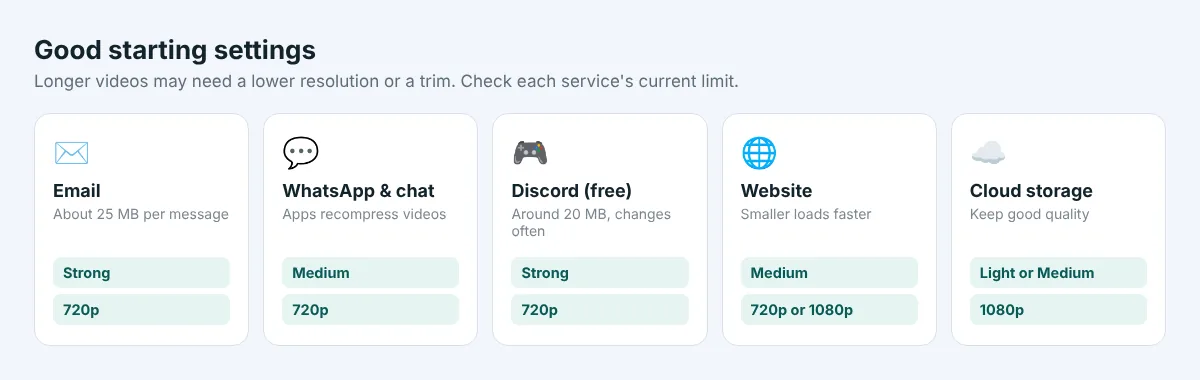
Different places have different limits. These settings are good starting points; the exact result depends on how long your video is and how much movement it has.
| Where it is going | Typical limit | Try these settings |
|---|---|---|
| Gmail and many email services | About 25 MB per message | Strong, 720p. For clips over 2 minutes, try 480p or trim first |
| WhatsApp and other chat apps | Apps recompress videos themselves; files sent as documents can be much larger | Medium, 720p, so the app does not have to squeeze it further |
| Discord (free accounts) | Currently around 20 MB; the limit has changed several times | Strong, 720p; Maximum and 480p for longer clips |
| Website or blog video | Smaller is faster for visitors | Medium, 720p or 1080p |
| School, job or government upload forms | Often 10 to 100 MB | Strong, 720p; check the exact limit on the form |
| Keeping in cloud storage | Your storage plan | Light or Medium, 1080p, and keep the original if it matters |
Limits change, so check the current numbers on the service you use. If your video is still too big after compressing, the next section shows the remaining options.
Does the video format change the size?
People often ask whether converting to a different format, say from MOV to MP4, makes a video smaller. The honest answer is: the format itself matters less than the settings used inside it.
MP4, MOV and MKV are containers, boxes that hold the video and sound. What really decides the size is the codec used to compress the picture and the bitrate it is given. An iPhone MOV file recorded with the efficient HEVC (H.265) codec and an MP4 file made with H.264 can look identical, yet differ in size because of their codecs and bitrates, not because one is called MOV and the other MP4.
- H.264 in MP4 is the safest choice for sharing. It plays on practically every phone, computer, TV and website, which is why our compressor uses it.
- HEVC (H.265) can produce files roughly a third to a half smaller at similar quality, but some older computers, browsers and editing programs cannot play it.
- WEBM with VP9 is efficient and works well on websites in modern browsers, but is less handy for sending to friends.
- AVI, WMV and FLV are older formats that usually compress poorly. Converting them to MP4 often makes them dramatically smaller.
In short: if a video plays everywhere, keep its format and compress it. If it is an old format, converting it to MP4 is a good idea in itself.
Five more ways to make a video smaller
- Trim it. The easiest saving of all. If you only need 40 seconds of a 3-minute recording, cut the rest with Trim Video before compressing. The file becomes smaller in proportion, and the upload is faster too.
- Split it into parts. For long recordings that must stay complete, make two or three shorter clips and send them separately.
- Keep only the sound. For lectures, meetings and interviews, the picture often adds little. Video to MP3 keeps just the audio, which is roughly 1.4 MB per minute at good quality.
- Make a GIF for short loops. A reaction, a product spinning or a quick demo of a few seconds can become an animation with Video to GIF. Keep it short: GIFs get big quickly.
- Share a link instead. For really large videos, upload the original to cloud storage and send a link. The person receiving it gets full quality, and nobody hits an attachment limit.
Record smaller videos in the first place
If you regularly need to send videos, it can be easier to change what your phone records:
- iPhone: open Settings → Camera → Record Video and choose 1080p at 30 fps instead of 4K. Under Settings → Camera → Formats, High Efficiency keeps files smaller than Most Compatible, although some older computers may not play them.
- Android: open the Camera app, go to its settings and look for Video size or Video resolution. Choose FHD (1080p) at 30 fps. Some phones also have a "high efficiency video" option that saves space.
Keep 4K for moments you really want in the best possible quality, such as a wedding or a landscape you will show on a TV, and use 1080p for everyday clips.
How to compress a video offline on Windows and Mac
If you prefer not to upload a video, or you have hundreds of gigabytes to process, desktop software is a good option.
HandBrake (free, Windows, Mac and Linux)
- Download HandBrake from its official website, handbrake.fr, and install it.
- Open HandBrake and drag your video into the window.
- Under Preset, choose Fast 1080p30 for a good general result, or Fast 720p30 for a smaller file.
- Choose where to save the new file at the bottom of the window, then click Start Encode.
HandBrake has many advanced settings, and changing them without knowing what they do can produce strange results. The presets are well chosen, so start there.
On a Mac with QuickTime Player
Open the video in QuickTime Player, choose File → Export As and pick a smaller resolution such as 1080p or 720p. It is quick and built in, but offers few choices.
For advanced users: FFmpeg
FFmpeg is the free command-line program that powers many video tools, including ours. This command makes a 720p MP4 with a quality setting similar to our Strong level:
ffmpeg -i input.mp4 -vf scale=-2:720 -c:v libx264 -crf 32 -preset veryfast -c:a aac -b:a 128k output.mp4A lower -crf number means better quality and a bigger file; around 23 to 28 is a good everyday range. Leave out the -vf scale=-2:720 part to keep the original resolution.
Mistakes to avoid
- Putting the video in a ZIP file. Videos are already compressed, so zipping them saves almost nothing. It only makes the file harder to open.
- Compressing the same video again and again. Every pass removes more detail, and the damage builds up. Go back to the original and choose a stronger setting instead.
- Choosing Maximum at full 4K. Squeezing a huge picture very hard gives blocky results. A lower resolution at Medium usually looks much better at the same size.
- "Upscaling" a small video. Turning a 480p clip into 1080p does not add detail; it just makes the file bigger.
- Deleting the original too early. Check the compressed copy plays properly and looks good before removing the original.
Common problems and how to fix them
| Problem | Likely cause | Fix |
|---|---|---|
| The file barely got smaller | The video was already well compressed, for example downloaded from a chat app | Lower the resolution or trim it; another compression pass alone will not help much |
| The compressed video is bigger | The original was very small or already heavily compressed | Keep the original; it is already as efficient as it can be at that quality |
| The picture looks blocky | Too strong a level for the resolution | Use Medium with a lower resolution instead of Maximum at full size |
| Still too big for email | The clip is long | Trim it, split it into parts, or send a cloud link |
| The video will not play on an old computer | An unusual format or codec | Convert to MP4 with the Video Converter, which uses H.264 |
| The upload takes very long | A large original and a slow connection | Use Wi-Fi, or trim the video on your phone before uploading |
Is it safe to compress videos online?
Videos often show faces, homes and private moments, so it is fair to ask what happens to them. On AllFreeConvert, files are uploaded over an encrypted connection and processed on our own server; they are not passed to other companies. The original upload is deleted as soon as compression is finished, and the compressed video is deleted automatically after 8 hours. Nobody watches your videos. You can read more on our Security and Privacy pages.
For extremely sensitive recordings, or when you simply prefer to keep everything on your own computer, the offline methods above are a good alternative.
Quick checklist
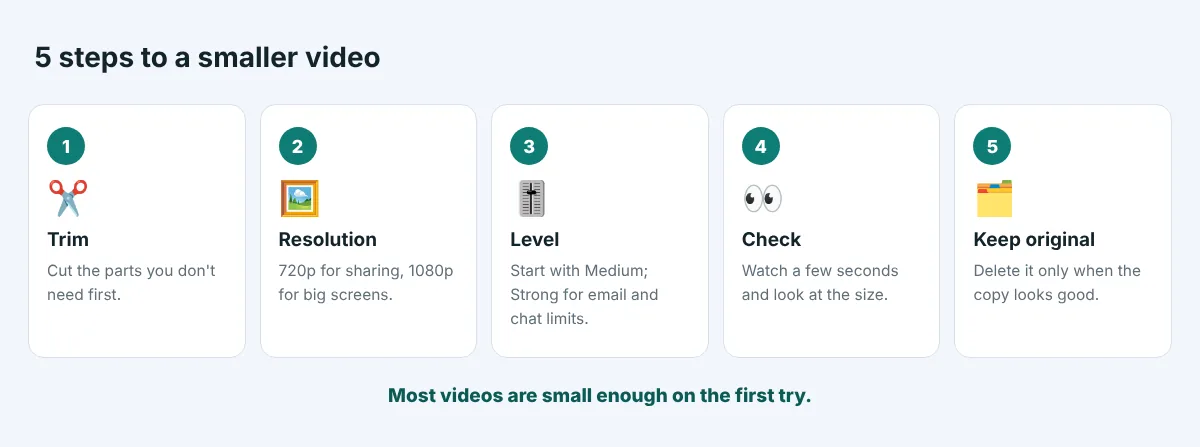
- Trim anything you do not need.
- Pick a resolution that suits where the video is going: 720p for sharing, 1080p for big screens.
- Choose a level: start with Medium, use Strong for email and chat limits.
- Check the result: watch a few seconds and look at the file size before sending.
- Keep the original until you are sure the smaller copy is good.
The bottom line
Video files are big because phones record far more detail than most screens can show. To reduce video file size without ruining quality, cut what you do not need, lower the resolution to match where the video will be watched, and use a sensible compression level such as Medium or Strong. Those three steps together usually shrink phone videos by well over half, and often much more, while still looking sharp on phones and laptops.
For a quick result on any device, an online compressor is the easiest choice. For large batches or private recordings, HandBrake on a computer does the job offline. Whatever you use, keep your originals, avoid compressing the same file twice, and remember the simple formula: bitrate times length divided by eight tells you roughly how big your video will be.
Free video compression for MP4, MOV, MKV, AVI and more. Choose a level and resolution, no sign-up, works on phones and computers.
Frequently asked questions
How can I reduce a video file size for free?
Open the free Video Compressor, add your video, choose Medium compression and, for a bigger saving, a lower resolution such as 720p. Click Compress and download the smaller copy. It works in any browser on Windows, Mac, iPhone and Android.
How do I compress a video without losing quality?
Use a light or medium compression level and keep the resolution at 1080p or the original. The video will be much smaller and look the same on phones and laptops. Some detail is always removed, but at these settings it is not visible in normal viewing.
What resolution should I use to email a video?
720p works well for most email. Combined with the Strong level, a clip of one to two minutes usually fits under a 25 MB attachment limit. For longer videos, choose 480p, trim the video, or send a cloud link.
Why did my video barely get smaller?
It was probably already well compressed, for example a video saved from a chat app or a website. Lowering the resolution or trimming the video will help more than compressing it again.
Does converting MOV to MP4 make it smaller?
Not by itself. MOV and MP4 are containers; the size depends on the codec and bitrate inside. Compressing the video, or lowering its resolution, is what makes it smaller. Old formats such as AVI or WMV often do shrink a lot when converted to MP4.
Will compressing a video affect the sound?
The sound track is kept at a good quality for voices and music. Almost all of the saving comes from the picture, because sound takes up only a small part of a video file.