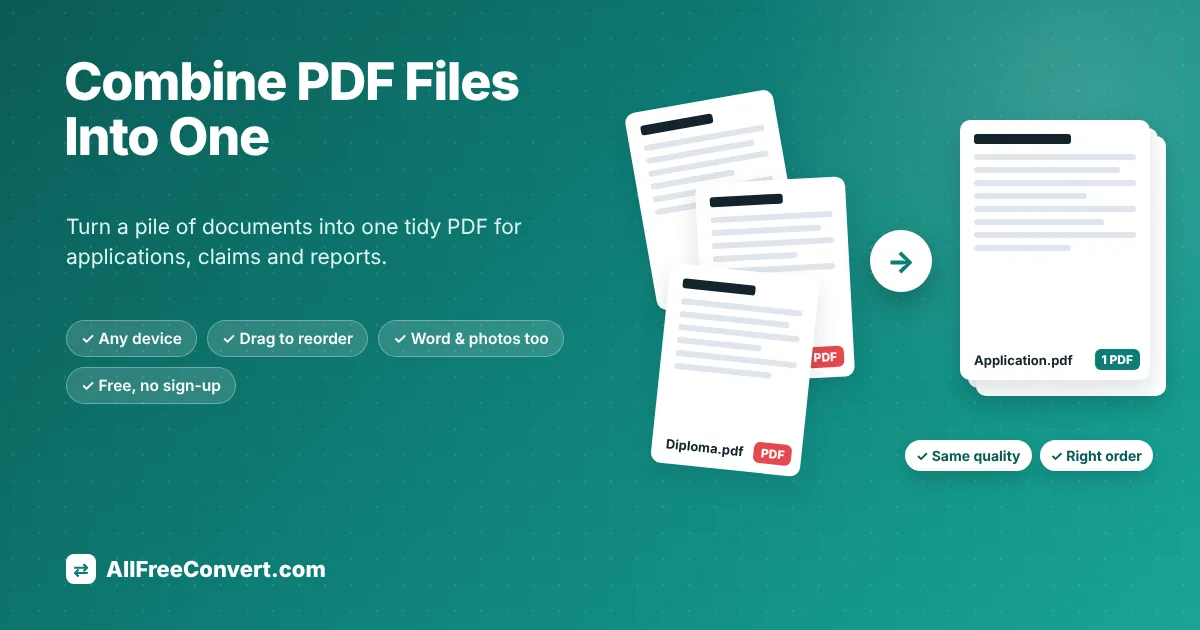
The job application asks for "one PDF containing your CV, cover letter and certificates". The visa portal accepts a single file per section. Your accountant wants every receipt from the year in one document, not forty separate attachments. Sooner or later, almost everyone needs to combine PDF files into one, and usually at the last minute.
Merging PDFs sounds technical, but it is one of the simplest things you can do with a document, and you do not need expensive software. This guide shows you how to combine PDFs for free on any device, how to put the pages in exactly the right order, what to do with scans, photos and Word files that are not PDFs yet, and how to deal with the problems that commonly get in the way: locked files, huge file sizes, missing pages and upload limits. By the end, you will be able to turn a pile of documents into one tidy, professional file in a couple of minutes.
Add your PDFs, drag them into order and download a single combined file. Free, no sign-up, works on any phone or computer.
What happens when you merge PDFs?
A PDF is a collection of pages. Each page carries its own text, pictures, fonts and size. When you merge several PDFs, a good tool simply takes all those pages and places them one after another in a new file, in the order you choose. The pages themselves are not redrawn or converted, so nothing is lost: text stays sharp and selectable, images keep their quality, and links inside the pages keep working.
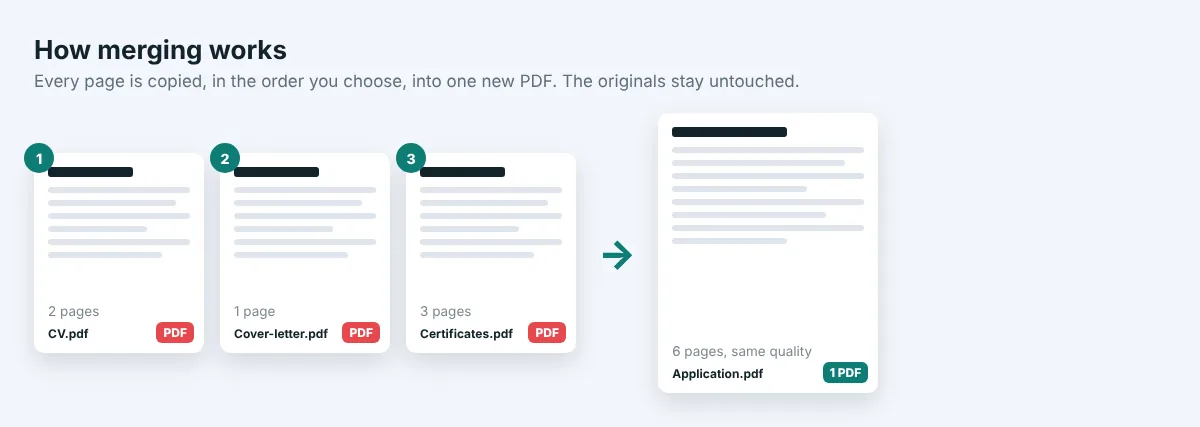
Because the pages are copied rather than re-created, the size of the merged file is roughly the size of the originals added together. Three PDFs of 1 MB, 2 MB and 500 KB will give you a combined file of about 3.5 MB, sometimes a little less because shared fonts and resources can be stored once. If the result is too big for an email or a form, you can compress it afterwards, which we cover below.
Page sizes and orientations are kept as they are, too. A landscape spreadsheet page stays landscape, an A4 letter stays A4 and a US Letter form stays Letter, even when they end up side by side in the same file. Any PDF reader handles mixed page sizes without problems, and printers simply scale each page to the paper in the tray.
The original PDFs are never changed. Merging always creates a new file, so you can try different orders as many times as you like.
When do you need to combine PDFs?
- Job applications: one file with your CV, cover letter, diplomas, certificates and references, in that order.
- School and university admissions: transcripts, recommendation letters, test results and identity documents.
- Visa, passport and immigration forms: scanned passport pages, bank statements, invitation letters and bookings, often with strict rules about one file per section.
- Loans, rentals and insurance claims: payslips, bank statements, ID, contracts and photos of damage.
- Accounting and taxes: a year of invoices or receipts kept together, which is much easier to send and archive.
- Reports and manuals: chapters written by different people, or sections exported from different programs.
- Printing: one file is quicker to print than twenty, and nothing gets forgotten.
In all of these cases, the person receiving the document benefits too. One well-ordered file is easier to read, easier to forward and much less likely to be incomplete than a long list of attachments.
How to combine PDF files online, step by step
An online tool is the quickest method on any device, and it works the same on Windows, Mac, Chromebook, iPhone and Android. Here is how to do it with our free PDF Merge tool.
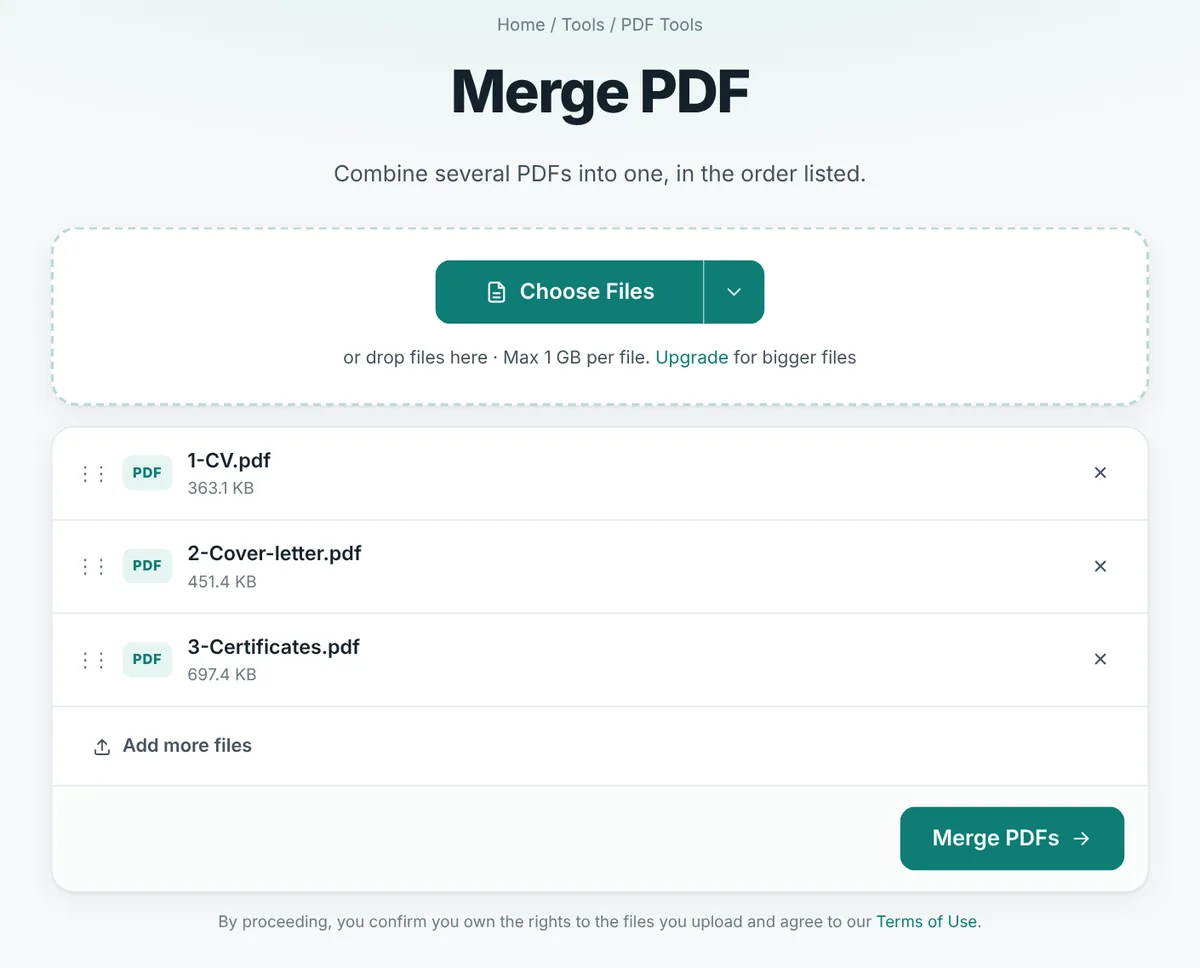
- Open the tool. Go to the PDF Merge page in any browser.
- Add your PDFs. Drag them onto the page or click Choose Files. You can select several at once. Free use covers up to 20 files of up to 1 GB each.
- Put them in order. The merged PDF follows the list from top to bottom. On a computer, grab a file by its ⋮⋮ handle and drag it up or down. On a phone, add the files in the order you want, or remove one with the × and add it again to move it to the end.
- Click Merge PDFs. The files are combined on our server in a few seconds.
- Download your PDF. You get one file called merged.pdf. Rename it to something clear before sending it, such as Garcia_Maria_Application.pdf.
Getting the order right: files and pages
The order of files is easy to change before you merge, but sometimes you need to rearrange individual pages: a certificate scanned upside down, a page that belongs in the middle of another document, or a blank page at the end of a scan. You have two good options:
- Fix it before merging. If one file has a problem, correct just that file first: rotate pages with Rotate PDF, or remove blank pages with the PDF page remover. Then merge.
- Fix it after merging. Open the combined file in Organize PDF and drag individual pages into place, or delete the ones you do not need.
For official applications, a logical order makes a good impression and helps the reviewer. A safe default is: the main form or letter first, then identity documents, then supporting evidence in the order the instructions list it. If the instructions give an order, always follow it exactly.
Three example orders that work well
| Job application | Visa or permit application | Expense or insurance claim |
|---|---|---|
| 1. Cover letter | 1. Completed application form | 1. Claim form or summary |
| 2. CV or résumé | 2. Passport photo page | 2. List of items or costs |
| 3. Degree or diploma | 3. Invitation or booking confirmation | 3. Receipts and invoices, by date |
| 4. Certificates and licences | 4. Proof of funds, such as bank statements | 4. Photos or reports as evidence |
| 5. References | 5. Other supporting documents as listed | 5. Proof of payment |
These are only starting points. Employers, embassies and insurers often publish their own checklists, and those always come first. Where a checklist exists, use its exact order and, if it numbers the items, mirror those numbers in your file names before merging so nothing is out of place.
Merging vs. ZIP files vs. separate attachments
Merging is not the only way to send several documents together, so it helps to know when it is the right choice.
- One merged PDF is best when the documents belong together and someone will read them in order: an application, a claim, a report. The reader opens one file and scrolls. Nothing can be forgotten, and most upload forms that ask for "one file" mean exactly this.
- A ZIP file bundles separate files into one download without changing them. It is useful when the files are of different types, such as spreadsheets and photos, or when the reader needs each document separately. But a ZIP must be unpacked first, some email systems and portals block ZIP attachments for security reasons, and it barely reduces the size of PDFs.
- Separate attachments are fine for two or three unrelated documents. For more than that, they become hard to follow, and it is easy for the reader to miss one.
If a form or an employer gives instructions, follow them. If they do not, one merged PDF with a clear name is almost always the most convenient choice for the person on the other side.
What if some of your files are not PDFs?
Real-life paperwork is rarely all in one format. You may have a CV in Word, a photo of a certificate taken on your phone and a bank statement downloaded as PDF. The solution is to turn everything into PDF first, then merge.
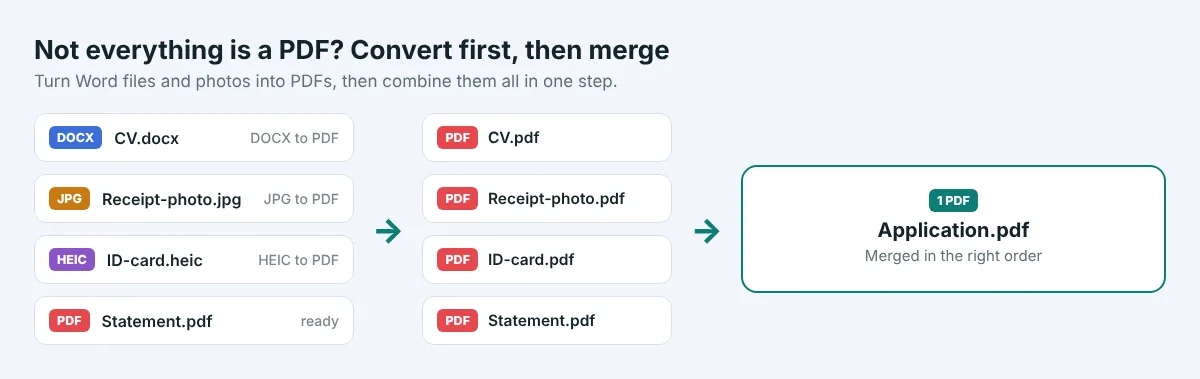
| You have | Turn it into a PDF with | Good to know |
|---|---|---|
| Word document (.docx) | DOCX to PDF | Keeps fonts, headings and layout, so it looks the same everywhere |
| Photos or scans as JPG or PNG | JPG to PDF | Several photos can become one multi-page PDF in the order you choose |
| iPhone photos (HEIC) | HEIC to PDF | No need to convert to JPG first |
| An ebook (EPUB) | EPUB to PDF | Useful for course material and reading lists |
When photographing paper documents with your phone, lay the page flat in good daylight, hold the phone straight above it and fill the frame with the page. A clear photo becomes a clear PDF; a dark, tilted photo stays dark and tilted no matter how it is converted.
How to combine PDFs on Windows
Windows can open and print PDFs, but it has no built-in tool for merging them. You have three options:
- An online tool such as PDF Merge, which works in Edge, Chrome or Firefox without installing anything. This is the quickest route for most people.
- A free desktop program. Open-source tools such as PDFsam Basic can merge, split and rotate PDFs offline. Download them only from the official website, and watch out for installers that try to add extra software.
- Adobe Acrobat. The paid version has a Combine Files tool. The free Acrobat Reader can view and sign PDFs but cannot merge them.
A trick that does not work well is printing several PDFs to "Microsoft Print to PDF" one by one: each print creates a separate file, and printing can turn text into lower-quality images.
How to combine PDFs on a Mac with Preview
Every Mac includes Preview, which can merge PDFs for free:
- Open the first PDF in Preview.
- Choose View → Thumbnails to show the page sidebar.
- Drag the other PDF files from Finder into the sidebar, dropping them where you want them to appear. You can also drag individual pages up and down to reorder them.
- Choose File → Export as PDF and save the combined document under a new name.
Saving with Export as PDF rather than simply closing the window keeps your original first file unchanged. Preview is excellent for a few files; for large batches, an online tool or a dedicated program is quicker.
How to combine PDFs on iPhone and Android
- iPhone and iPad, with the Files app: open Files, go to the folder that holds your PDFs, tap Select in the top corner, choose the files, tap the ••• button and choose Create PDF. The new combined PDF appears in the same folder. The order follows the files' names, so rename them with numbers first if the order matters.
- iPhone, Android or any phone, online: open the PDF Merge page in Safari or Chrome, tap Choose Files, pick the PDFs from your files or downloads in the order you want, and tap Merge PDFs. The combined PDF is saved to your Downloads folder.
On Android, PDFs you received by email or chat are usually in the Downloads folder of the Files app. If a PDF is inside a chat app, save or share it to Files first so the browser can find it.
Keeping the merged PDF small enough
Because merging adds file sizes together, a combined PDF built from scans can easily reach 20, 50 or 100 MB. Many email services stop at about 25 MB, and upload forms are often stricter, with limits such as 2, 5 or 10 MB.
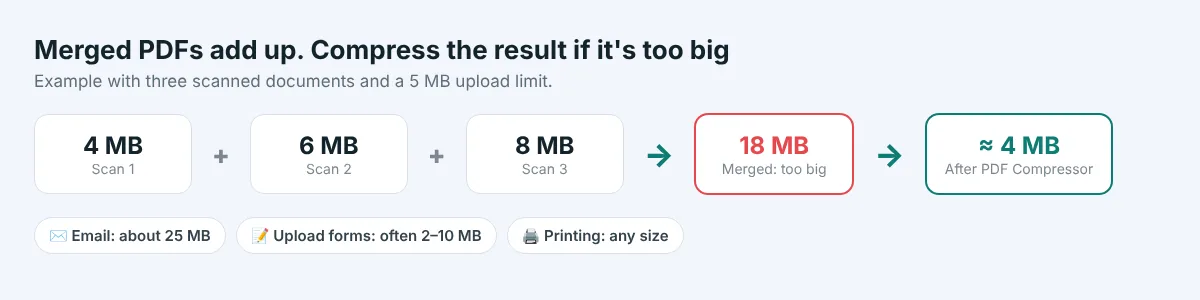
- Merge first, then compress. Run the combined file through our PDF Compressor. PDFs full of scanned pages and photos often shrink by more than half, while text-only PDFs are usually small already.
- Remove what is not needed. Blank pages, duplicate scans and full-colour pages that could be black and white all add weight. PDF to Black and White helps with scanned text documents.
- Scan at a sensible resolution. For documents, 150 to 200 dpi is plenty. Scanning at 600 dpi makes files huge without making them easier to read.
- Split if you must. If a portal allows several uploads, use PDF Split to break a big file into logical parts.
Our guide on how to compress a PDF without losing quality explains every compression setting in detail.
Locked and password-protected PDFs
Some PDFs are protected with a password. Bank statements, payslips and official letters are common examples. A PDF that needs a password just to open it cannot be merged until the protection is removed, because the merging tool cannot read its pages.
If it is your own document and you know the password, use Unlock PDF to save an unprotected copy, then merge that copy. If the combined file contains sensitive information, you can add a new password to the final result with Protect PDF. Only unlock documents you are allowed to open; removing protection from someone else's file without permission is not acceptable.
Fillable forms and signed documents
Many official documents are fillable PDF forms: you type your answers into boxes and sometimes add a signature. These deserve a little extra care when you combine them with other files.
- Fill in and save the form first. Complete every field, sign where needed and save the form before merging, so your answers are part of the file.
- Flatten it for safety. When two merged forms contain fields with the same names, the answers can sometimes interfere with each other, and some viewers show filled fields differently. Running the completed form through Flatten PDF turns the answers into ordinary page content, so they look the same everywhere and cannot be changed by accident.
- Check signatures after merging. A drawn or typed signature is part of the page and stays visible. A certified digital signature, the kind that proves a document has not changed, is different: any edit, including merging, creates a new file, so the original certification no longer applies to it. If a document must keep its certified signature, send it as a separate file.
Need to sign something before merging? Our Edit PDF tool lets you add text, ticks and a signature directly in your browser.
Merging a lot of files, and printing the result
Free merging handles up to 20 PDFs at once, which covers most applications and claims. For larger collections, such as a year of monthly statements or receipts, merge them in groups, for example January to June and July to December, then merge those two results into one final file. Paid plans raise the limit to as many as 50 files per job.
If you plan to print the merged document double-sided, think about where each document starts. A document with an odd number of pages will make the next one begin on the back of its last sheet. For a neat printed bundle where every document starts on a fresh sheet, add a blank page at the end of any odd-length document before merging, or print each part separately. For on-screen reading, this does not matter at all.
Common problems and how to fix them
| Problem | Likely cause | Fix |
|---|---|---|
| Pages are in the wrong order | Files were added in a different order | Drag them into order before merging, or rearrange pages afterwards with Organize PDF |
| "Add at least two PDFs to merge" | Only one file was added | Add all the files you want to combine before clicking Merge PDFs |
| One file is refused or the merge fails | The file is password-protected or damaged | Unlock it first, or open and re-save it in a PDF reader |
| Merged file is too big to send | Scans and photos add up | Compress the merged PDF, remove extra pages, or split it |
| A page is sideways or upside down | It was scanned that way | Fix it with Rotate PDF, before or after merging |
| The table of contents (bookmarks) is missing | Bookmarks from separate files are usually not carried over | Readers can still scroll and search; if bookmarks are essential, add them in a PDF editor |
Good habits for professional-looking documents
- Use a clear file name with your name and the purpose, such as Lopez_Ana_Visa_Supporting_Documents.pdf. Avoid names like merged (3) final FINAL.pdf.
- Check every page once before sending: open the merged PDF and scroll through to the end. It takes a minute and catches missing or duplicated pages.
- Keep the page size consistent where possible. Mixed A4 and Letter pages are fine, but a tiny photo next to full-size pages looks odd. Resize PDF can fit every page onto one paper size.
- Keep the separate originals. If a reviewer asks for one document again, you can send it on its own without splitting the merged file.
Is it safe to merge PDFs online?
The documents people merge are often personal: IDs, payslips, medical records, contracts. On AllFreeConvert, files are uploaded over an encrypted connection and processed on our own server; they are never passed to other companies. The uploads are deleted as soon as the merge is finished, and the merged PDF is deleted automatically after 8 hours. Nobody reads your documents. You can find the details on our Security and Privacy pages.
For highly confidential files, you can also use the offline methods above, such as Preview on a Mac or the Files app on an iPhone, so the documents never leave your device.
Quick checklist before you send
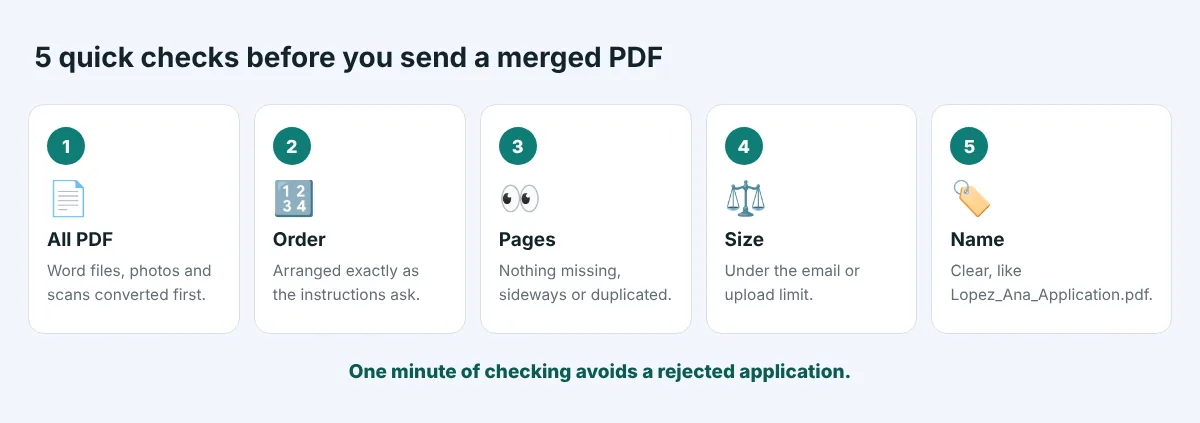
- All PDF: Word files, photos and scans converted to PDF first.
- Order: files arranged as the instructions ask.
- Pages: nothing missing, sideways or duplicated.
- Size: under the email or upload limit; compress if needed.
- Name: a clear file name with your name and the purpose.
The bottom line
Combining PDF files into one is quick, free and lossless: the pages are copied exactly, so your documents look the same as before, just neatly together in a single file. Convert anything that is not a PDF first, arrange the files in the right order, merge, then check the result and compress it if it is too big for where it is going.
On any device, an online tool is the fastest route. Mac users can use Preview, iPhone users can use the Files app, and Windows users can choose between an online tool and a free desktop program. Whichever you choose, finish with a clear file name and a quick scroll through the pages, and your application, claim or report will arrive complete and professional.
Free PDF merging for up to 20 files at a time. Drag to reorder, download one PDF, no sign-up.
Frequently asked questions
How do I combine PDF files into one for free?
Open the free PDF Merge tool, add your PDFs, drag them into the order you want and click Merge PDFs. You get one combined PDF to download. It works in any browser on Windows, Mac, iPhone and Android, with no account needed.
Does merging PDFs reduce quality?
No. The pages are copied exactly as they are, so text, images and links look the same as in the original files. Only compressing the file afterwards changes image quality, and only if you choose to.
How do I combine PDFs on an iPhone?
In the Files app, tap Select, choose the PDFs, tap the three-dot button and choose Create PDF. Or open the PDF Merge page in Safari, add the files in order and tap Merge PDFs.
Can I merge PDFs with Word documents or photos?
Yes, but convert them to PDF first. Use DOCX to PDF for Word files and JPG to PDF or HEIC to PDF for photos, then merge all the PDFs together.
Why can I not merge a password-protected PDF?
A PDF that needs a password to open cannot be read by the merging tool. If it is your document and you know the password, save an unlocked copy with Unlock PDF, merge it, and protect the final file again if needed.
My merged PDF is too big. What can I do?
Run it through the PDF Compressor, which usually shrinks scanned documents by half or more. You can also remove blank or duplicate pages, or split the file into parts if the portal allows several uploads.